Using a bad file hosting service is just frustrating nowadays. You absolutely need to get it right, because it’s your basis for so much work.
I’ve tested dozens of cloud storage providers over the past five years, managing everything from small freelance projects to enterprise deployments with hundreds of users. Some nail sync speed, others lead on privacy and a handful offer free storage that isn’t just a teaser tier.
This guide covers the services I kept coming back to after testing and explains exactly which type of user each one actually suits. I will tell you which ones I would pay for again and which ones I would only recommend in specific situations.
My Top File Hosting Services
Here are the file hosting providers that worked best working with clients and on personal projects.
1. Google Drive (Best Overall)
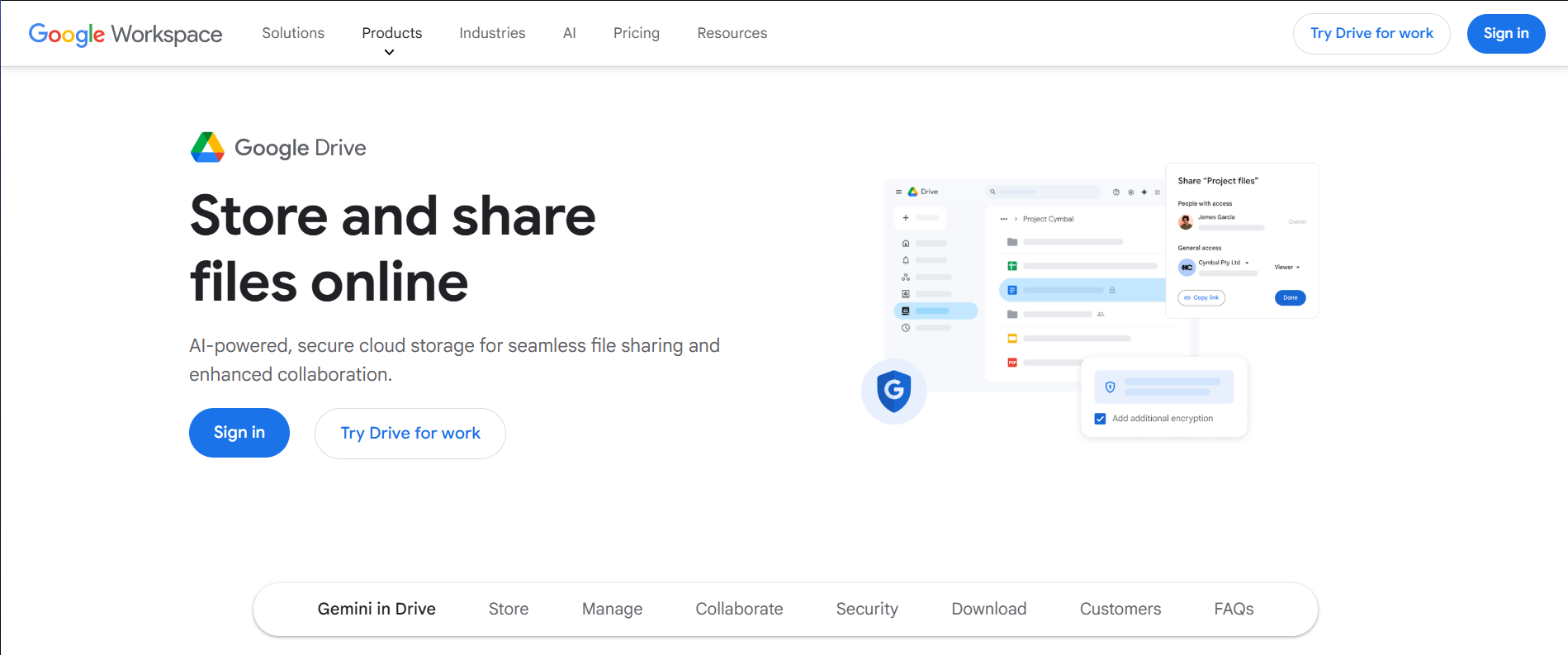
Google Drive earns its top spot not through any single standout feature but because almost nothing about it is broken. You get 15 GB of free cloud storage shared across Gmail and Google Photos, and you can open everything in web browsers and mobile apps.
Where it really pulls ahead is inside Docs and Sheets. Commenting, suggesting edits and version history all help you do better work faster and easier. You can create shared drives for teams, set granular permissions and use advanced search to find files across large storage volumes.
The desktop app has never once lost a file on me and offline mode on mobile has saved me during more than one patchy hotel connection.
I have managed client projects using Google Drive’s shared folders for three years. Client feedback stays threaded in the document itself, version history has bailed me out more than once and expiring share links mean I’m not chasing down stale access months later.
If you are not sure where to start, start here. Only switch when you hit a specific limitation it cannot solve.
 Deep Google Workspace integration and real-time collaboration in Docs/Sheets/Slides
- Powerful search and file discovery for large workspaces
- Flexible sharing with role-based permissions and link expiry options
- Mature apps on web, desktop and mobile with solid uptime
 Folder sprawl and permission complexity can be an issue in large teams
- Storage: 4.7
- Speed: 4.6
- Security: 4.3
- Pricing: 4.8
2. Dropbox (Best for Fast Sync)
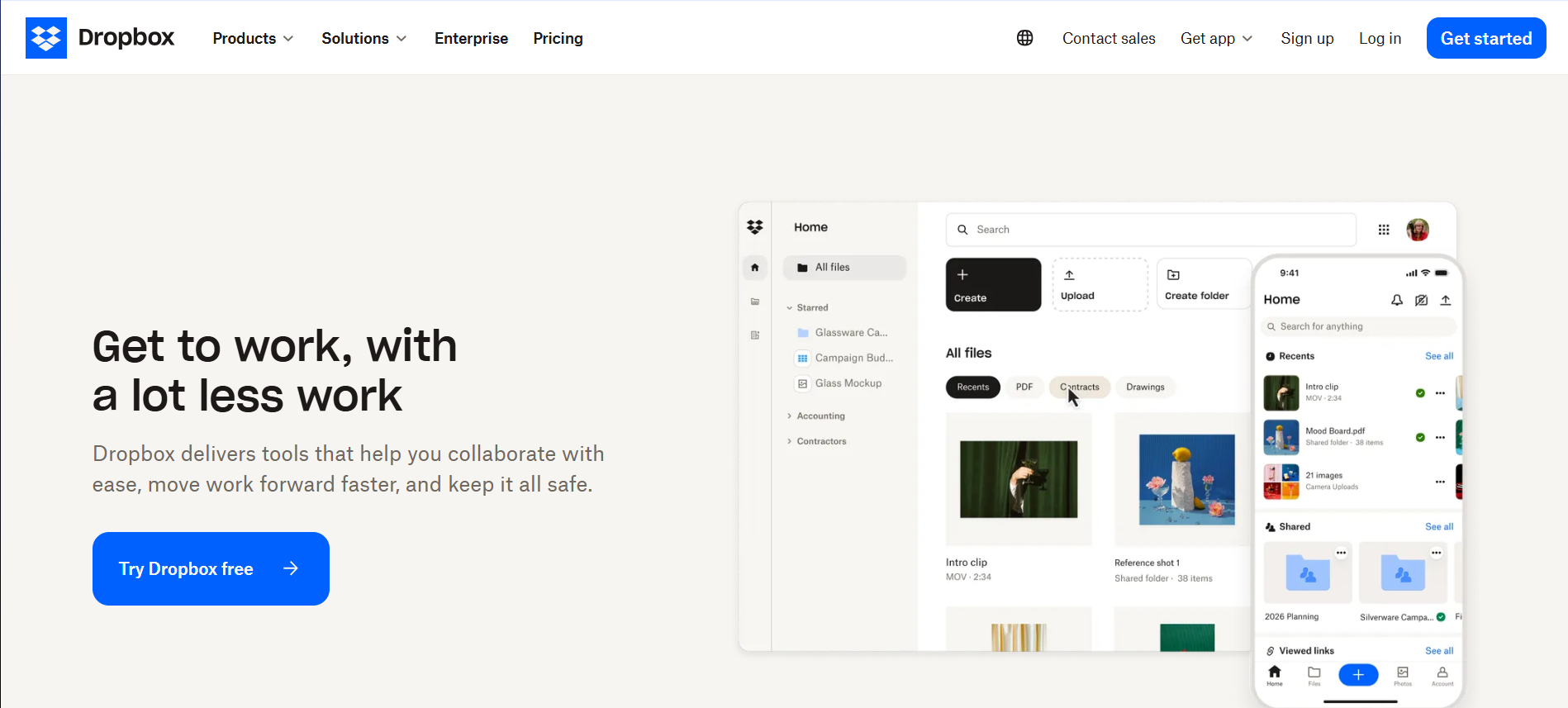
Dropbox does one thing better than anyone else and that thing is sync. If that is your bottleneck it is worth the premium. Years after everyone else copied its model, Dropbox still wins on raw sync reliability.
Smart Sync is the feature I miss most on other services. Your full folder tree stays visible but nothing downloads until you actually open it. Shared folders update in real-time and the platform handles file conflicts intelligently. File requests let you collect documents from clients without giving them folder access.
On video projects with 4K footage spread across two editing machines, Dropbox is the only service where I have never had a conflict mid-project. The LAN sync feature speeds transfers between local devices.
I have recovered from more than one late-night panic because Dropbox kept a clean copy from three weeks prior.
- Very fast and reliable sync engine with real-time updates
- Smart Sync/online-only files to save local disk space
- Simple, predictable sharing model and solid version control
- Storage can be pricier than some competitors at equivalent capacities
- Storage: 4.2
- Speed: 4.9
- Security: 4.5
- Pricing: 4.1
3. Microsoft OneDrive (Best for Microsoft 365 Users)
OneDrive integrates with Microsoft 365 subscriptions, offering generous storage space and seamless collaboration within Office apps. Users already invested in the Microsoft ecosystem will benefit most from this choice.
The service provides deep integration with Word, Excel and PowerPoint, enabling real-time co-authoring and automatic saving. Files On-Demand keeps your local storage clean while maintaining access to your complete file library. Organizations will find SharePoint-backed team libraries useful for enterprise-grade sharing and permissions.
I manage documentation workflows using OneDrive’s integration with Microsoft Teams and SharePoint. Editing Word documents across my laptop, tablet and phone works flawlessly, with changes syncing almost immediately.
- Bundled generous storage with many Microsoft 365 subscriptions
- Smooth in-app saving and real-time co-authoring for Office documents
- Files On-Demand and selective sync to reduce local disk usage
- Complex sharing and admin options can confuse less technical users
- Storage: 4.6
- Speed: 4.4
- Security: 4.5
- Pricing: 4.7
4. iCloud Drive (Best for Apple Ecosystem)
iCloud Drive provides seamless file access across Apple devices with automatic syncing of Desktop and Documents folders on macOS. Users fully invested in iPhone, iPad and Mac hardware get unmatched integration and continuity features.
The service automatically syncs your Desktop and Documents folders across all Macs, making file access transparent. iCloud Drive folders appear in Finder and Files app, integrating naturally with Apple’s workflow. Family sharing lets you share storage space and collaborate on documents using Pages, Numbers and Keynote.
I rely on iCloud Drive for my photography workflow, with RAW files automatically available across my MacBook and iPad Pro. The Handoff feature lets me start editing on one device and continue on another, so I don’t have to send files manually. Desktop sync means my project files follow me between workstations.
- Deep integration with Apple devices and built-in apps
- Automatic syncing of Desktop and Documents on macOS for easy continuity
- Simple interface and competitive pricing at lower storage tiers
- Web experience and Windows support are weaker than Apple-native usage
- Storage: 4.4
- Speed: 4.3
- Security: 4.2
- Pricing: 4.6
5. pCloud (Best for Media)
pCloud is the only mainstream service where you pay once and genuinely never think about it again. The service includes built-in media streaming and optional zero-knowledge encryption for those who value privacy.
Being able to stream a full video file without downloading it first sounds minor until you are on a slow connection with a client waiting. pCloud Crypto adds client-side encryption for sensitive documents, though it requires a separate subscription.
I bought the lifetime plan two years ago and the math already works out compared to any monthly subscription. The streaming feature works well for accessing music and video collections from any device. File versioning helped recover an accidentally overwritten design file and the EU data centers provide geographic diversity for backup redundancy.
- Eliminate recurring fees with a one-time lifetime purchase
- Built-in audio/video streaming from the cloud
- Optional zero-knowledge encryption via pCloud Crypto for sensitive content
- Crypto add-on costs extra and can limit certain sharing convenience
- Storage: 4.5
- Speed: 4.3
- Security: 4.2
- Pricing: 4.6
6. Sync.com (Best for Privacy)
Sync.com is the only service here where even the company running it cannot read your files. That is not a marketing claim, it is the architecture. If your businesss handles regulated data, you’ll appreciate the GDPR and HIPAA compliance features.
Anything I would be uncomfortable emailing goes into Sync.com. Contracts, invoices and anything with a client’s personal details. I feel particularly confident when sending encrypted sharing links to sensitive files to clients, and the audit logs help track file access for compliance reporting.
- Full client-side encryption and zero-knowledge design for all files
- Strong sharing controls, including encrypted links and 2FA
- Operates under Canadian privacy laws, which are stricter than many regions
- No native online office suite; collaboration is more limited than Google/Microsoft
- Storage: 4.1
- Speed: 4.3
- Security: 5.0
- Pricing: 4.3
7. Box (Best for Compliance)

Box provides enterprise-grade file hosting with advanced governance features, audit logs and compliance certifications required by regulated industries. Large organizations get granular control over data protection and user access.
The platform offers detailed admin controls, legal hold capabilities and integration with enterprise security systems. Box Governance provides retention policies, automated disposition and eDiscovery features. Extensive API access enables custom integrations with line-of-business applications.
I implemented Box for a healthcare client requiring HIPAA compliance and detailed audit trails. The granular permission system lets administrators control access down to individual files and the activity monitoring provides complete visibility into data usage. Workflow automation reduced manual approval processes for document reviews.
- Rich governance and compliance features for regulated industries
- Fine-grained access control and detailed audit trails
- Broad integrations with productivity and line-of-business apps, like Asana and Trello
- Complexity and pricing make it excessive for solo users and small teams
- Storage: 4.7
- Speed: 4.2
- Security: 4.9
- Pricing: 3.8
8. Mega (Best for Free Storage)
Mega provides 20 GB of permanent free storage with end-to-end encryption, making it attractive for users who need secure file hosting without ongoing costs. The service emphasizes privacy and offers unlimited file transfers on paid plans.
Large file transfers work reliably and the service handles huge files without arbitrary size limitations. Secure link sharing includes password protection and expiration dates for controlled access.
I use Mega as a secondary backup for large media files and one-off transfers. The 20 GB free storage accommodates substantial archives and the encryption gives me confidence for sensitive backups. Download links work reliably for sharing large zip files with clients who need temporary access.
- One of the largest always-free storage allocations among mainstream providers
- End-to-end, zero-knowledge encryption for stored data
- Instant large file sharing via secure, password-protected links
- Collaboration and productivity features lag behind Google/Microsoft ecosystems
- Storage: 5.0
- Speed: 4.2
- Security: 4.7
- Pricing: 4.6
9. Amazon S3 (Best for Developers)
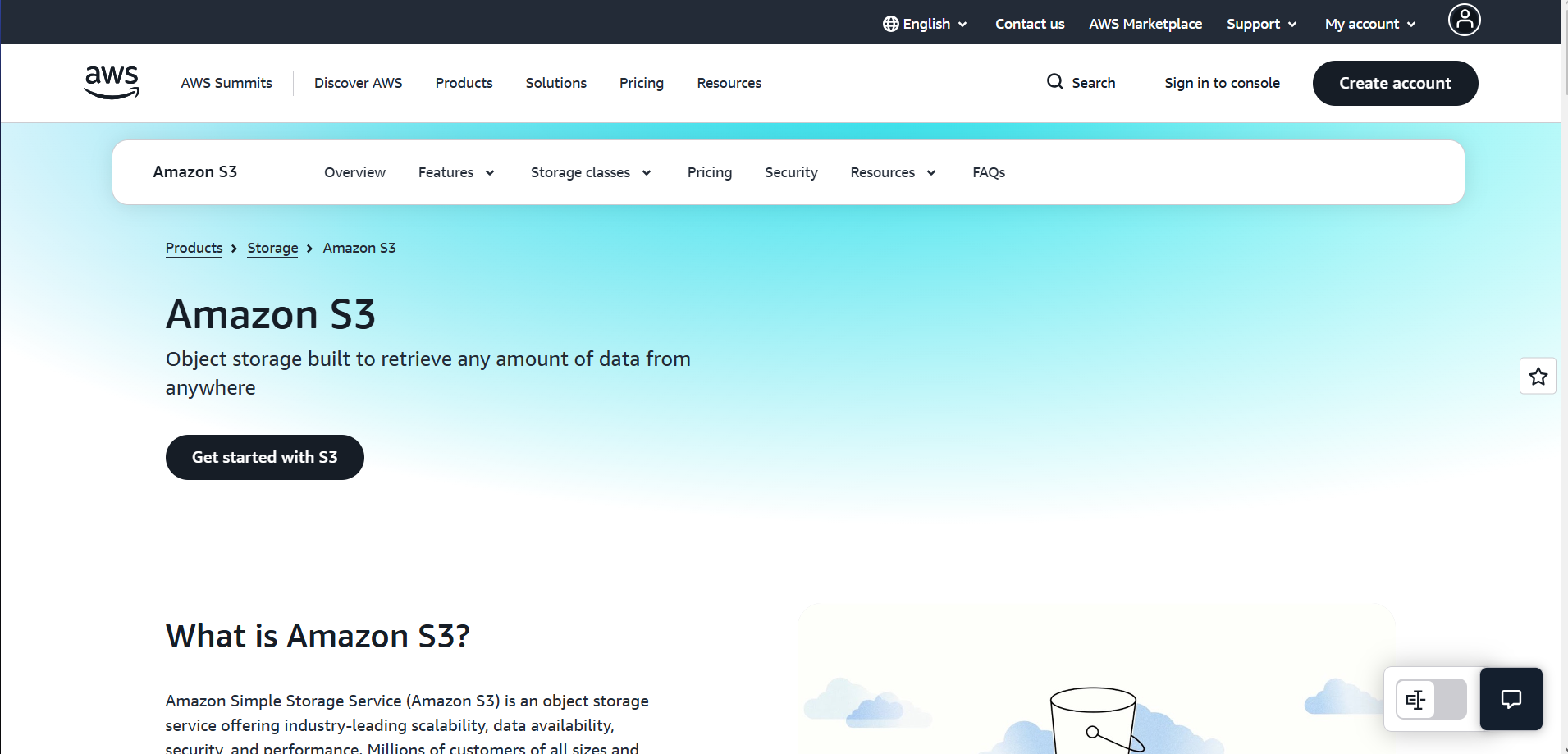
Amazon S3 provides object storage with fine-grained access control and integration with the broader AWS ecosystem. Developers and technical teams get precise control over storage classes, lifecycle policies and data durability.
The service organizes files in buckets with detailed IAM-based permissions. Multiple storage classes optimize costs for different access patterns, from frequently accessed data to long-term archival. API access enables custom applications and automated workflows.
I use S3 for static website assets and automated backup systems. The lifecycle rules automatically move older files to cheaper storage tiers, reducing costs for large archives. Integration with CloudFront provides global content distribution and the detailed access logs help monitor usage patterns.
- Extremely durable, scalable object storage with multiple redundancy options
- Detailed control over access, encryption and lifecycle policies via APIs
- Integrates deeply with the wider AWS ecosystem and tooling
- Pricing model and configuration are complex; not a plug-and-play “drive”
- Storage: 4.8
- Speed: 4.5
- Security: 4.8
- Pricing: 3.9
How We Tested File Hosting Services
I evaluated these cloud storage services through real-world usage across multiple scenarios to understand practical performance and reliability.
File Sync and Everyday Workflow
The testing included shared folders with multiple users making simultaneous edits to measure real-time collaboration performance. I also evaluated file restoration from version history and trash recovery to understand data protection capabilities.
Performance and Large File Handling
Upload and download testing used files ranging from small documents to multi-gigabyte video files. I measured transfer speeds on both fast fiber and typical broadband connections to understand real-world performance.
Security, Privacy and Support
I evaluated encryption standards, including end-to-end encryption availability and zero-knowledge options. Two-factor authentication setup and granular permission controls were tested. Support quality was assessed through actual help requests.
“In many cases, the cloud is much, much more secure than the on-premise environment. Especially for small and medium-sized businesses where you can’t afford to buy something, but you can rent a seat.” – Dr. Larry Ponemon, Founder and Chairman of the Ponemon Institute
Buyer’s Guide: How to Choose a File Hosting Service
1. Storage Needs and File Types
Calculate your current data volume and growth projections to avoid frequent plan changes. Consider whether you primarily store documents, media files, or mixed content, as some services optimize for specific file types.
For video editors, choose services with at least 1 TB storage and LAN sync feature. For document-heavy workflows prioritize collaboration features over raw storage space.
2. Collaboration and Sharing Needs
Evaluate your requirements for real-time co-editing, client-facing share links and team folder management. Some services excel at internal collaboration while others focus on external file sharing with password protection and expiration dates.
Consider whether you need commenting, approval workflows and integration with office apps for your specific use case.
3. Security, Privacy and Compliance
Determine if you need end-to-end encryption, zero-knowledge architecture, or specific compliance certifications. Client-side encryption provides maximum privacy but may limit some collaboration features.
Regulated industries often require HIPAA, SOC 2, or GDPR compliance, which narrows the field to enterprise-focused providers with proper certifications.
4. Backup, Versioning and Recovery
Assess how long you need to keep file versions and deleted files accessible. Some services offer unlimited version history while others limit retention periods.
Consider automated backup features and how easily you can recover from accidental deletions or file corruption. Point-in-time recovery capabilities matter for business-critical data.
5. Ecosystem and Integrations
Choose services that integrate well with your existing productivity tools and workflows. Google Drive works best with Google Workspace, while OneDrive integrates tightly with Microsoft 365.
Consider API availability if you need custom integrations or automation. Third-party app connections can extend functionality but may create vendor lock-in.
6. Pricing, Scalability and Limits
Compare total costs including storage, bandwidth and additional features across monthly and annual plans. Family plans often provide better value for households, while business plans include admin controls and compliance features.
Check file size limitations, bandwidth limits and how costs scale as your storage needs grow over time.
FAQs
1. What is a file hosting service?
A file hosting service is an online storage space where you can upload files and access them from multiple devices. These services typically include file syncing, sharing capabilities and backup features to protect your data in the cloud.
2. Is cloud storage safe for sensitive documents?
Cloud storage is safe for sensitive documents if you choose providers with proper encryption and security features. Look for services offering end-to-end encryption, two-factor authentication and compliance certifications relevant to your industry or region.
3. How do I send a 100 GB file?
To send a 100 GB file, use a cloud storage service that supports large file transfers, like Dropbox, pCloud, or Mega. Upload the file, create a sharing link and send the link to recipients who can download the file directly.
4. Can I use free file hosting for business files?
Yes, you can use free file hosting for business files, but free plans may lack security features, admin controls and compliance certifications required for business use. While acceptable for basic file sharing, businesses handling sensitive data should invest in paid plans with proper security and support features.
5. What is better than ShareFile?
Google Drive and Dropbox are better than ShareFile as they are modern alternatives, faster and more secure. Choose based on your specific security, collaboration and storage requirements.
Which Is the Best File Hosting Service?
Google Drive is still my first recommendation after all of this testing, but not because it tops every category. It wins because it never forces you to think about it. Files are there when you need them, sharing works the first time and nothing about the interface requires a learning curve.
If you handle sensitive client data, look at Sync.com before anything else. If sync speed is the bottleneck on your team, Dropbox is worth the extra cost. If you want to stop paying monthly fees for an archive that just needs to exist, pCloud’s lifetime plan makes more financial sense than any subscription after two years.
The 15 GB free tier on Google Drive is enough to start. Most people reading this will not need to go further than that.