
In 2025, the game of SEO has changed.
With advancements in AI, you can build AI SEO experts using code (not humans) to create content at a scale that was previously unachievable…
This case study reveals how my agency, The Search Initiative, leveraged AI to generate $491K in monthly revenue—and why every business should be thinking about AI-driven SEO today.
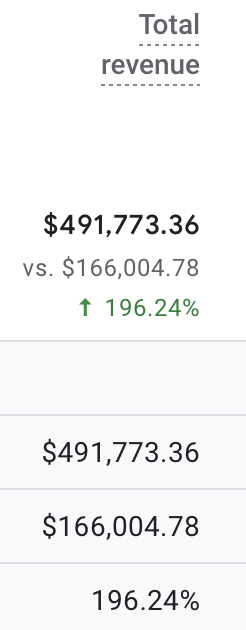
Our client’s monthly revenue from $166k to $491k.
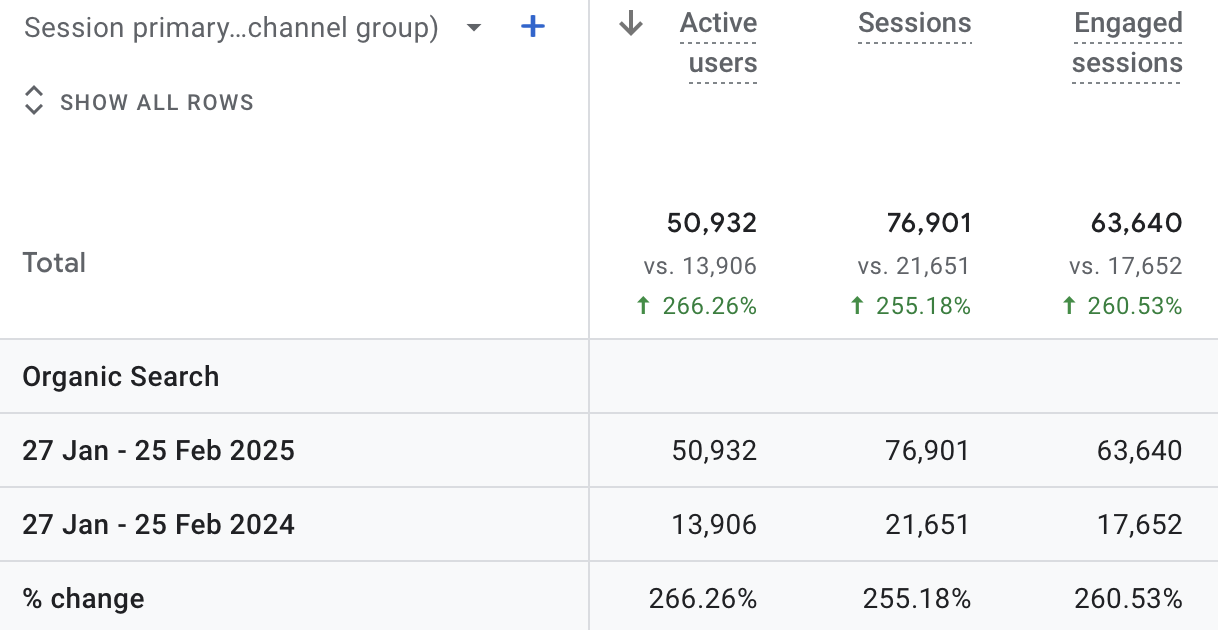
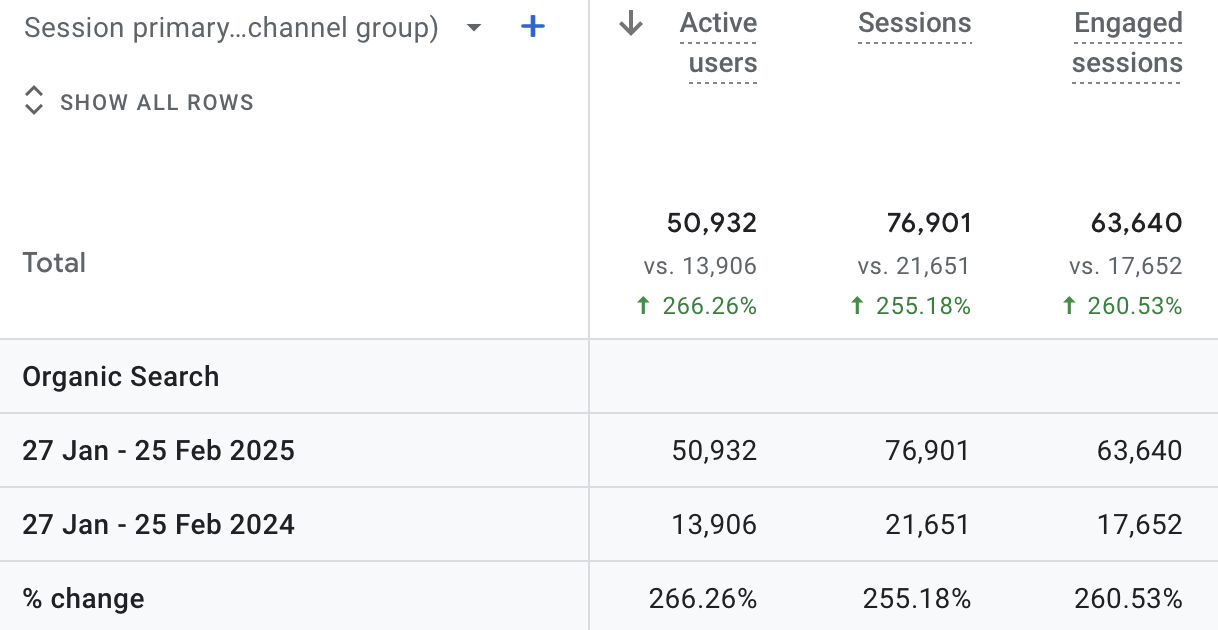
… And increased monthly organic traffic by 255% from 21.6k to 76.9k sessions per month.
In this case study, you’ll learn how to build an AI SEO genius that includes:
 A content system using Google Sheets, ChatGPT and Make.com (a no-code development and automation platform) that allows you to produce more high-quality content for supporting pages, at a lower cost, to boost your SEO results.
- Your very own automated metadata generator that drives organic traffic and conversions by producing SEO-optimized page titles, H1 headings, and meta descriptions at scale.
- An AI-driven link building strategy that quickly strengthens your credibility in Google’s eyes by securing high-quality backlinks from relevant publications
If you’d prefer to watch rather than read, I cover some of the key insights in this video.
To start, here’s some context about the site and why their site needed an SEO boost.
The Challenge
The client is an eCommerce company selling home interiors.
Performance was stagnant before joining The Search Initiative with the client hesitant to invest in SEO again after already investing tens of thousands of dollars with their previous agency who were unable to rank them for important product-related keywords.
Their products weren’t ranking for key search terms, and their content strategy wasn’t built for scale. We needed to expand the site’s visibility by creating new pages that targeted keywords our client was missing out on.

Failure to fix this meant lost revenue and stalled growth. But with a new approach, by scaling their content strategy through automation and executing an AI-powered link-building campaign, we helped them hit $491K per month increasing their revenue by 196% since when they first joined.
Here’s how we did it.
An AI-Powered Approach to Writing Content at Scale with Make.com
Bridging content gaps between your website and the competition is one of the most effective ways to grow your reach and rank for more keywords.
Covering key topics more comprehensively helps build your topical authority. This signals to search engines that your site is a trusted source of information within your niche—leading to higher rankings, more traffic, and increased visibility for your keywords.
By identifying keywords that you’re missing out on and producing content that is optimized for these terms, you’ll increase your chances of bringing your products or services to more eyes.
This can be quite time consuming, so what if you could do it with the help of AI and automation?
That’s exactly what I’ll show you, but it’s worth noting that this should ideally be done for supporting pages (i.e. blog content) and your important pages (i.e. product/service pages, homepage etc) should be handwritten.
This is because while Google doesn’t necessarily mind AI-written content (so long as it’s useful and helpful for your audience), the best content comes from humans. An AI can’t replicate your expertise, it can’t “create” or talk about your experiences.
So, let’s see how you can build this system for your supporting pages.
Finding Content Ideas with Ahrefs & Building Your Spreadsheet
Here’s how you can find supporting topics to cover on your website, by looking at keywords that your competitors are ranking for, but you aren’t.
For this, we’ll use Ahrefs’ Competitive Analysis tool.
Enter your domain, along with links to your competitors.
Let’s say my website sells fresh produce, and I wanted to expand the content by creating supporting recipe pages that showcase my products,
In this case, I’ll find the top ranking recipe sites so that I can find relevant recipe keywords and add them to Ahrefs’ Competitor Analysis tool.
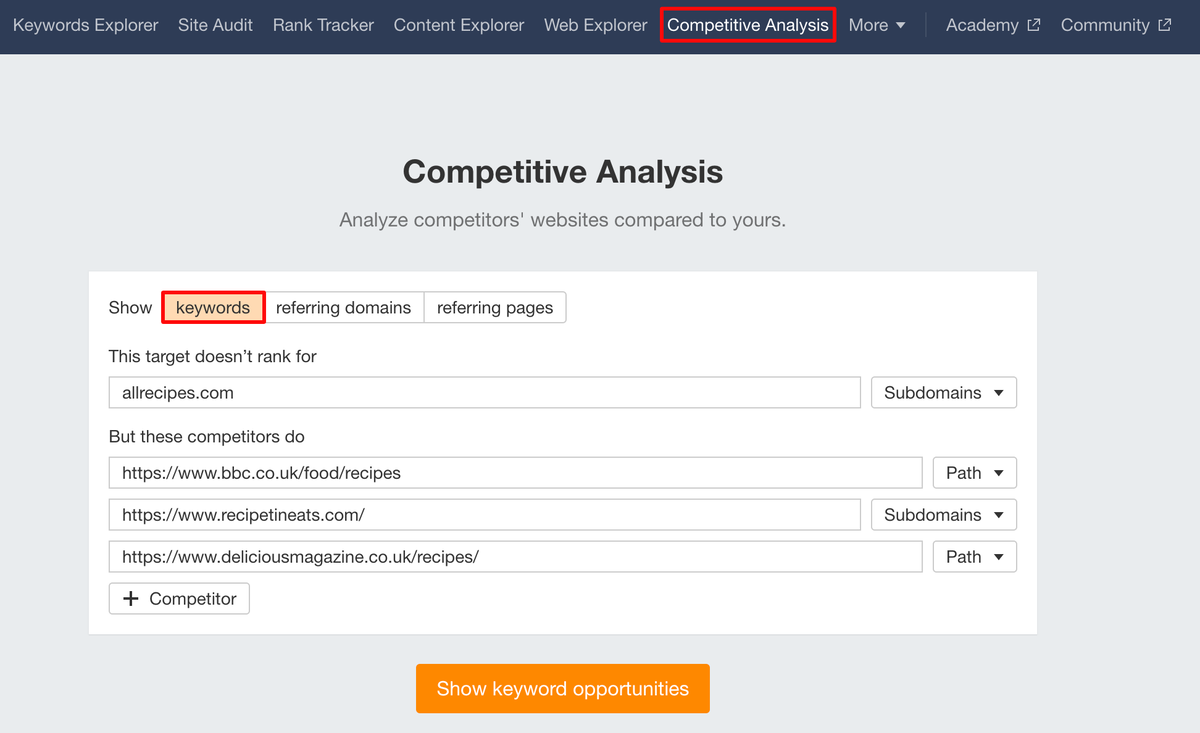
You can add up to 10 competitors.
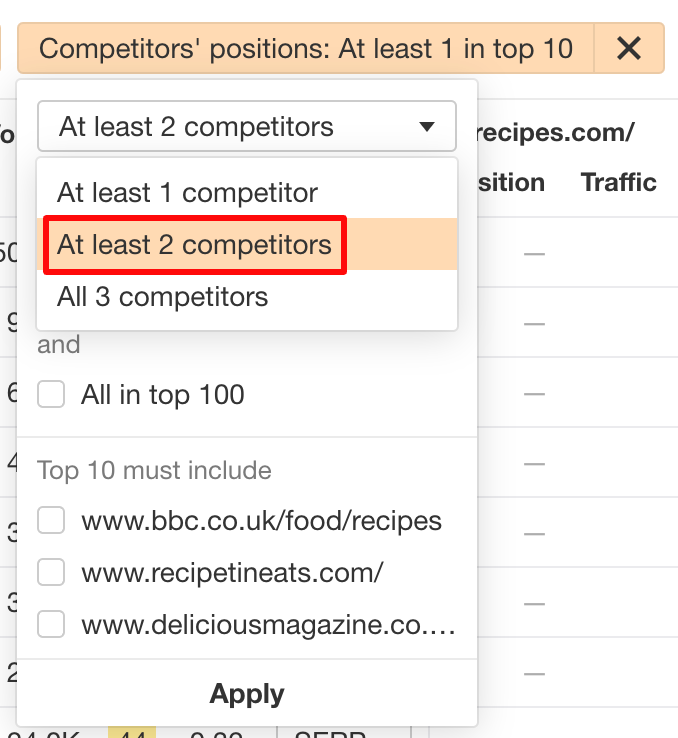
By default, the tool displays every single keyword that all of the competitors rank for, but you don’t. Note that some of these terms might not be relevant to your site.
Narrow down the search so that you only see keywords where at least more than one of the competitors is ranking for.
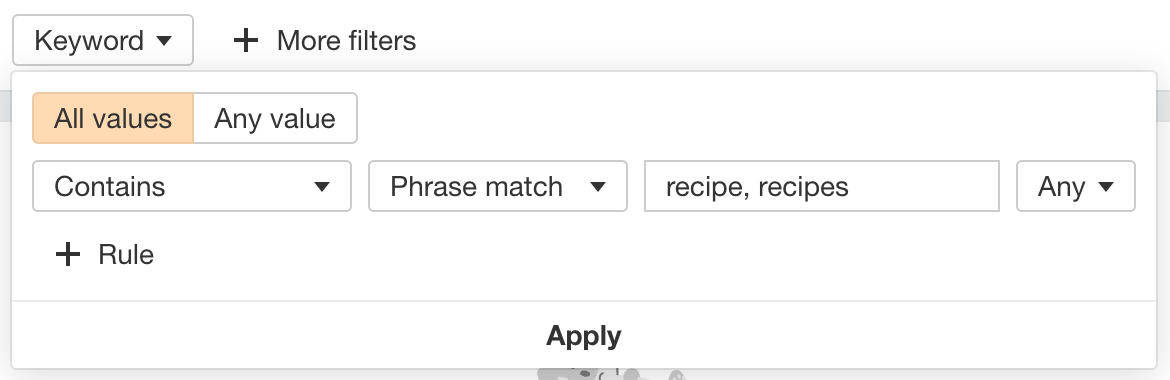
In my case, I only want to see which recipe pages I’m missing out on, so I’ve filtered the results even further so that they only include keywords that contain “recipe” or “recipes”.
Now you’ve got a list of relevant keywords that you’re missing out on.
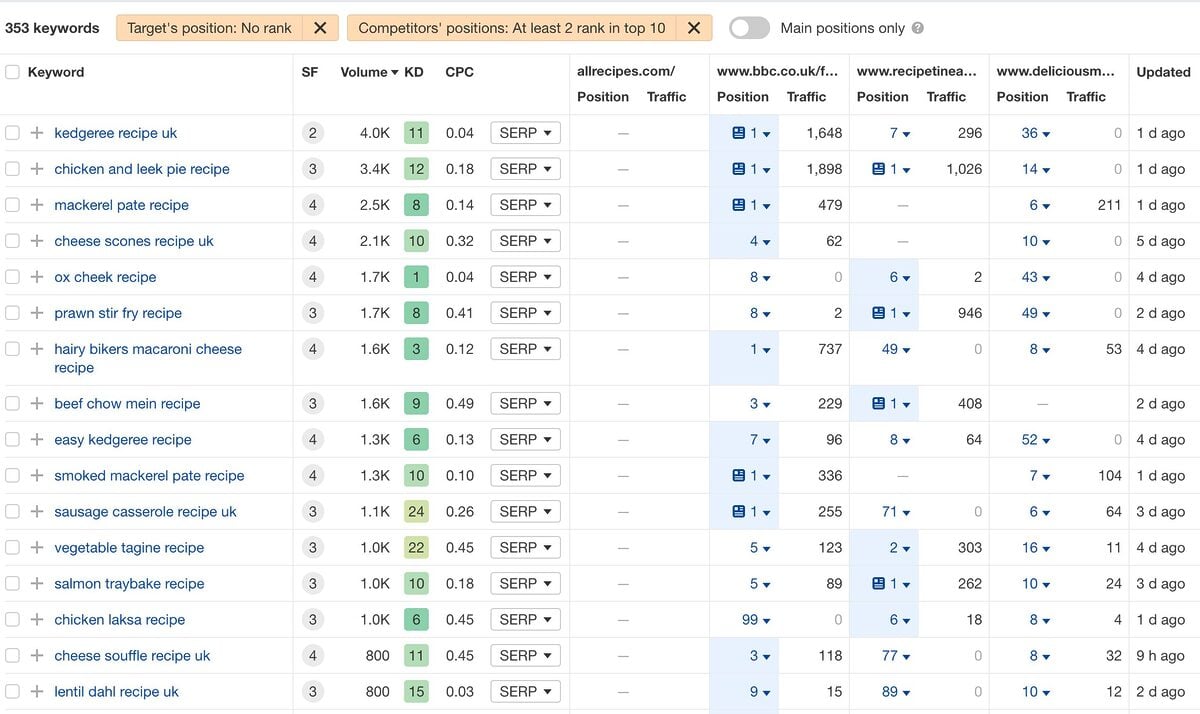
The next step is to identify any topics/keywords that are relevant to your site that you want to publish too.
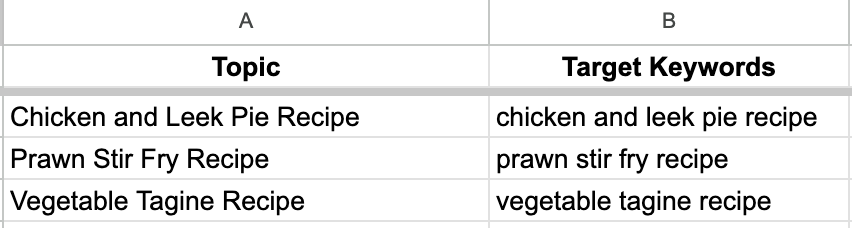
Create a spreadsheet (Google Sheets), which will house the relevant information used by the AI to create your content.
Your sheet should have the following columns:
 Column A: Topic – the topic / title that you want to cover.
- Column B: Target Keywords – the main keyword(s) that you want to rank for.
It should look something like this:
Now that you have a list of topics in your spreadsheet, here’s what you’ll need to start the automation:
- Make.com account (free or Pro) – it’s a platform that lets you connect apps like Google Sheets, Google Docs, ChatGPT (and many more) and automate workflows without needing to write code.By linking these tools to create automated processes that you can reuse again and again, you’ll be able to save significant amounts of time and effort.In this case, we’ll be using it to manage OpenAI’s LLM to create thousands of pages at scale.
- OpenAI account (plus or pro subscription required to use API)
Connecting Google Sheets to Make.com
- Create a new Scenario

- Give it a name i.e. “Content System”.

- Click on the Plus sign to add an app and search Google Sheets.
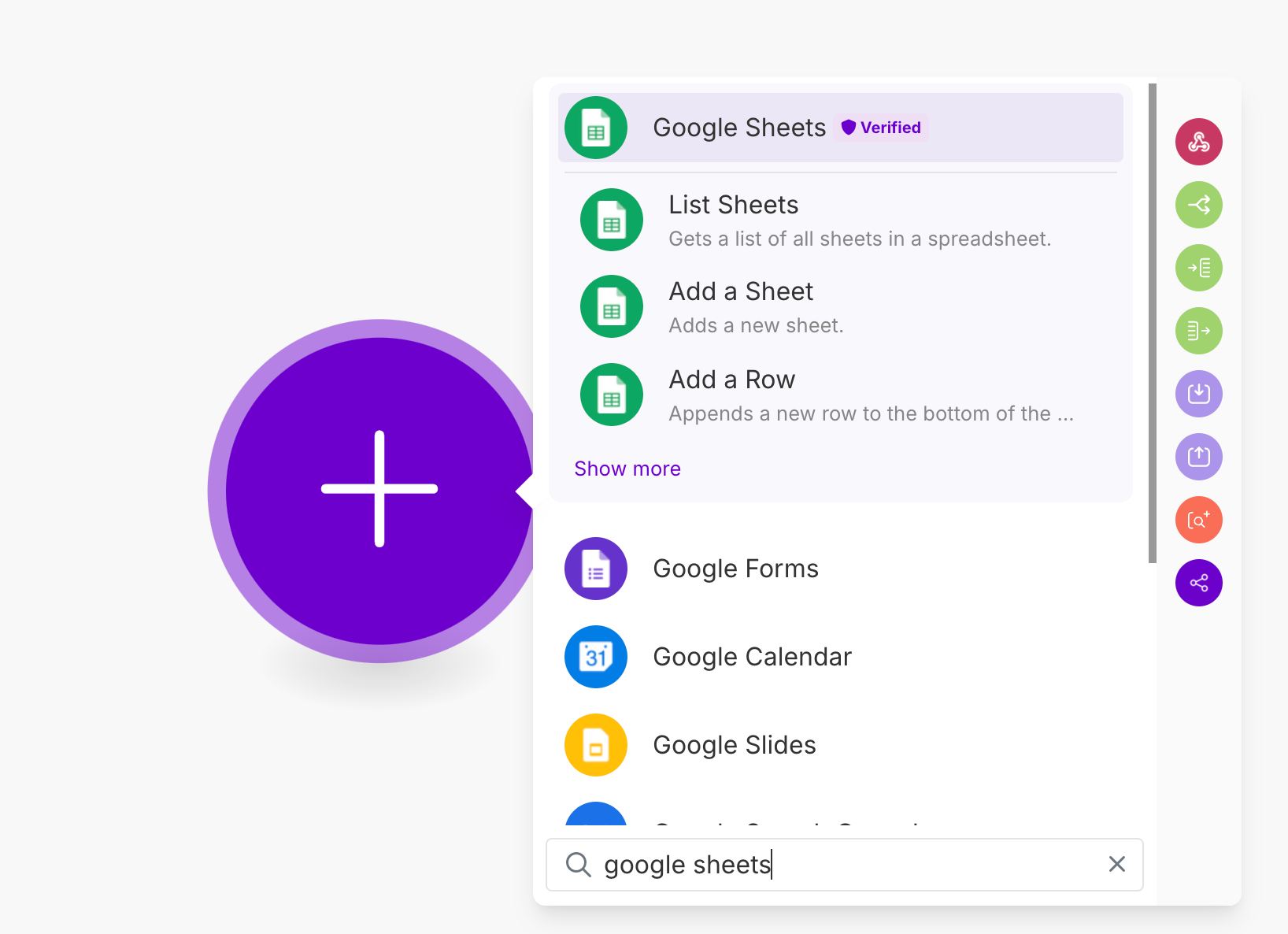
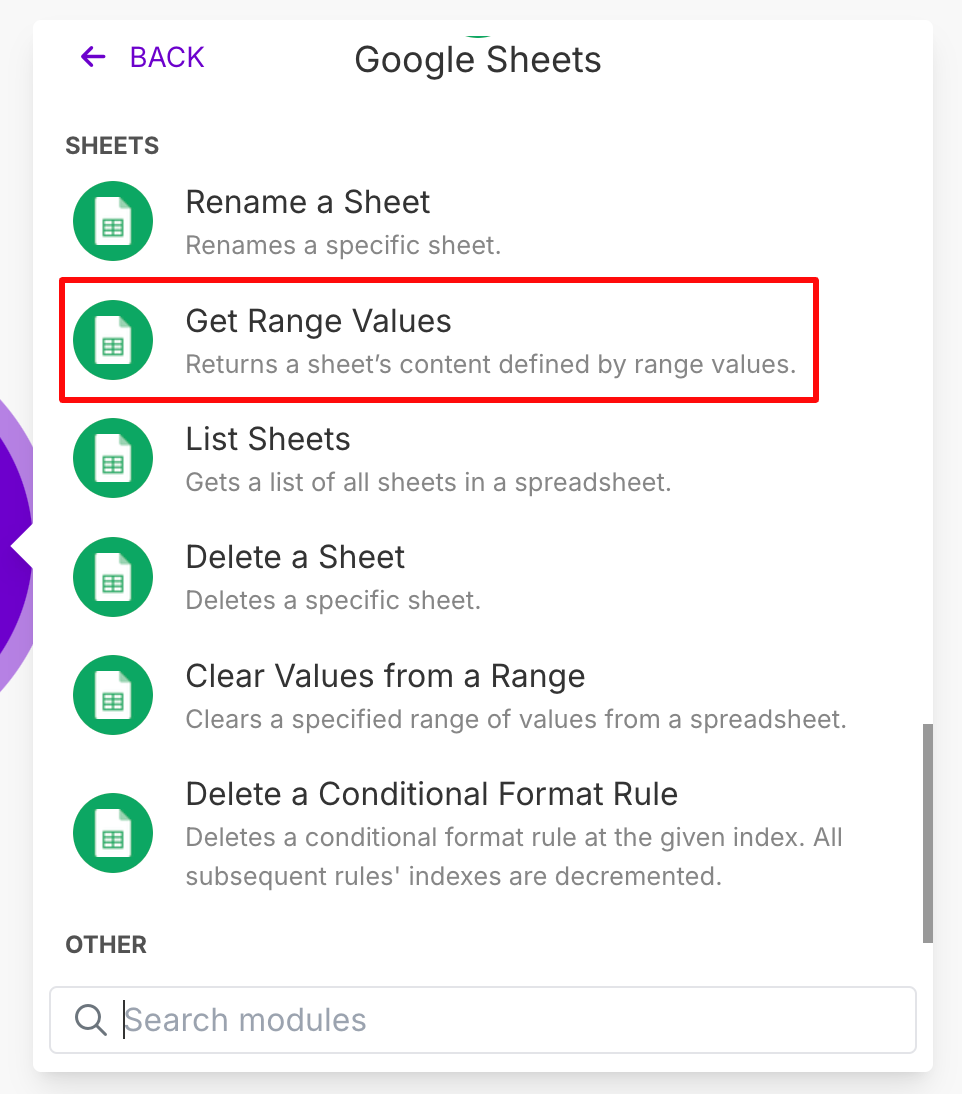
- Select “Get Range Values”. This is how the tool will know what information it should use in order to generate our metadata.
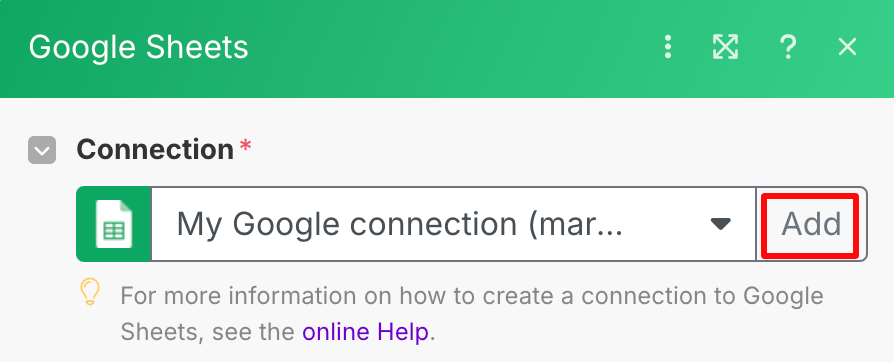
- Connect to your Google account by adding a connection.
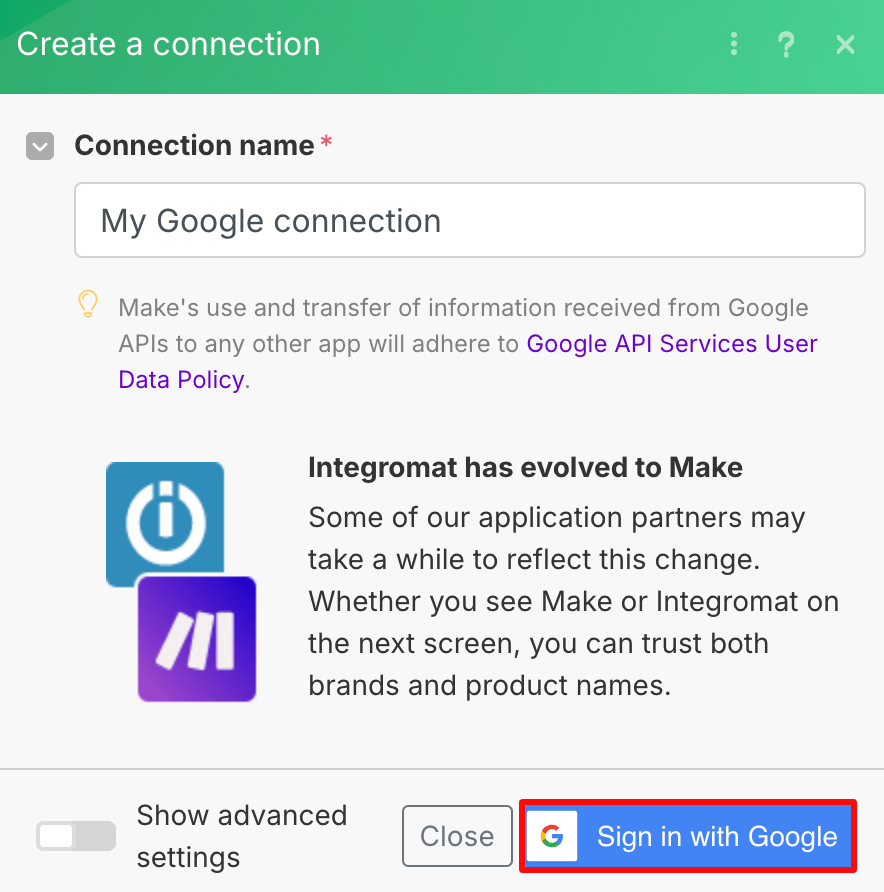
- Give it a name and follow the steps to Sign in with Google.
- Make sure:
 Search Method is set to “Search by Path”
- Drive is set to “My Drive”
- Spreadsheet ID is linked to the file where your sheet is saved in your Google Drive i.e. if it’s saved in the root folder, then the path would be “/ Your Spreedsheet Name”.
- Sheet Name is selected according to which sheet the information is saved on i.e. “Content”.

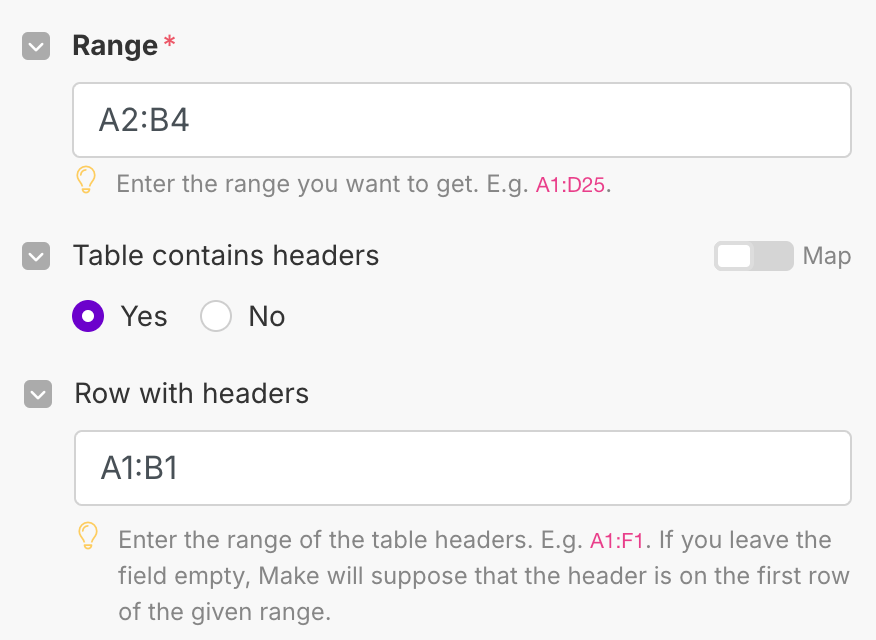
- For the Range, you want to give it the range of the cells whose data you want the tool to use.
This is the Topic and Target Keyword(s) that you want the AI to use when generating your content.

- For Table contains headers, select “Yes”, then enter the range for where the headers are. In my example, it’s “A1:B1”

- Click Save.
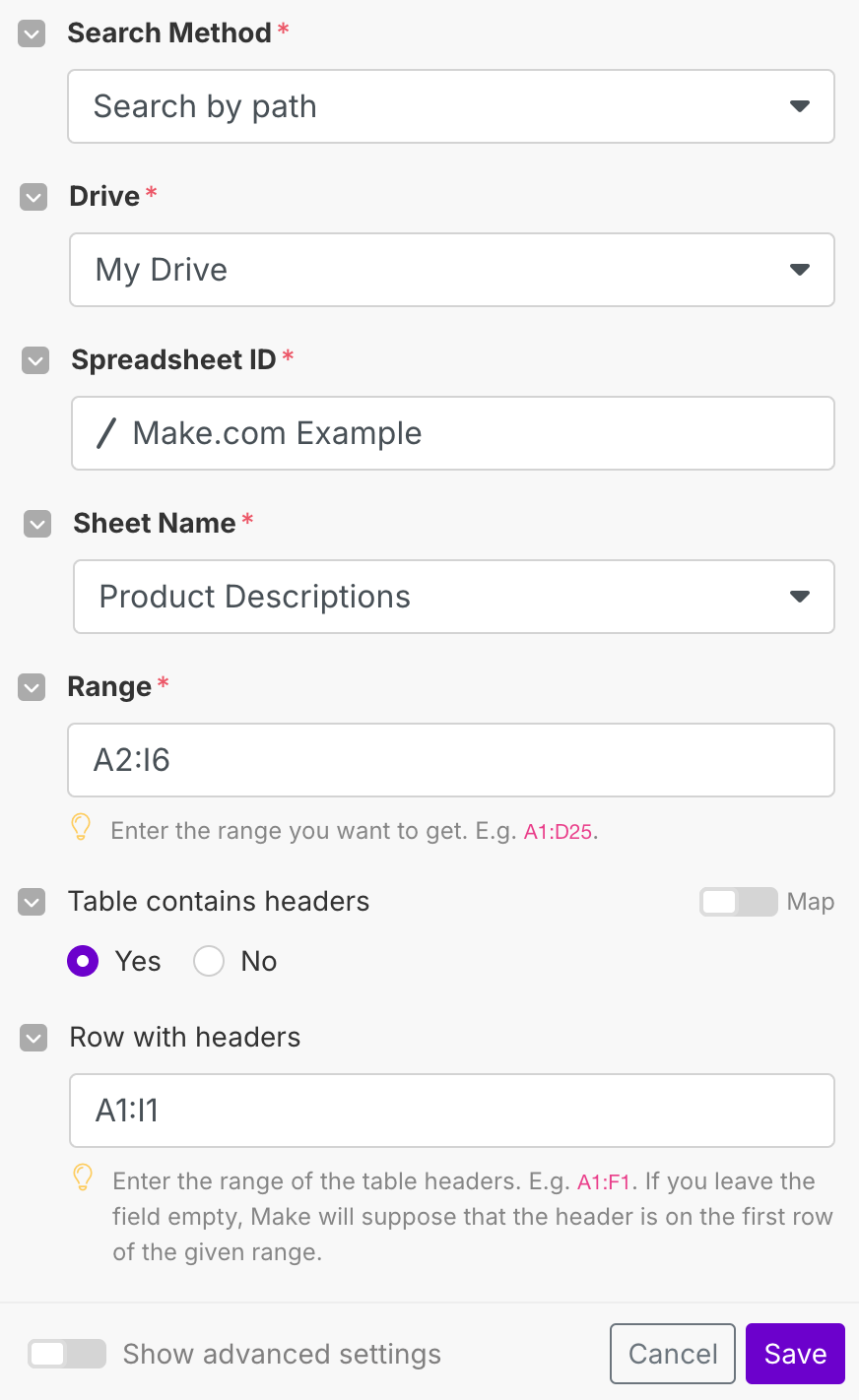
Your spreadsheet is now connected to Make.com.
Creating Your Content System with ChatGPT (OpenAI)
Now that the spreadsheet is connected, the next step is to add a new module for OpenAI so that you can connect it to ChatGPT.
- Click Add another module and search OpenAI.
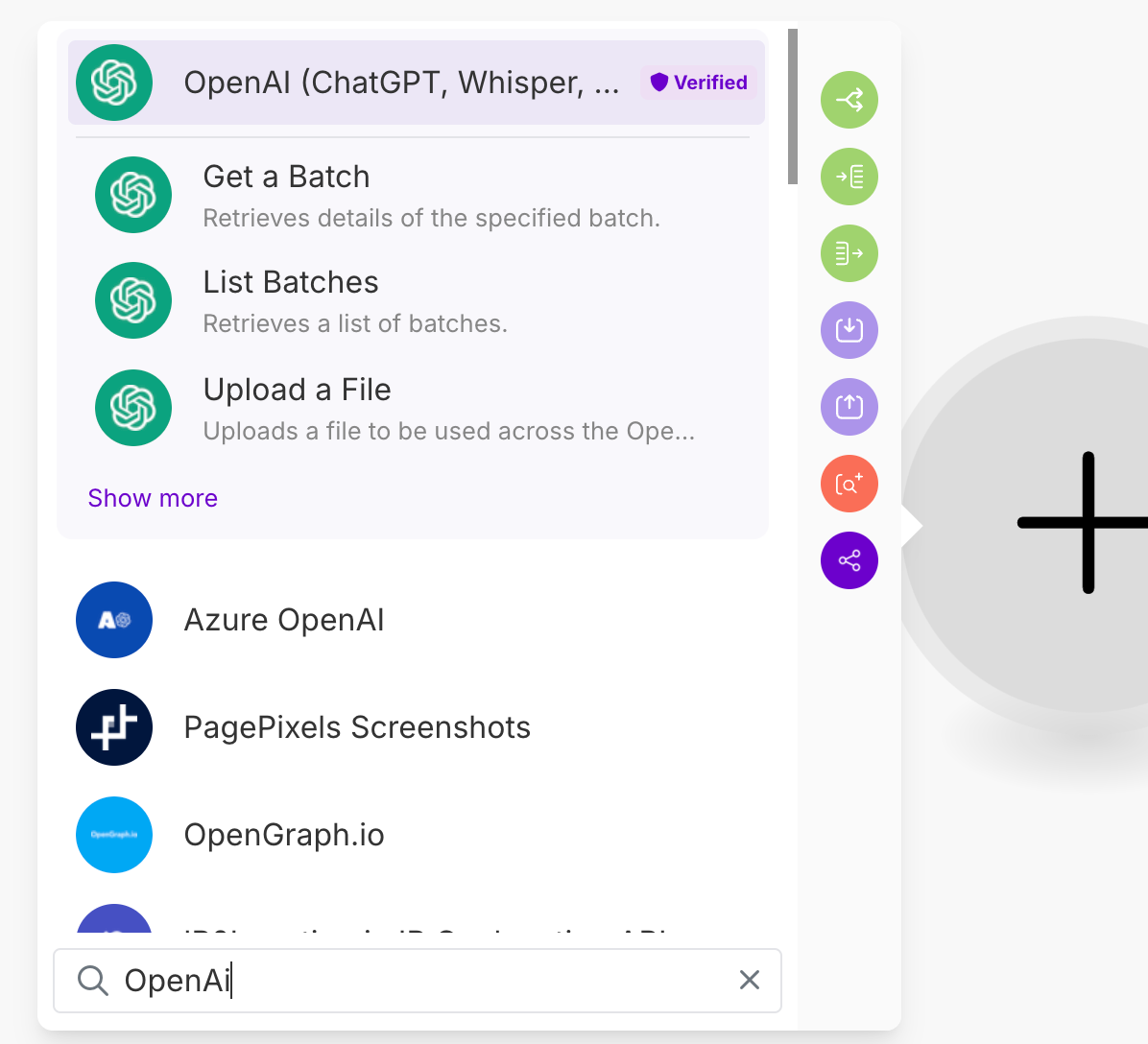
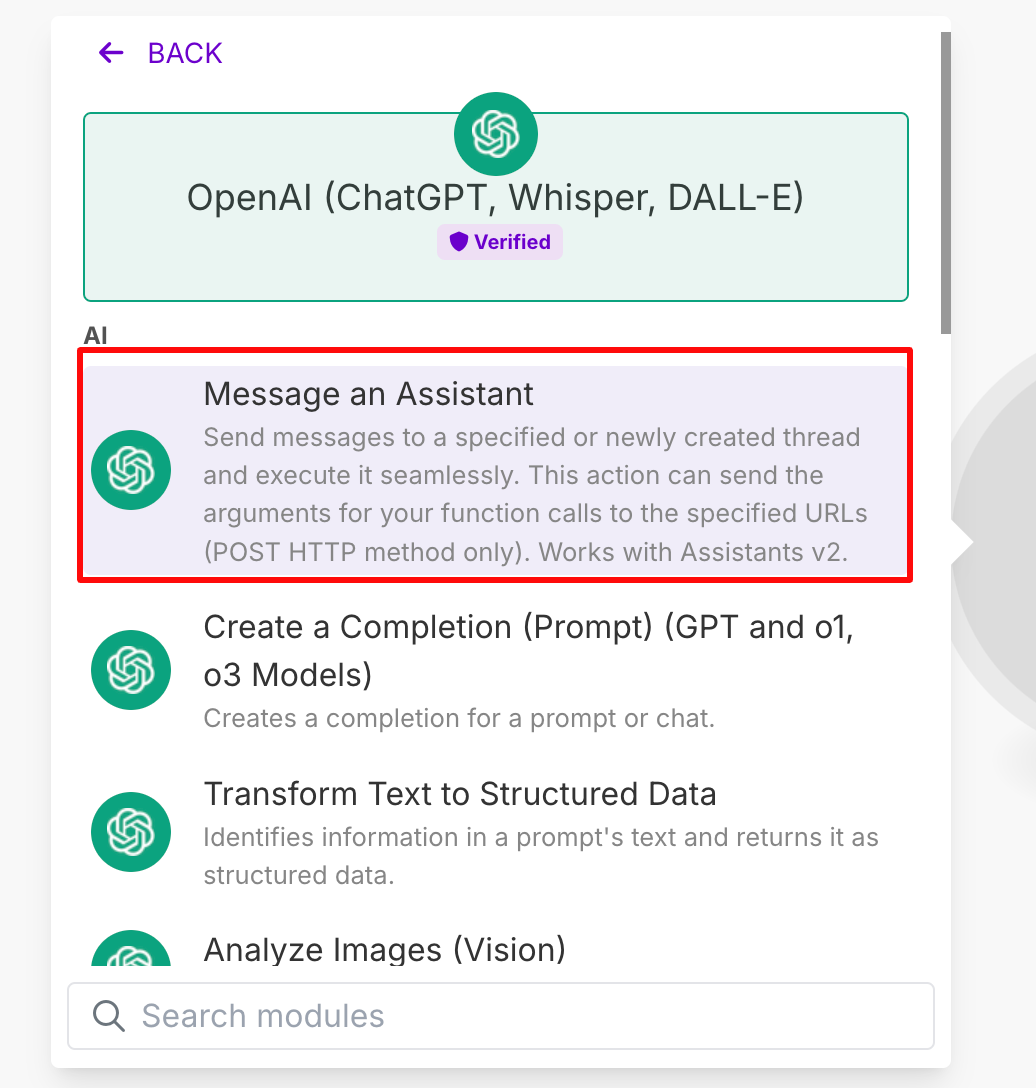
- Select Message an Assistant, this is what will allow you to provide GPT with a prompt.
- Like you did with your Google account, connect your OpenAI account.
To do this, you’ll need to create an API key by signing in and going on this page.
Give it a name and click “Create secret key”.
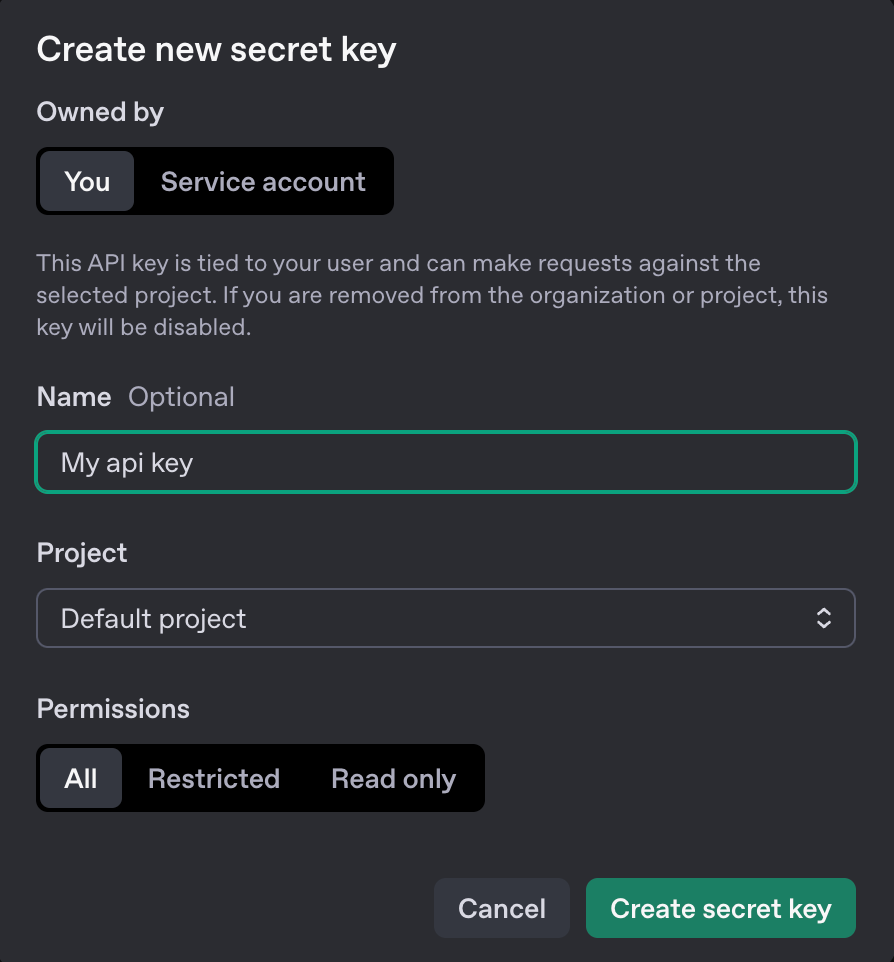
- Copy the API key into the respective field on Make.com and hit Save.

- Select a GPT assistant.

- Keep Role set to User.
- The Message is where you’ll add your prompt to instruct the GPT to craft your content.
Note that you’ll craft the content for your page in a few stages, so we’ll create more OpenAI modules after this too.
For the first one, we’ll ask GPT to create a structured outline.
Important: You can adapt the prompt below based on however you’d like your content to be formatted and written. In this case, we’re working with recipes, so the outline will have a specific format.
Generate a structured outline based on the following details:
Topic: [Insert Topic from Google Sheets]
Target Keywords: [Insert Keywords from Google Sheets]
The outline should include:
- An engaging introduction (1-2 short paragraphs)
- Briefly introduce the dish (what makes it great, when to make it)
- Mention any unique ingredients or flavors
- Relate it to a specific audience (e.g., busy professionals, health-conscious eaters)
Key Recipe Details
- Prep Time: XX minutes
- Cook Time: XX minutes
- Servings: XX servings
- Difficulty: Easy/Medium/Hard
Ingredients List
- Clearly formatted list of ingredients
- Include specific measurements
- Suggest possible substitutions (if relevant)
Step-by-Step Instructions
- Numbered steps for clarity
- Keep steps concise and beginner-friendly
- Add extra tips (e.g., “For extra crispiness, bake at 425°F instead of 400°F.”)
Storage & Serving Suggestions
- How to store leftovers
- Best ways to serve the dish
Nutritional Information (if applicable)
- Calories per serving
- Key nutrients (protein, carbs, fats)
Final Tips & Variations
- Ideas for ingredient swaps
- Ways to customize the recipe
Make sure the outline is clear, engaging, and easy to follow.
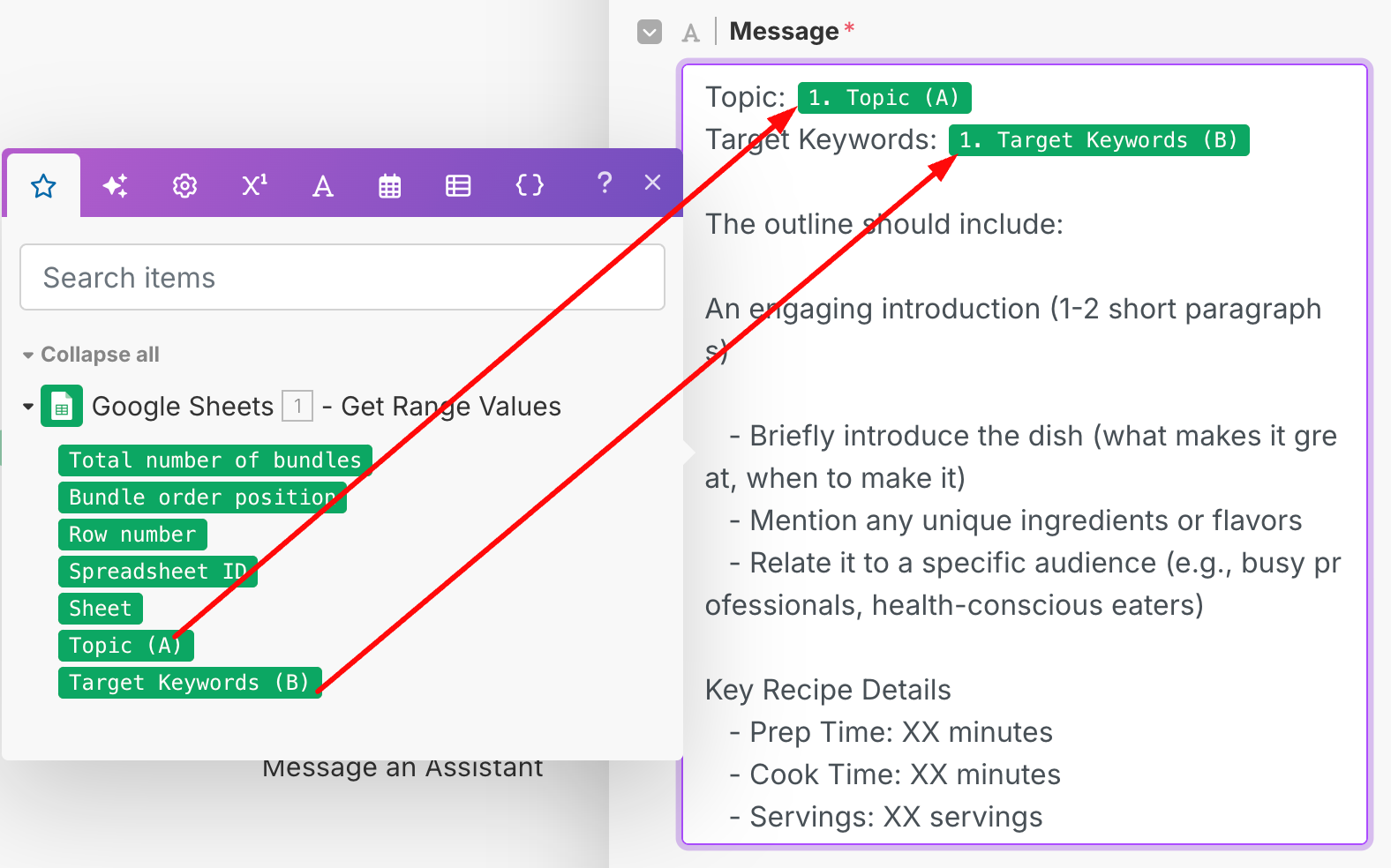
- Click Save and right click on this module to Rename it to something like “Outline”. This will make it easier in the following steps where we’ll create one more OpenAI module.
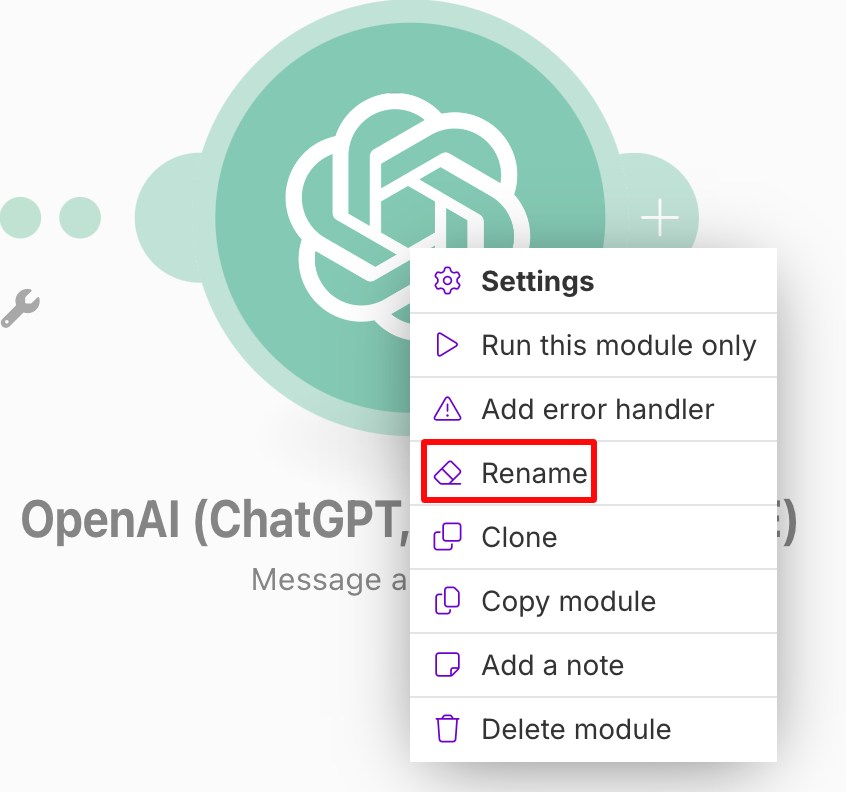
- So that you don’t have to keep creating a new OpenAI connection, right click on the “Outline” module, and clone it.

- Rename this to “Content Generator”.
The purpose of this second module is to expand the outline result from the first module, into a fully written page.
- Open the module and now replace the Message (prompt) with something like this.
Write a complete, well-formatted recipe page based on the following structured outline:
[Insert AI-Generated Outline from Outline Module]Requirements:
- Tone: Friendly and informative, but not too informal.
- Use the following keywords naturally throughout the page: [Insert Target Keywords from Sheet]
- Format with H2 for main sections (e.g., Ingredients, Instructions, Storage, etc.)
- Use bullet points for ingredients and numbered steps for instructions.
- Make sure each step is clear, concise, and easy to follow.
- Provide useful tips and variations to make the recipe versatile and unique.
? Recipe Name
? Prep Time: XX mins | ?️ Servings: X | ? Cook Time: XX mins
Ingredients
- Ingredient 1 (measurement)
- Ingredient 2 (measurement)
- Ingredient 3 (measurement)
Instructions
- Step one…
- Step two…
- Step three…
Tips & Variations
- Optional customization ideas…
- How to make it vegetarian, gluten-free, etc.
Make the content structured, engaging, and SEO-friendly.
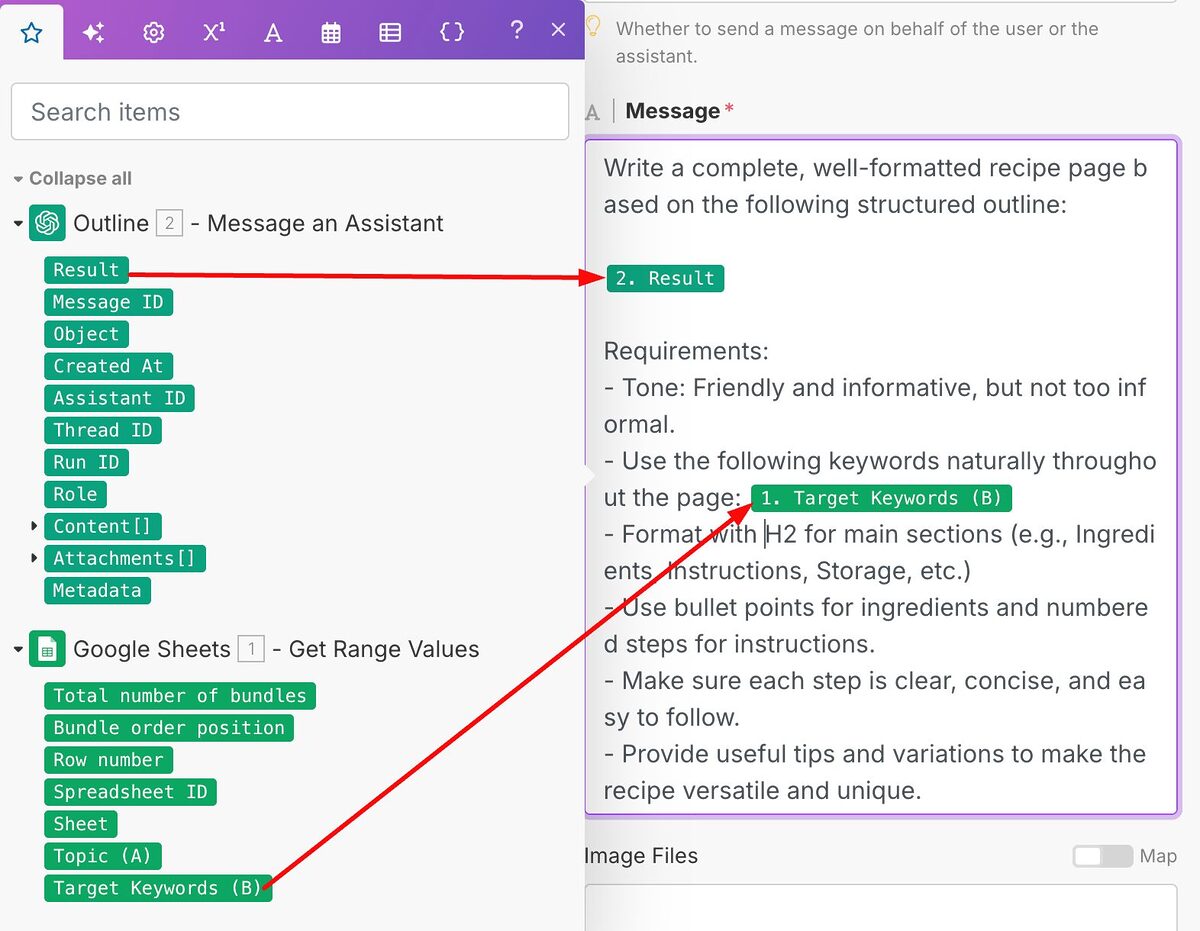
- Click Save, and Clone this module
Saving the Output to Google Docs
Now, we could ask GPT to add in the resultant content back into the spreadsheet, but that’s not ideal considering it’s generating a full article.
So instead, we’ll get it to save each article into a Google Doc.
- Add a Google Docs module, select Create a Document and make sure it’s connected to your Google account.
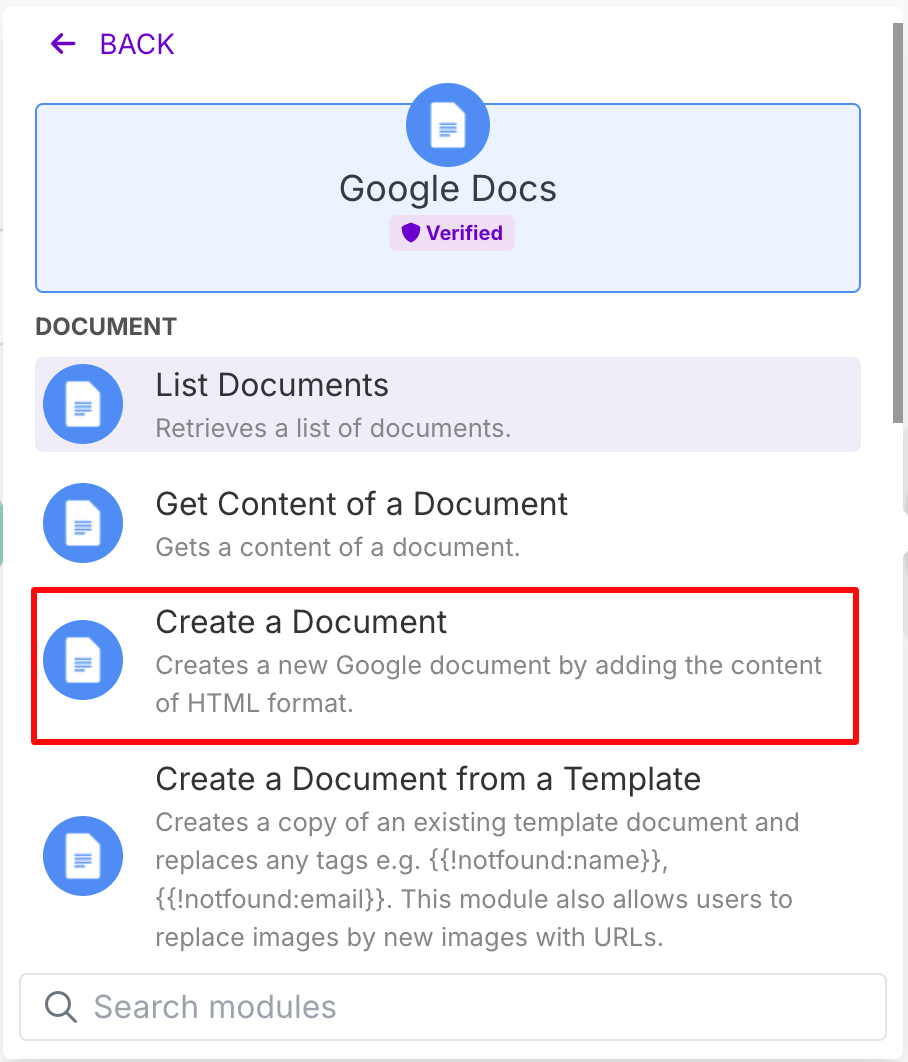
- Set the Name of the document to Topic (from the sheet) and Content to the Result (from the Content Generator OpenAI module).

- Select the location where you want the documents to be stored and hit Save.

- Click Run once to execute the automation.

- The documents are stored in the respective folder on your Google drive.
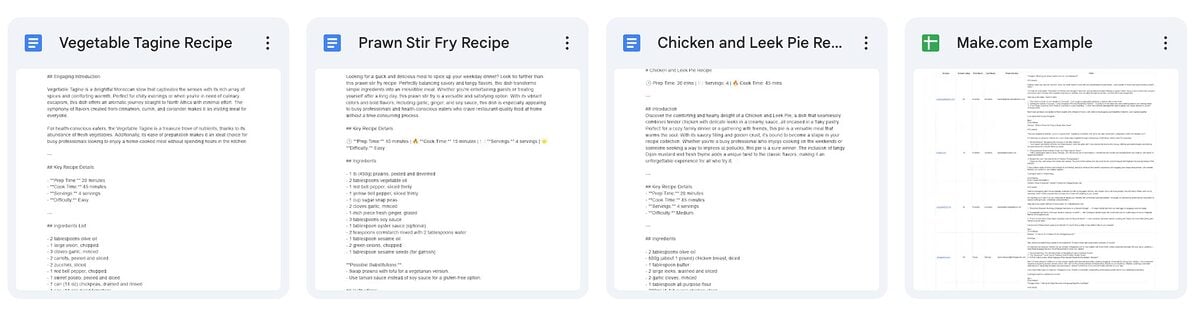
And here’s an example of the content:

- If the results aren’t quite what you’re looking for, adapt the prompts according to what you’d like to be changed.
For example, I’ve decided I want the recipes to be formatted so that it’s easy to upload to a website.
Let’s update the prompt to Content Generator module (edits are in italics):
Write a complete, well-formatted recipe page based on the following structured outline:
[Insert AI-Generated Outline from Outline Module]
Requirements:
- Tone: Friendly and informative, but not too informal.
- Make sure you follow eloquence formulas: Dialectic, Double Entendre with Anastomosis, Enumeration with Distinction, Epizeuxis with Exemplum, Future Casting with Anaphora, Gnome, Positio Finalem with Concession in a question, Tricolor with Antanagoge
- Use the following keywords naturally throughout the page: [Insert Target Keywords from Sheet]
- Format with H2 for main sections (e.g., Ingredients, Instructions, Storage, etc.)
- Use bullet points for ingredients and numbered steps for instructions.
- Make sure each step is clear, concise, and easy to follow.
- Provide useful tips and variations to make the recipe versatile and unique.
- Format the final article in proper HTML for clean display and easy upload to Google Docs.
- Ensure paragraphs are concise, headings are consistent, and visual breaks (like bullet lists) are used effectively.
? Recipe Name
? Prep Time: XX mins | ?️ Servings: X | ? Cook Time: XX mins
Ingredients
- Ingredient 1 (measurement)
- Ingredient 2 (measurement)
- Ingredient 3 (measurement)
Instructions
- Step one…
- Step two…
- Step three…
Tips & Variations
- Optional customization ideas…
- How to make it vegetarian, gluten-free, etc.
Make the content structured, engaging, and SEO-friendly.
Here’s the updated content:
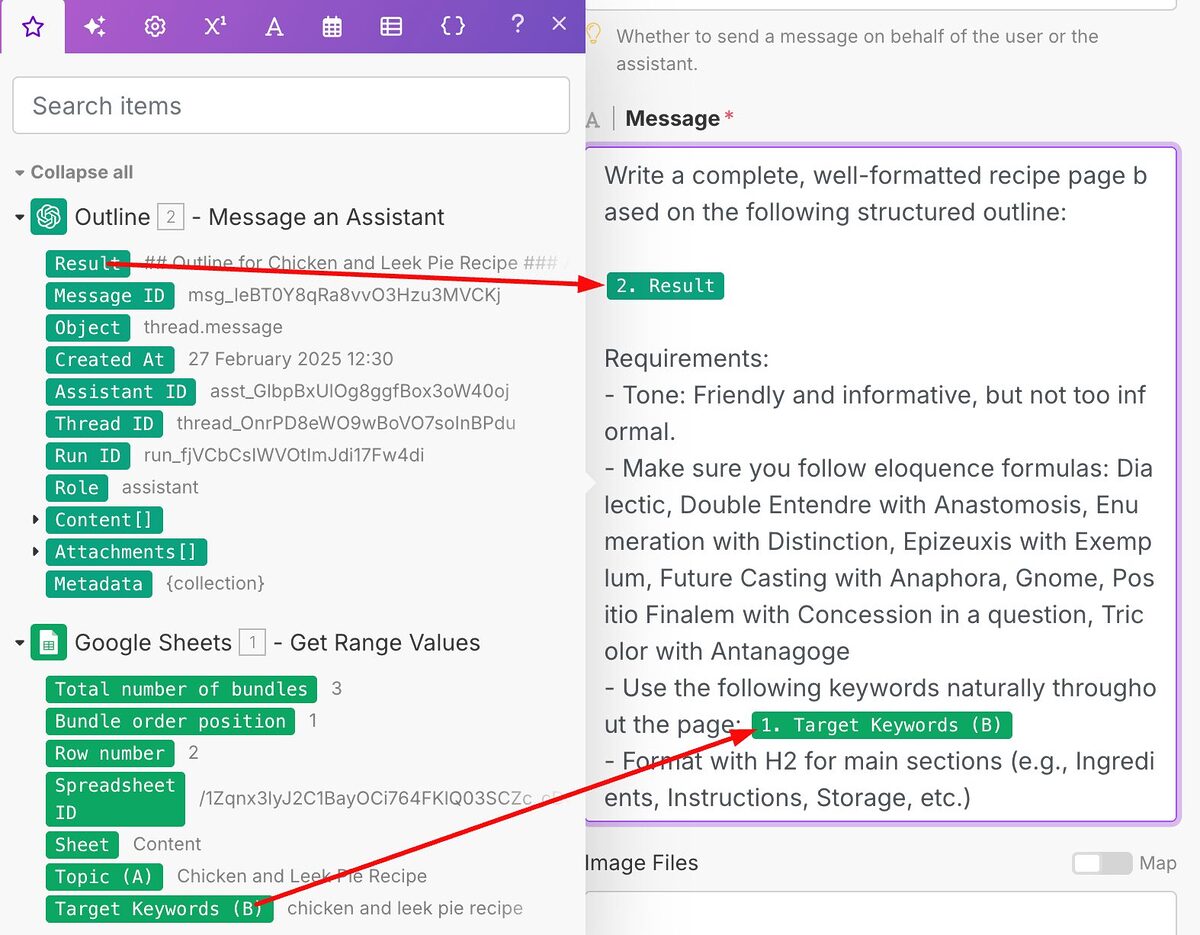
This is just what we’re looking for!
Now you have a system that you can reuse (and adapt) again and again to generate different types of content on your website.
Generating Metadata with Make.com
Metadata includes the page title, meta description and H1 heading of your pages.
It helps Google to understand the relevance of your web page in relation to a keyword.
It also allows users to identify whether your page contains what they’re looking for while browsing the search results pages.
Like our client, you might have hundreds of pages that have underoptimized metadata. Doing this manually can be very time consuming, but it’s got to be done though, if you want to give your pages the best chance of ranking for your target keywords.
For the purposes of this case study, I’ll focus on how to generate the metadata for your pages at scale using automation and AI.
But if you aren’t sure about which primary keyword your pages should target, check out my guide on keyword research here.
Here’s what you’ll need:
- Make.com account (free or Pro)
- Google Sheet
Your sheet should have the following columns:
- Column A: URL – the page that you want to generate the metadata for.
- Column B: Primary Keywords – a list of important keywords that you want to rank for this page (recommend adding up to 3).
- Column C: Page Title – this is where the AI-generated page title will be inserted into the sheet.
- Column D: H1 Heading – this is where the AI-generated H1 heading will be inserted into the sheet.
- Column E: Meta Description – this is where the AI-generated meta description will be inserted into the sheet.
It should look something like this:
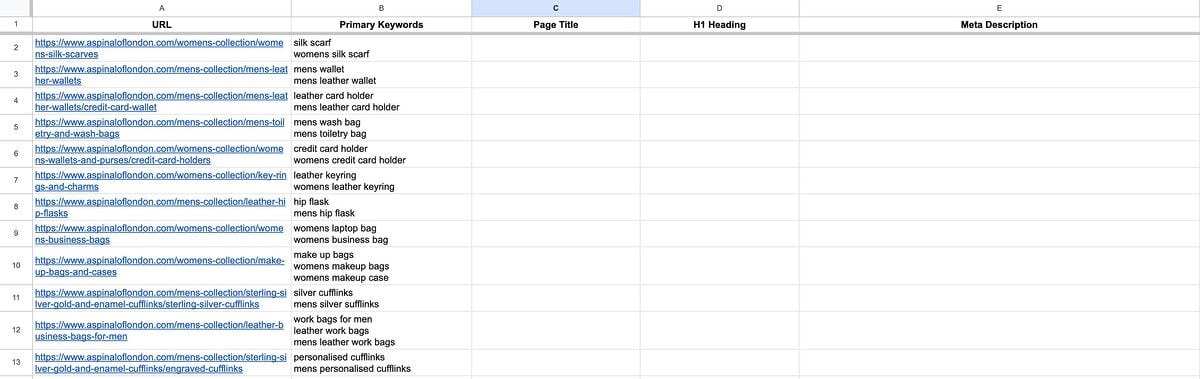
Here’s a template that you can use.
- OpenAI account (plus or pro subscription required to use API)
Connect Your Google Sheet
Now let’s start the automation using Make.com to generate the metadata for these pages!
- Create a new Scenario

- Give it a name i.e. “Metadata Generator”.
- Click on the Plus sign to add an app and search for Google Sheets.
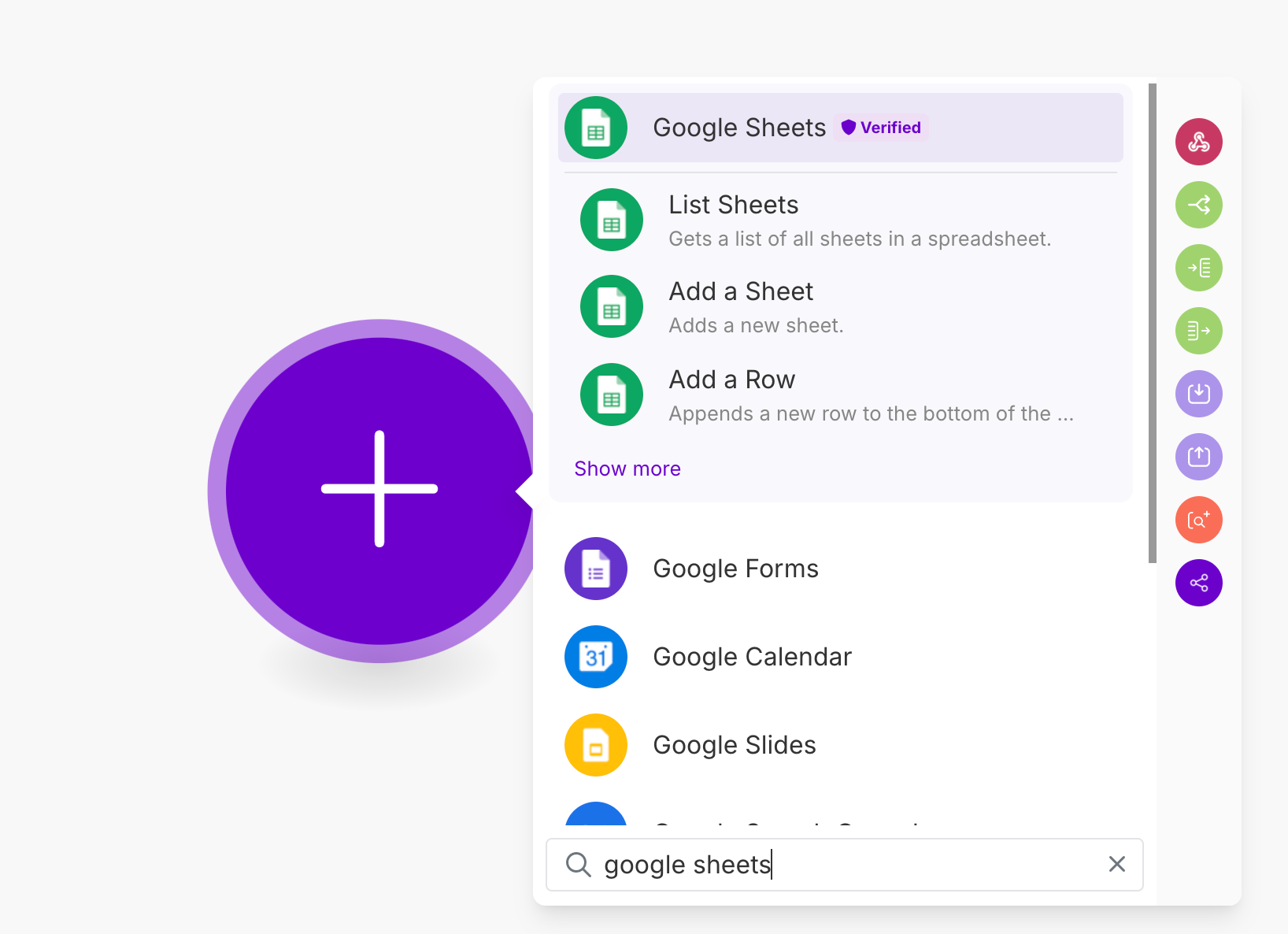
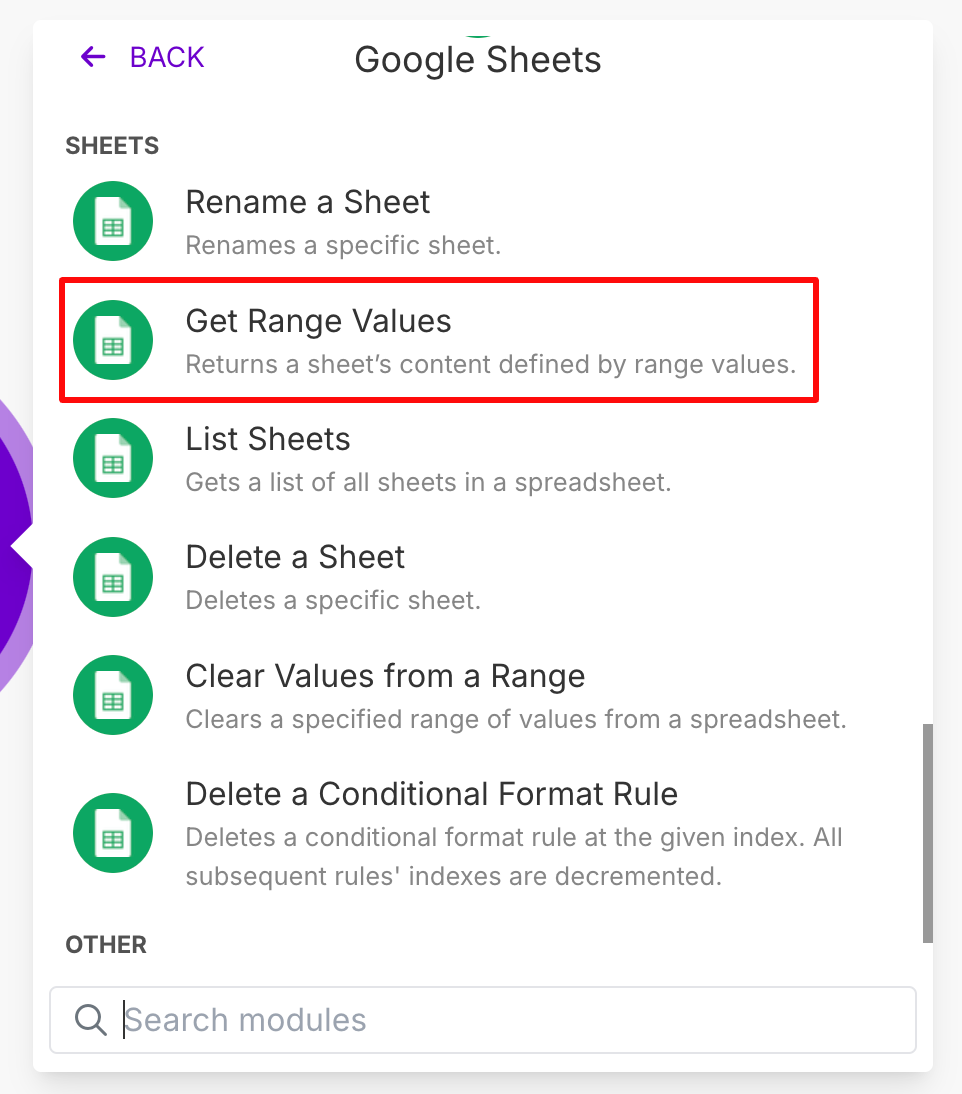
- Select “Get Range Values”. This is how the tool will know what information it should use in order to generate your metadata.
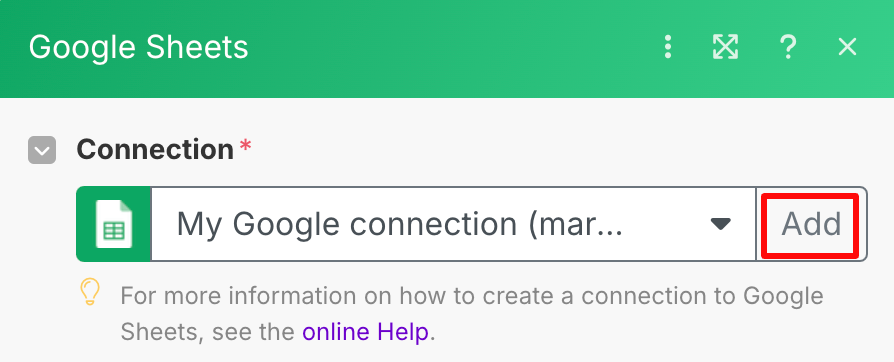
- Connect to your Google account by adding a connection.
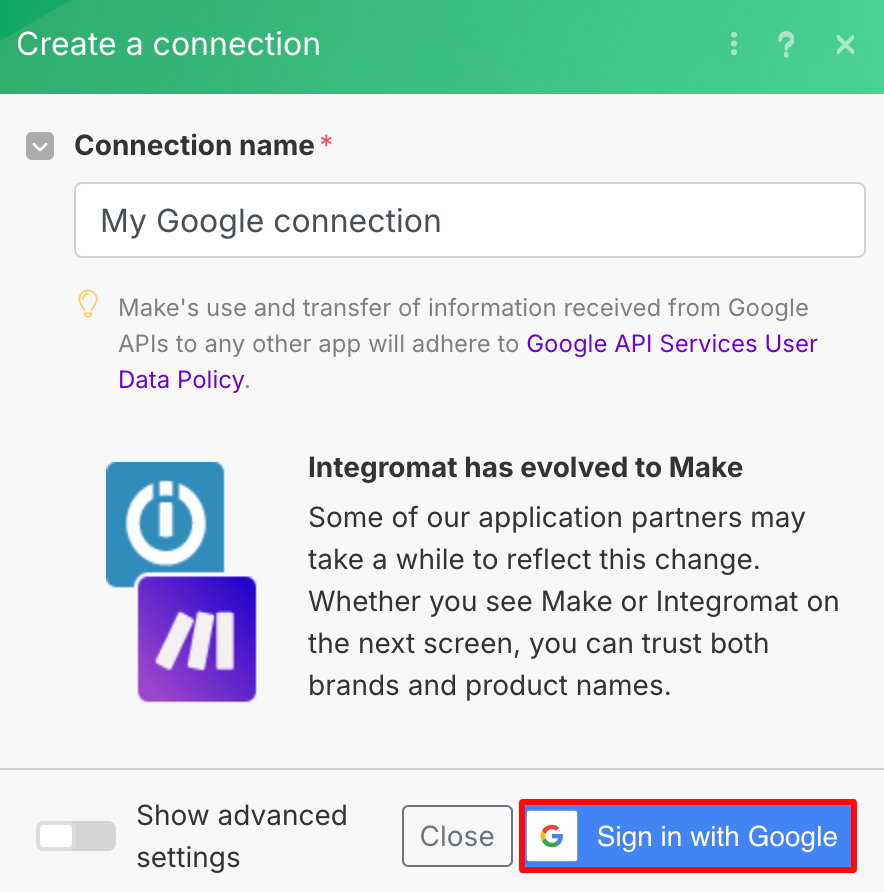
- Give it a name and follow the steps to Sign in with Google.
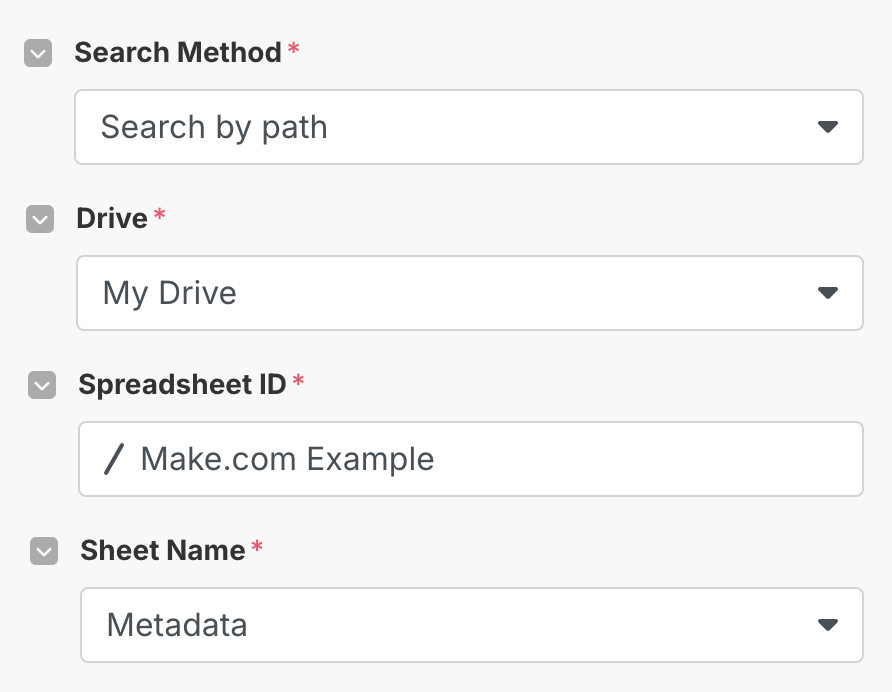
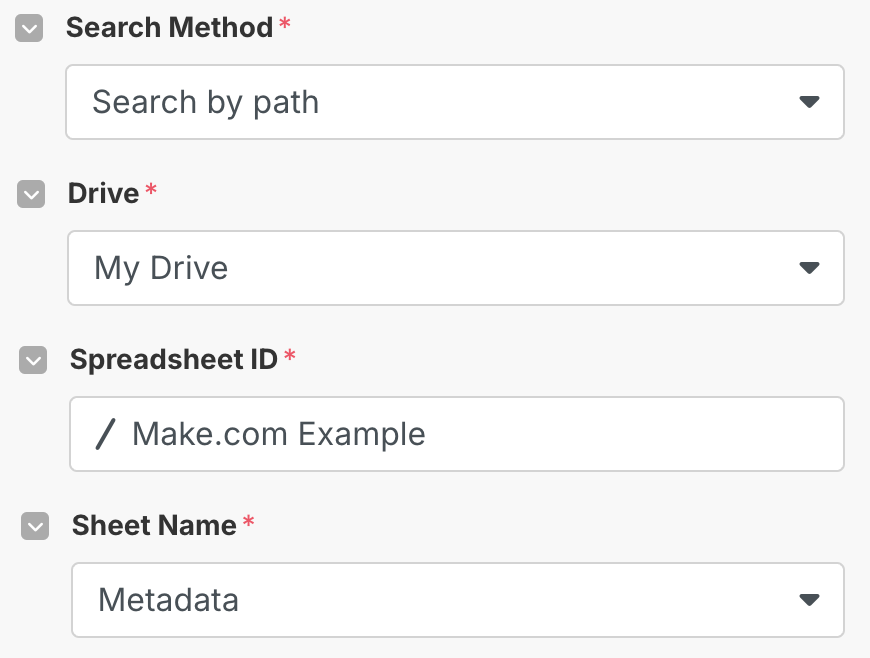
- Make sure:
- Search Method is set to “Search by Path”
- Drive is set to “My Drive”
- Spreadsheet ID is linked to the file where your sheet is saved in your Google Drive i.e. if it’s saved in the root folder, then the path would be “/ Your Spreedsheet Name”.
- Sheet Name is selected according to which sheet the information is saved on i.e. “Metadata Generator”.
- For the Range, you want to give it the range of the cells whose data you want the tool to use. This is the URL and the Primary Keywords.
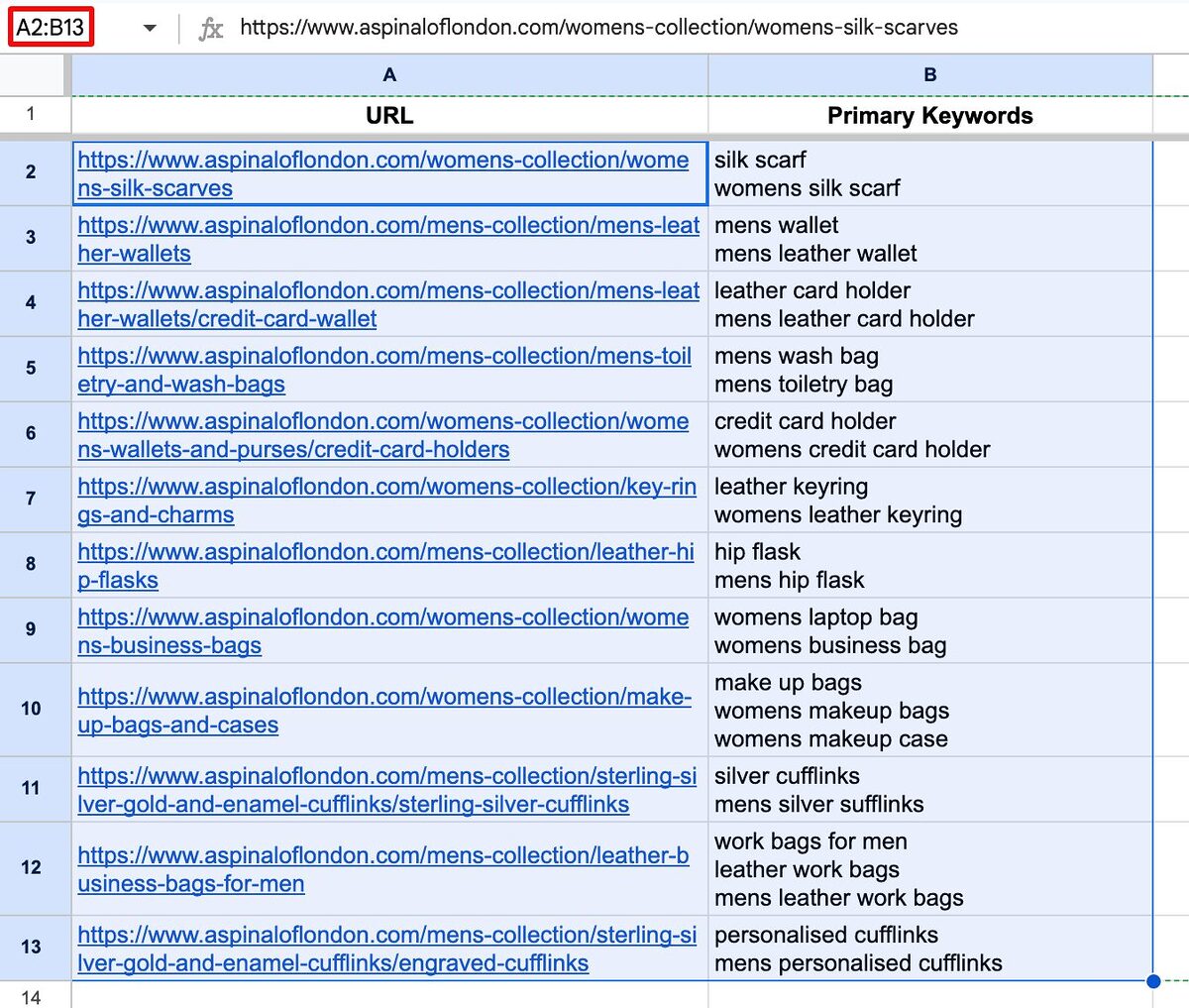
- For Table contains headers, select “Yes”, then enter the range for where the headers are i.e. “A1:E1”

- Click Save.

Your spreadsheet is now connected to Make.com.
Create Your ChatGPT Metadata Generators
Now that the spreadsheet is connected, the next step is to add a new module for OpenAI so that you can connect it to ChatGPT.
- Click Add another module and search OpenAI.
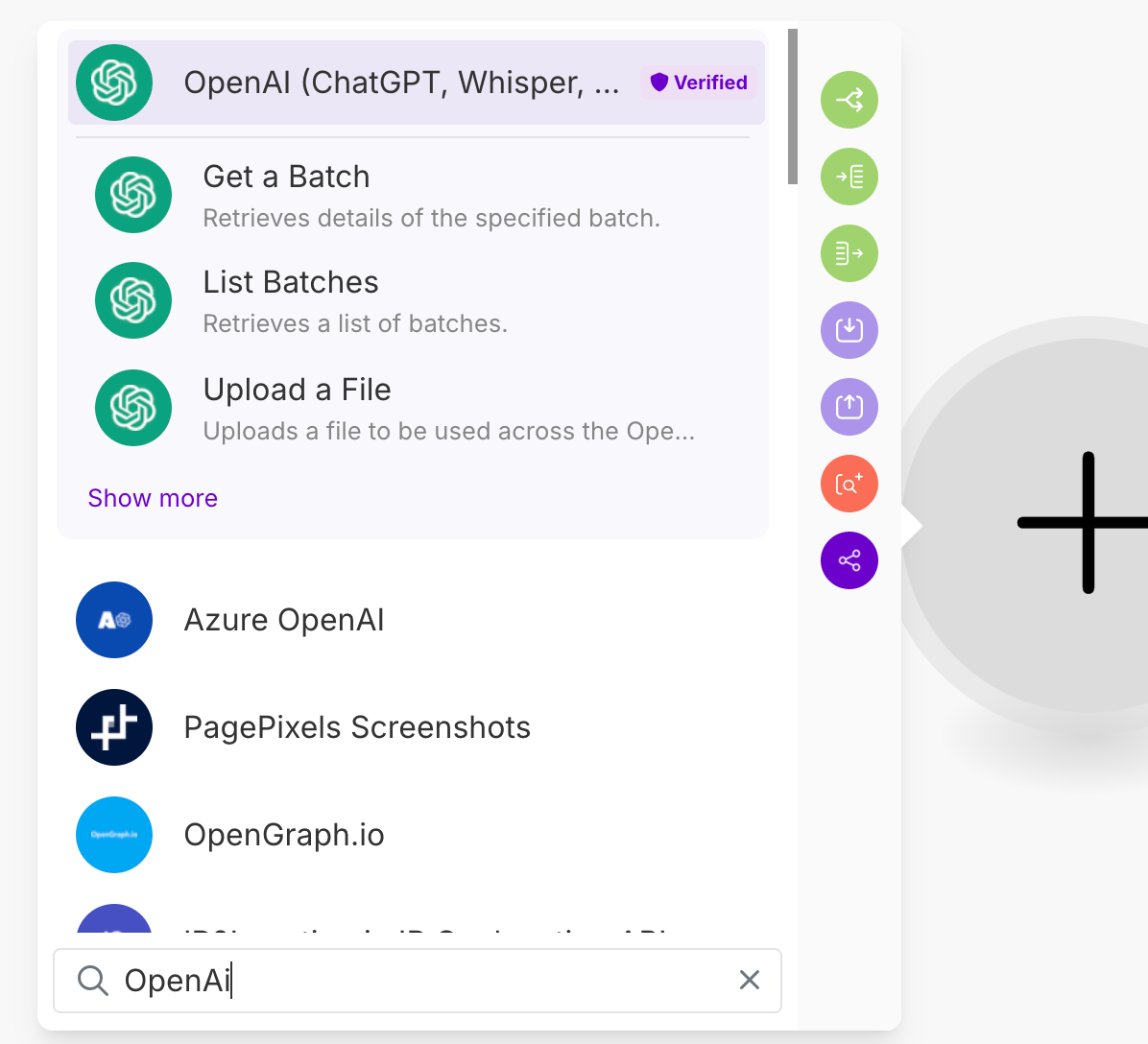
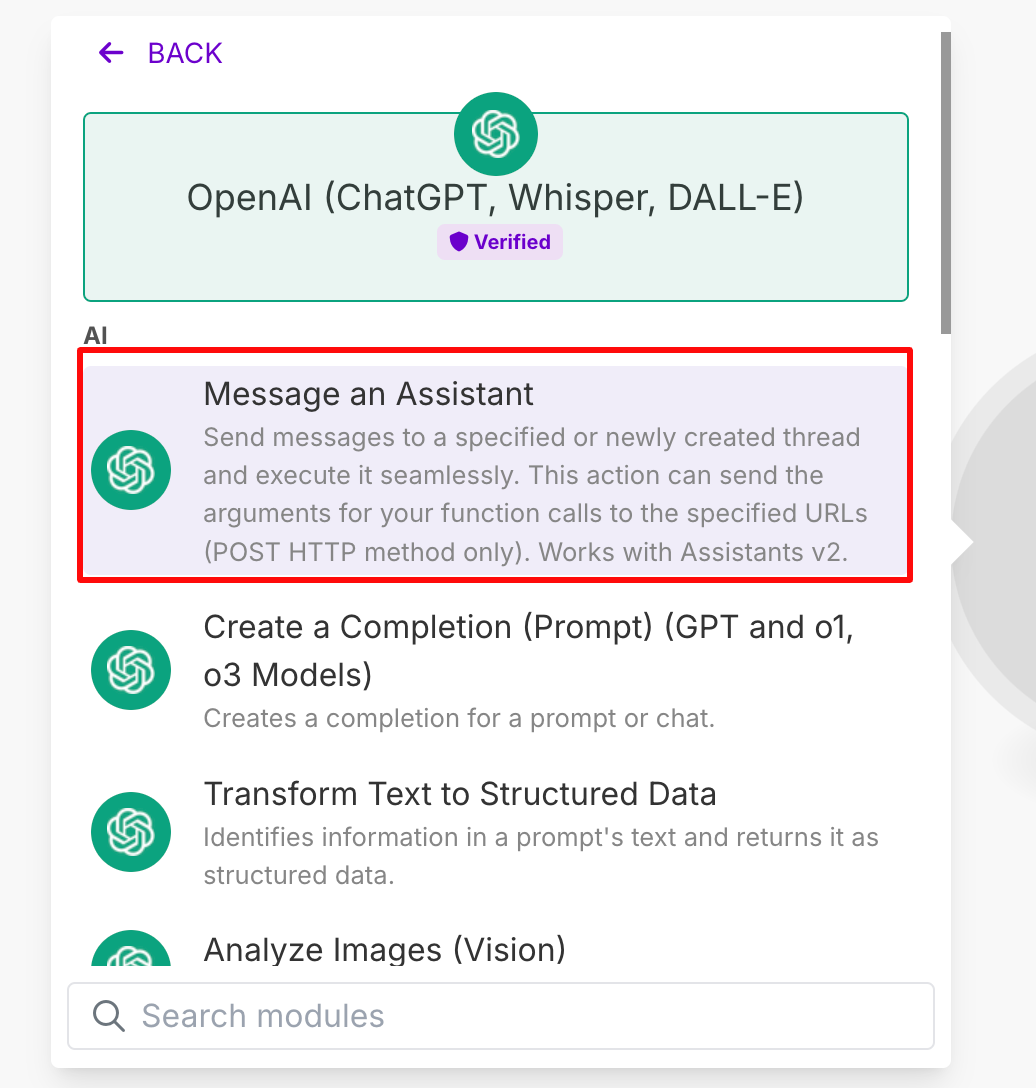
- Select Message an Assistant, this is what will allow us to provide GPT with a prompt.
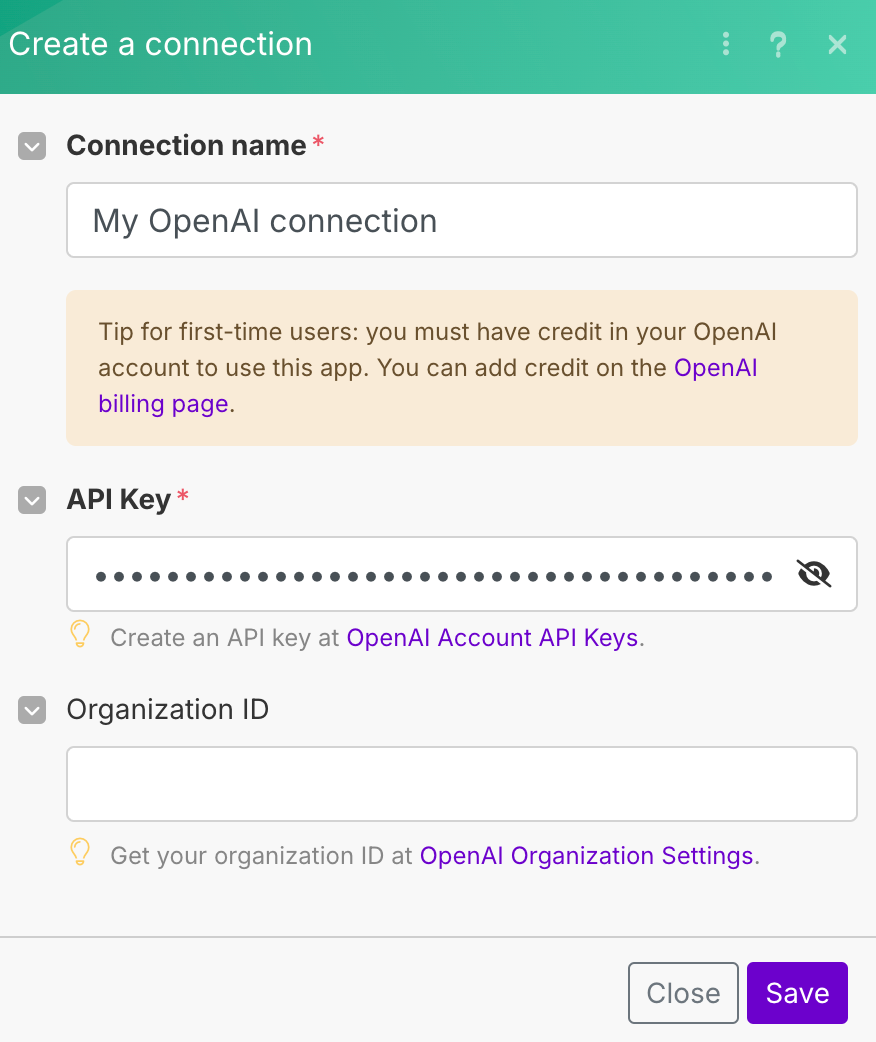
- Like you did with your Google account, connect your OpenAI account.
To do this, you’ll need to create an API key by signing into your account and going on this page.
Give it a name and click “Create secret key”.
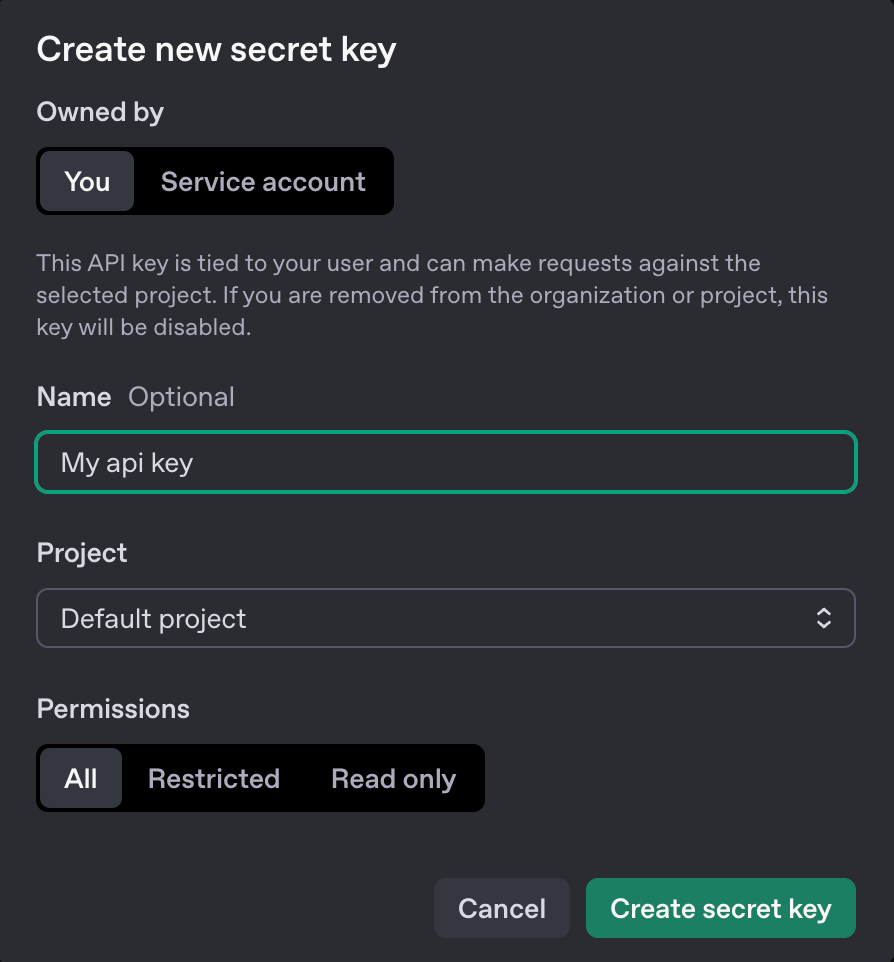
- Copy the API key into the respective field on Make.com and hit Save.
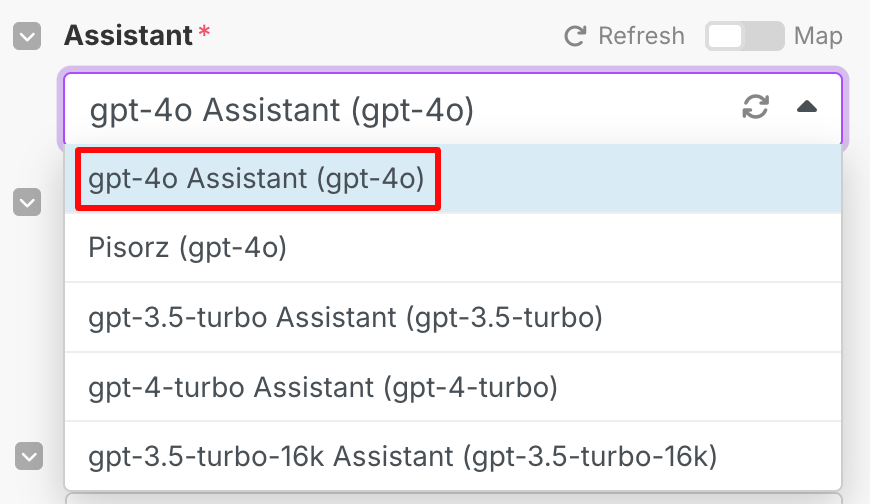
- Select a GPT assistant, depending on whether you have a free, paid or pro account, the options will vary. Select one that has “Assistant” on it.
- Keep Role set to User.
- The Message is where you’ll add your prompt to instruct the GPT to write the metadata.
The first GPT Module (of three) will be used to generate the page title.
Here’s the prompt for you to paste:
Generate an SEO-optimized page title based on the given webpage URL and primary keyword.
Guidelines:
- The title should be between 50–60 characters
- The title should be compelling and include the primary keyword naturally
- Prioritize clarity, relevance, and clickability while maintaining a professional tone.
- If the page suggests a specific intent (e.g., informational, transactional), tailor the title accordingly.
- Just generate the title, do not put it in quotation marks or prefix it with any other information like “Title:”
Inputs:
- URL: [url]
- Primary Keywords: [primary keywords]
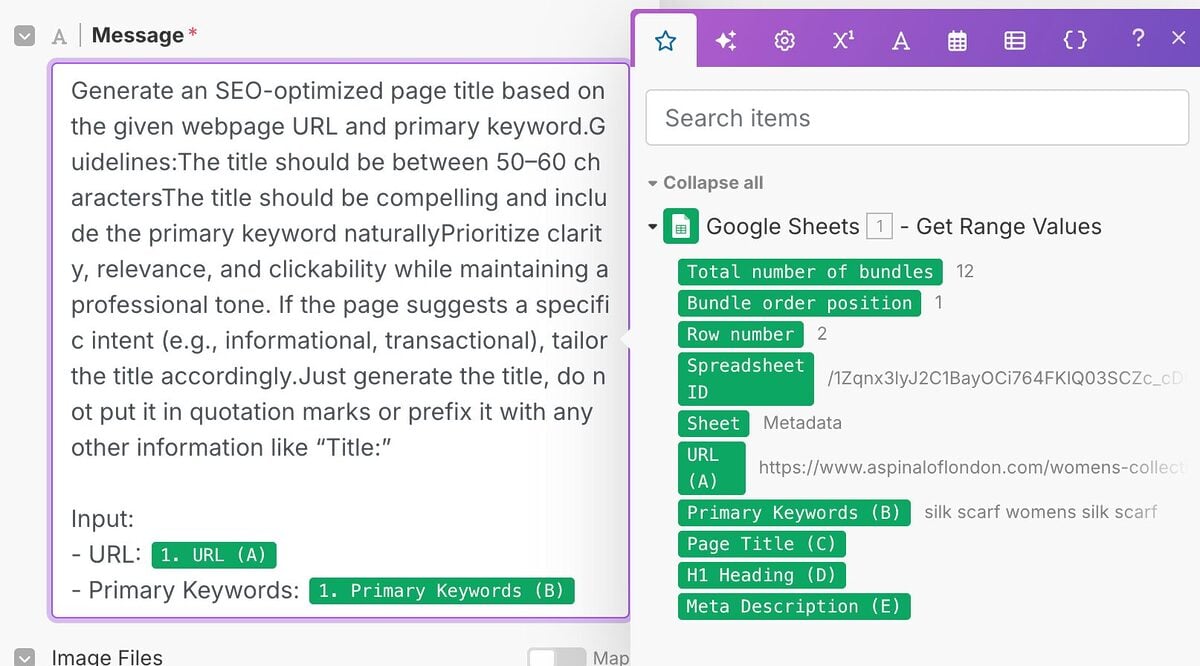
Add in the following placeholders into the prompt from your spreadsheet.
- URL
- Primary Keywords
- The remaining settings can be left unchanged. You can hit Save.
- Rename the module by right clicking on it and selecting Rename.
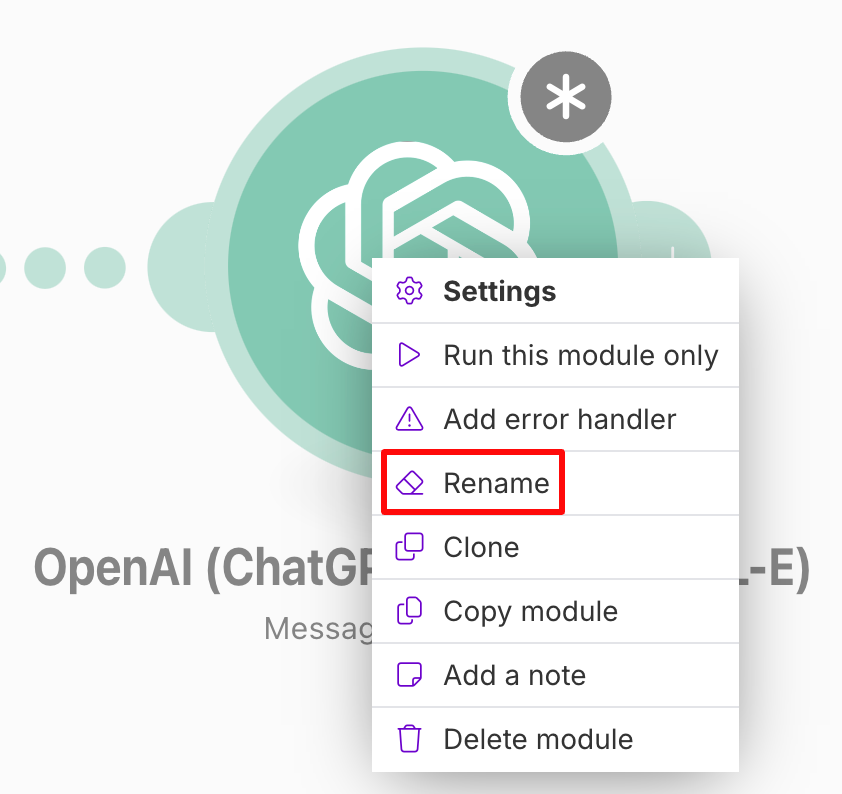
I’ve called it Page Title GPT.
- Now we’ll create another OpenAI module, this time to generate the H1 heading.
Right click on your first OpenAI module and click Clone.
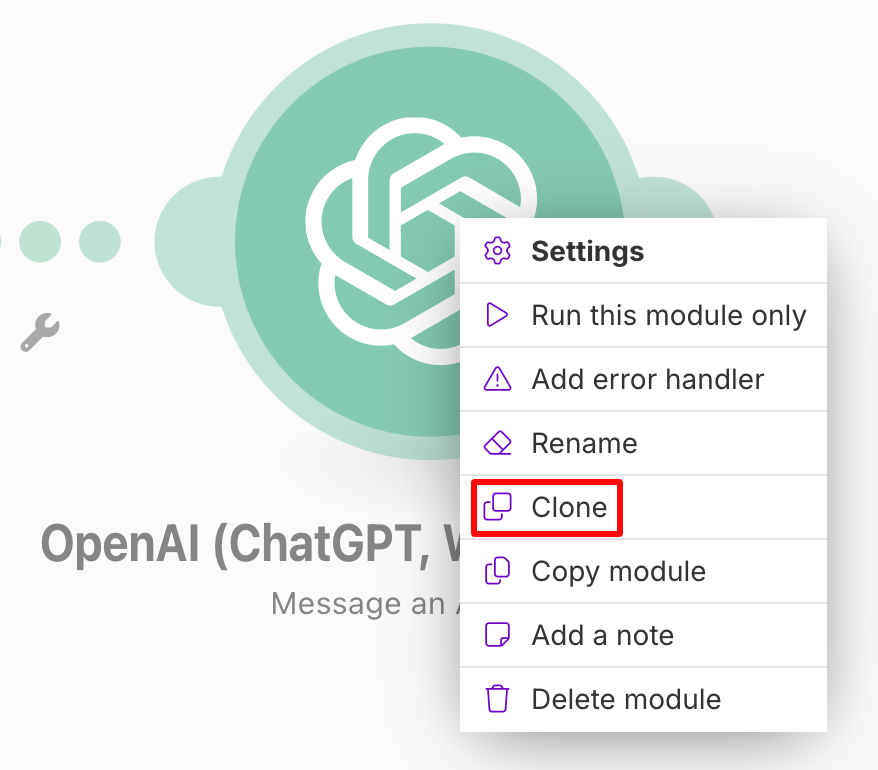
Rename it to H1 Heading GPT.
- This time, enter the following Prompt into the Message field.
Importantly, we can also provide the Module with the Page title that it generated from the previous module. So that it has a reference to the page title too as an input.
Here’s the prompt for you to paste:
Generate an SEO-optimized H1 Heading based on the given webpage URL, primary keyword and page title.
Guidelines:
- The heading should be concise yet descriptive, ideally under 70 characters
- The heading should be compelling and include the primary keyword naturally
- The heading should align with the page’s intent (e.g., informational, transactional).
- The heading should provide a strong, relevant introduction to the content.
- Just generate the heading, do not put it in quotation marks or prefix it with any other information like “Heading:”
Inputs:
- URL: [url]
- Primary Keywords: [primary keywords]
- Page Title: [page title]
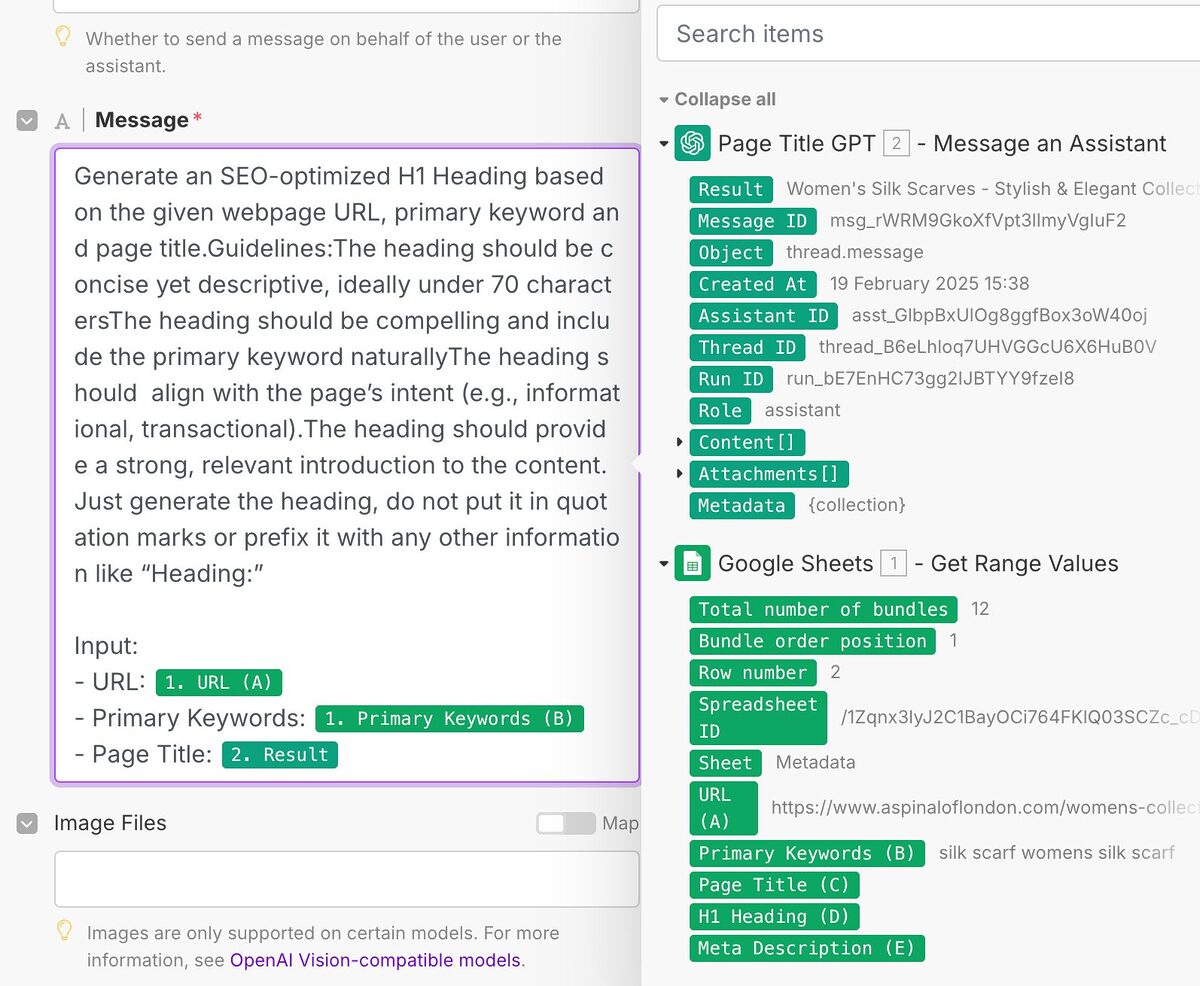
Add in the following placeholders into the prompt:
- URL
- Primary Keywords
- Page Title (Result from your Page Title GPT module).
- Hit Save and clone the H1 Heading GPT module, rename it to Meta Description GPT.
This time, your prompt is:
Generate an SEO-optimized meta description based on the given webpage URL, primary keyword, page title and H1 heading.
Guidelines:
- The description should be 150–160 characters long
- The description should be compelling and naturally include the primary keyword along with 1–2 relevant secondary keywords
- Make it descriptive, engaging, and encourage clicks by highlighting key benefits or unique selling points.
- Just generate the description, do not put it in quotation marks or prefix it with any other information like “Meta description:”
Inputs:
- URL: [url]
- Primary Keywords: [primary keywords]
- Page Title: [page title]
- H1 Heading: [h1 heading]
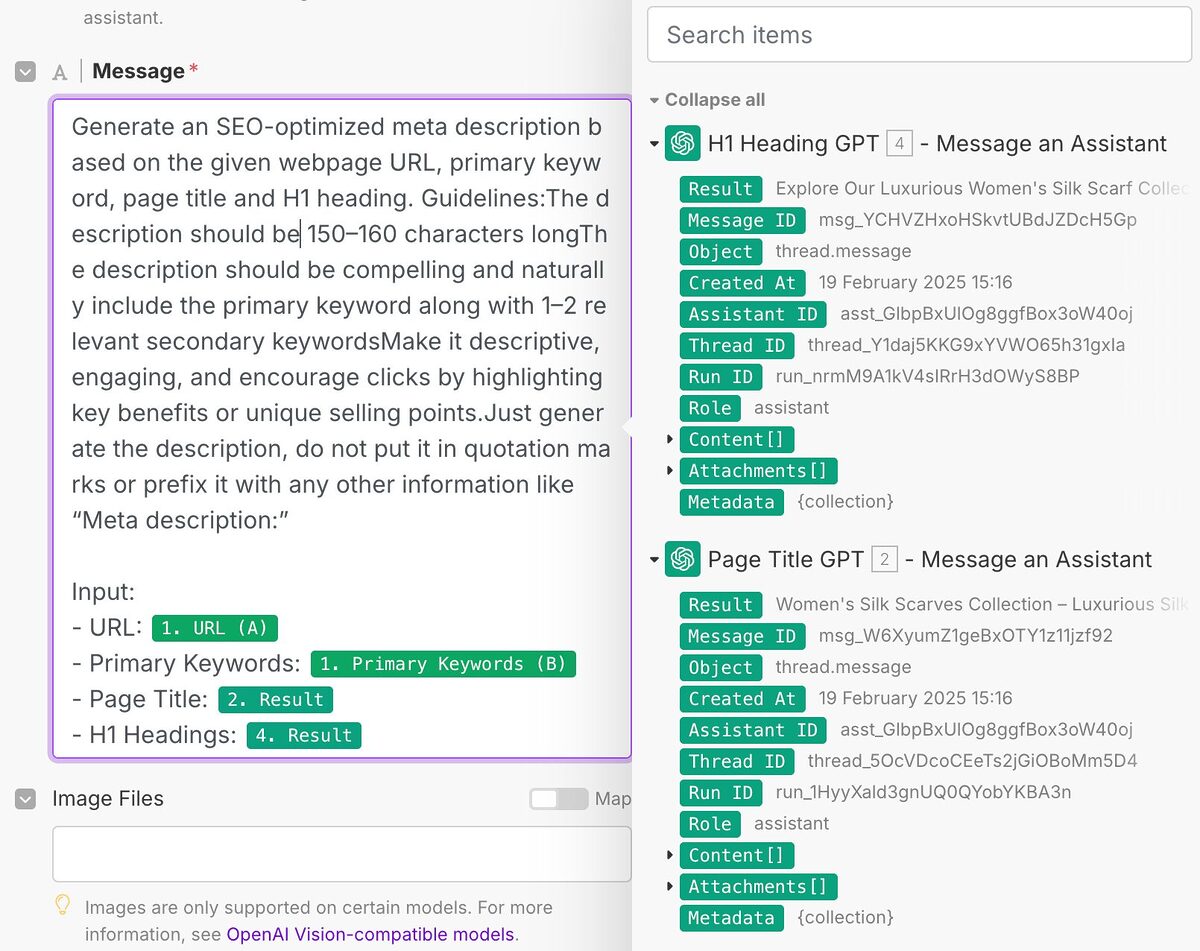
Add in the following placeholders into the prompt:
- URL
- Primary Keywords
- Page Title (Result from your Page Title GPT module).
- H1 Heading (Result from your H1 Heading GPT module).
Update Your Spreadsheet With the Metadata
- That’s everything from OpenAI, now add another Google Sheets module.
This time select the Update a Row option as we’ll populate the remaining columns with the metadata.
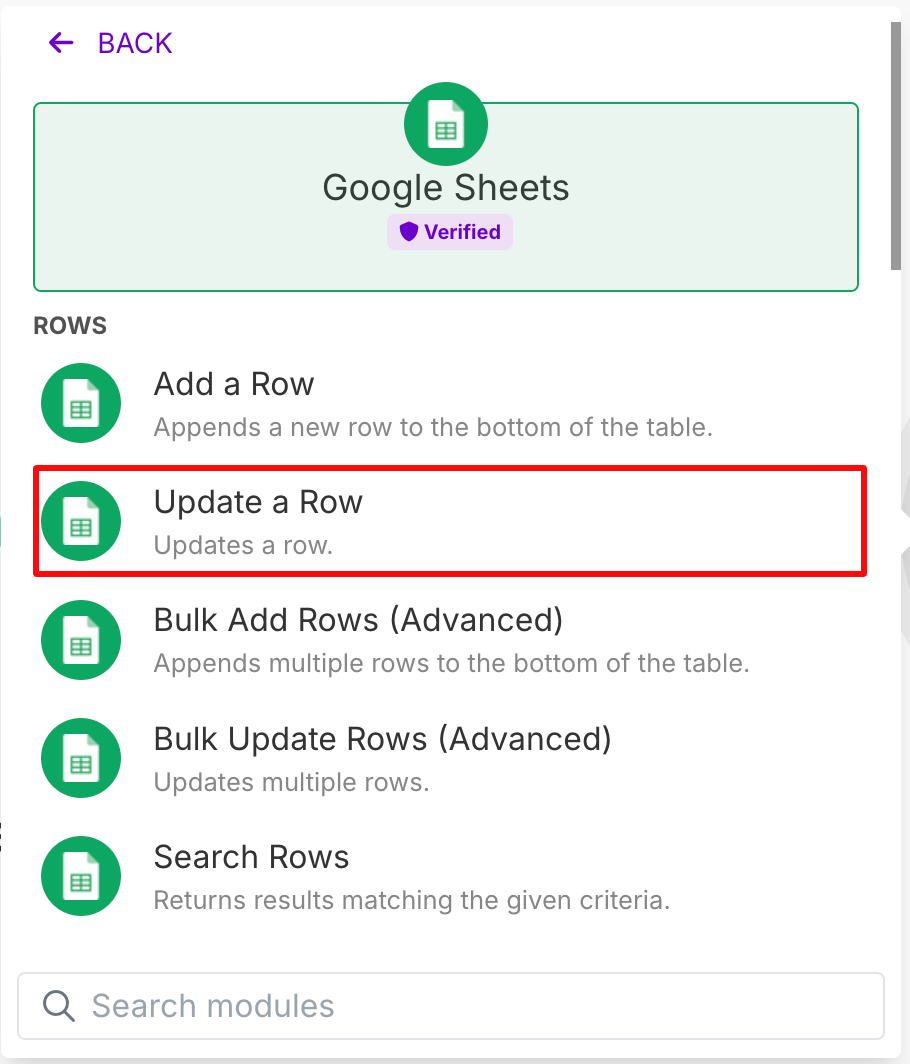
- Like you did before, create make sure it’s connected to your Google Drive and fill out the fields to connect it to your sheet.
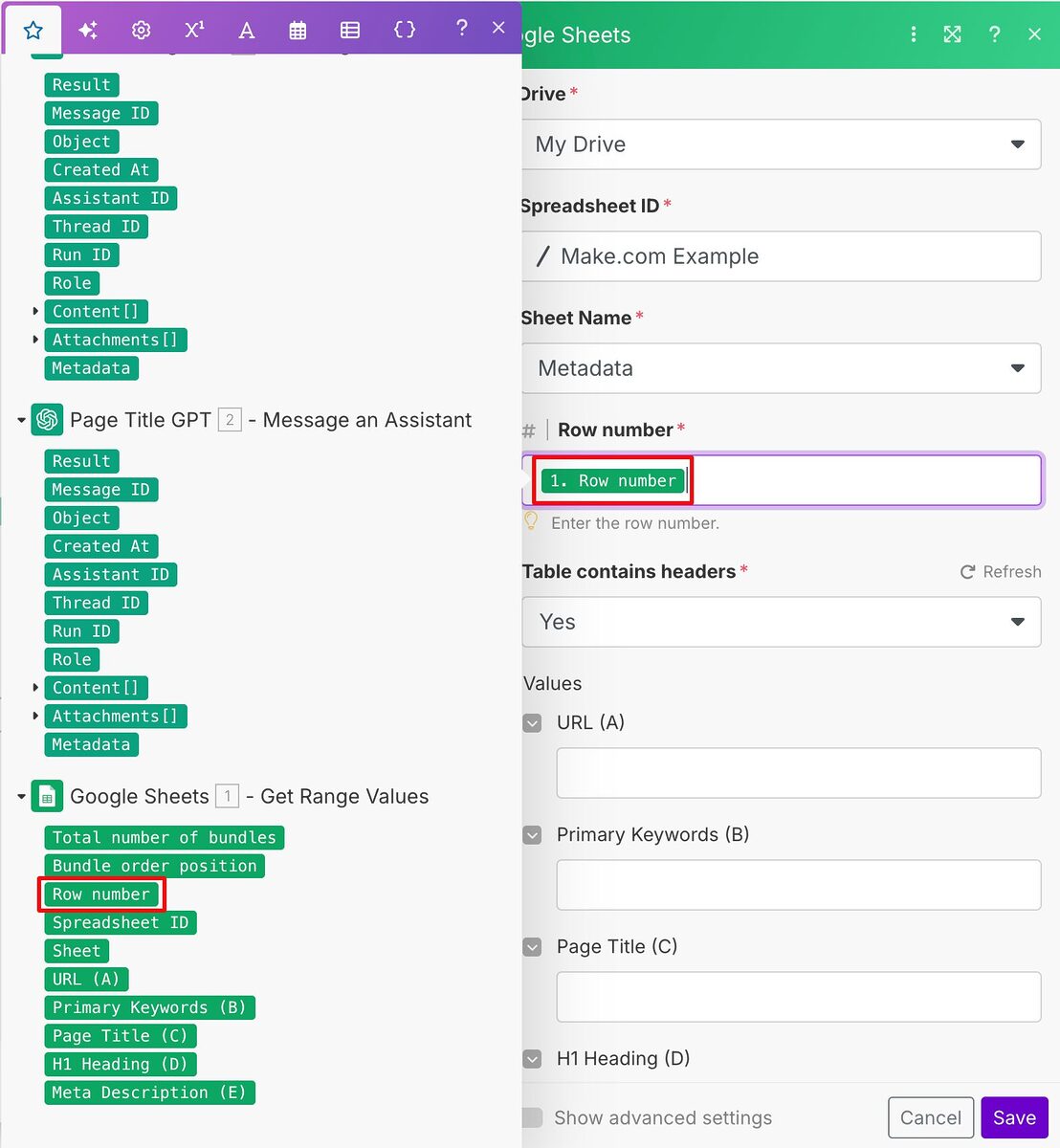
- Select Row number so that the tool has a reference to each row in your sheet and make sure Table contains headers is set to Yes.
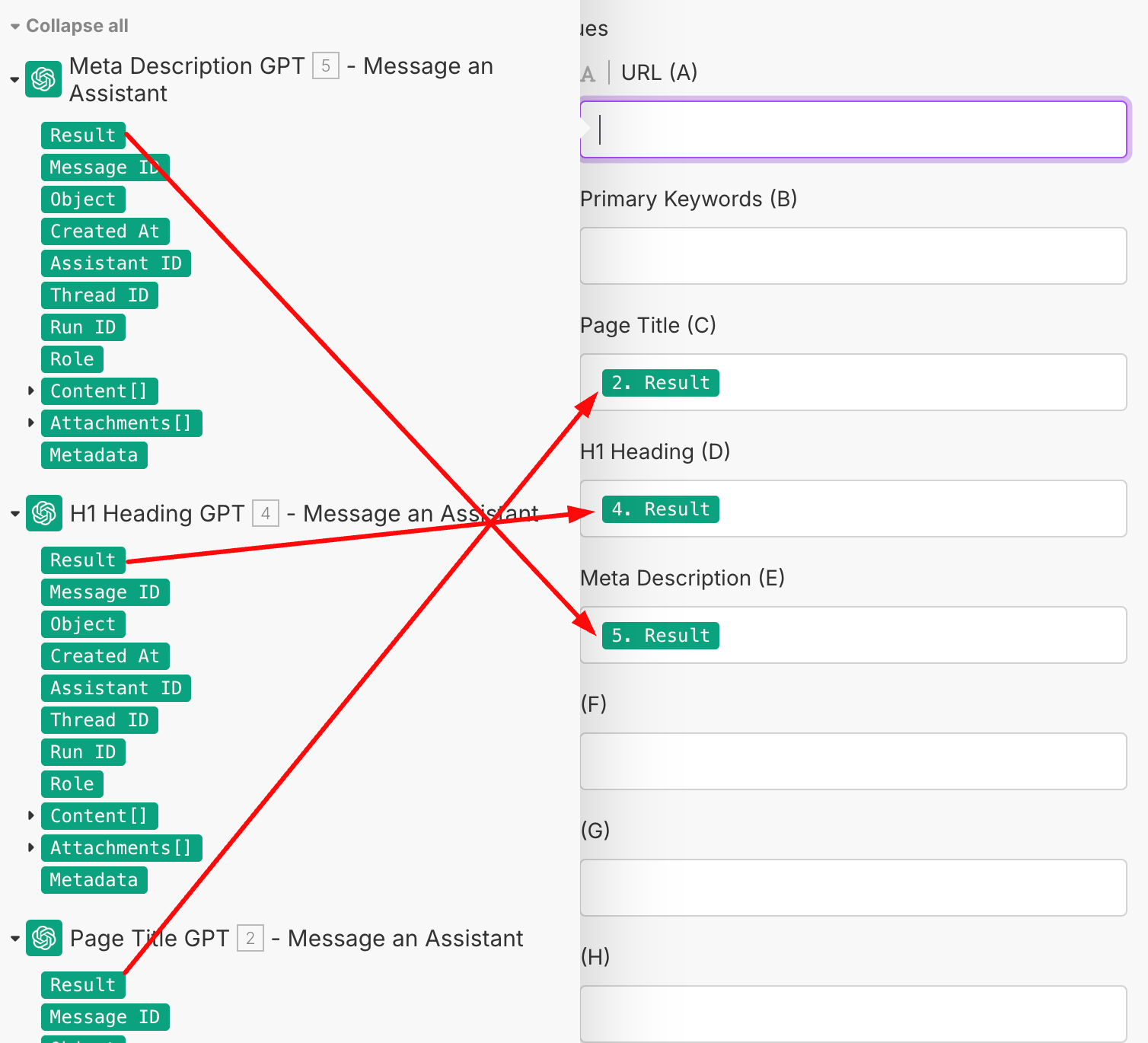
- Under Values, we’ll put in the Result for each of the respective metadata and their corresponding GPTS.
For example, the Page Title Result should be selected to go into the Page Title value and so on.
- Click Save.
- That’s your scenario completed! Click Run once to execute the Scenario.

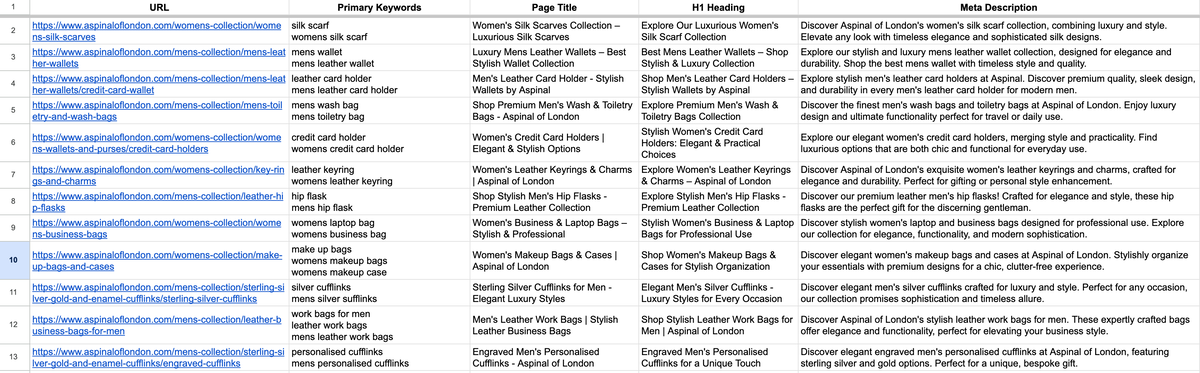
- The sheet will then fill up with the metadata.
- If the results aren’t quite what you’re looking for, adapt the prompts to however you want GPT to format your metadata.
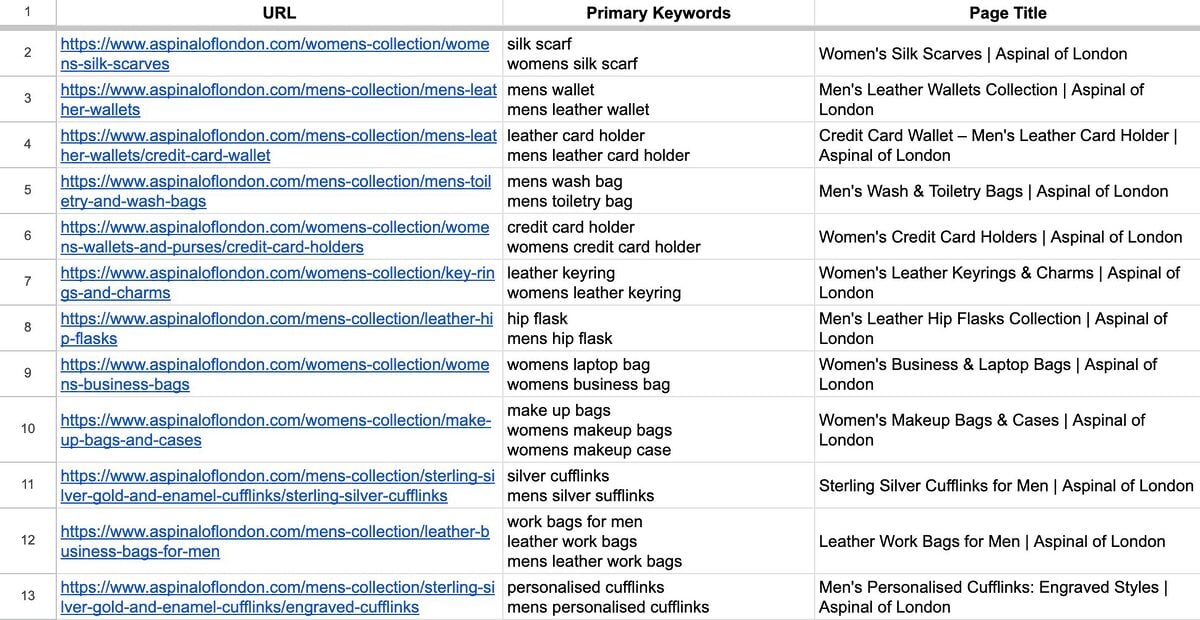
For example, I’ve updated the prompt for the Page Title so that it keeps the page title concise by only including the name of the collection and adds “ | Aspinal of London” to the end of the page title.
This is because in my example, I’m working with collections pages.
This is the new prompt for page titles:
“Generate an SEO-optimized page title based on the given webpage URL and primary keyword.
Guidelines:
- The title should be between 50–60 characters
- The title should be compelling and include the primary keyword naturally
- Prioritize clarity, if it’s a collection page, just keep the page title as the name of the collection i.e. “Women’s Silk Scarves | Aspinal of London”.
- If the page suggests a specific intent (e.g., informational, transactional), tailor the title accordingly.
- Add “ | Aspinal of London” to the end of the page title
- Just generate the title, do not put it in quotation marks or prefix it with any other information like “Title:”
Inputs:
- URL: [url]
- Primary Keywords: [primary keywords]
You can then execute the Scenario once more and the tool will overwrite the first instance.
These are the new page titles, which are great for these collections pages:
You now have a system that you can reuse again and again to generate metadata for both existing and new pages on your website.
Execute an AI-Driven Blogger Outreach Campaign
Blogger outreach is the process of engaging with niche-relevant bloggers to secure high-quality backlinks and expand your reach.
By earning backlinks from authoritative sites, you strengthen your website’s credibility in Google’s eyes—boosting rankings, increasing organic traffic, and driving more visibility for your products or services.
It’s a strenuous process that involves sourcing relevant websites, writing customized pitches that will engage bloggers and securing backlinks from them.
Especially if you want to do it at scale.
Automation tools can be extremely useful and powerful at speeding up this process – that’s what we’ll go through now.
Prospecting Relevant Domains with Ahrefs
The first step in any blogger outreach campaign is to find websites related to your niche that can link back to your website.
A super effective way to find these websites is to look at which ones are already linking to your competition.
Ahrefs’ Link Intersect tool allows you to find untapped backlink opportunities by providing you with a report of domains not linking to you, but are linking to your top ranking competitors.
Pro Tip: If you’re unsure who your top competitors are, search Google for the main keyword your product or service page targets and note the top-ranking similar businesses.
For example, an online store selling wallets will want to rank for the keyword “mens leather wallets”.
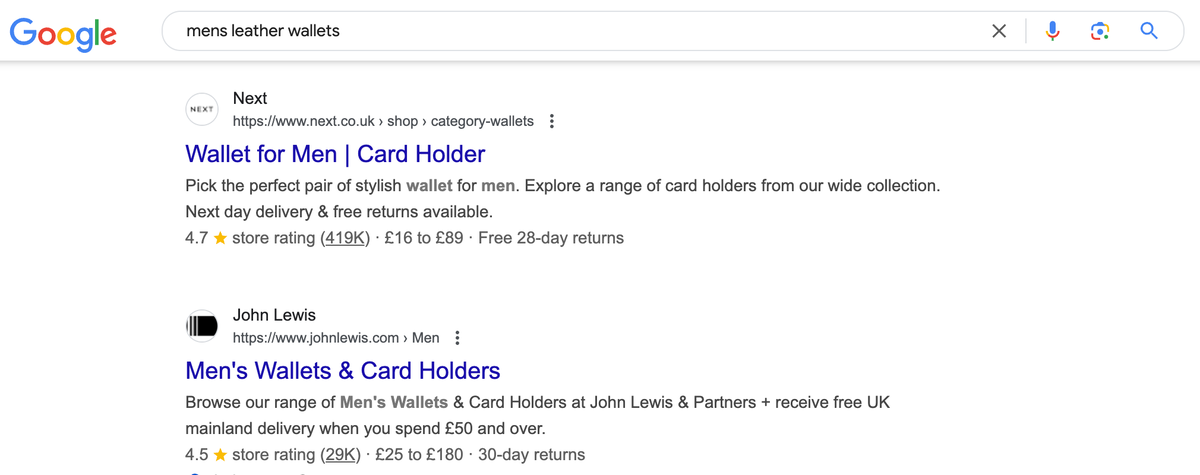
Review the competitors (i.e. other companies selling the same products as you or offering the same service) and add them (up to 10) to the Link Intersect tool along with your domain (or target URL).
You can find the tool under the Competitor Analysis option at the top, then select “Referring domains”.
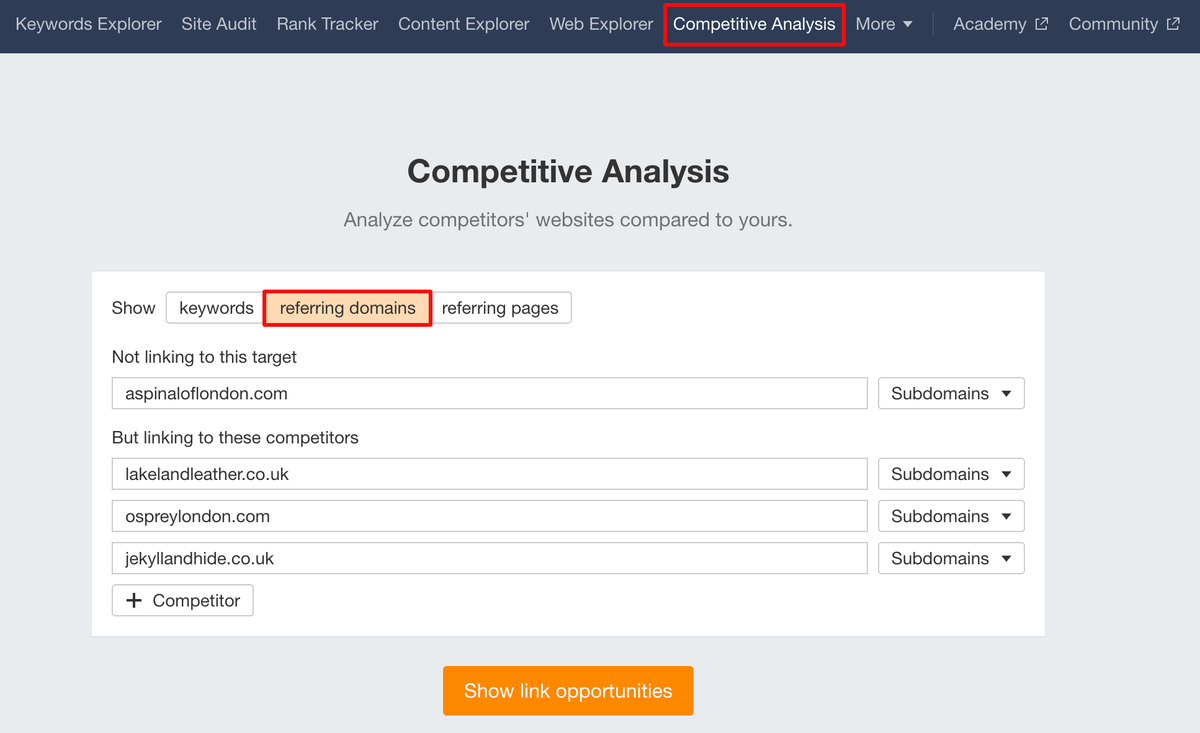
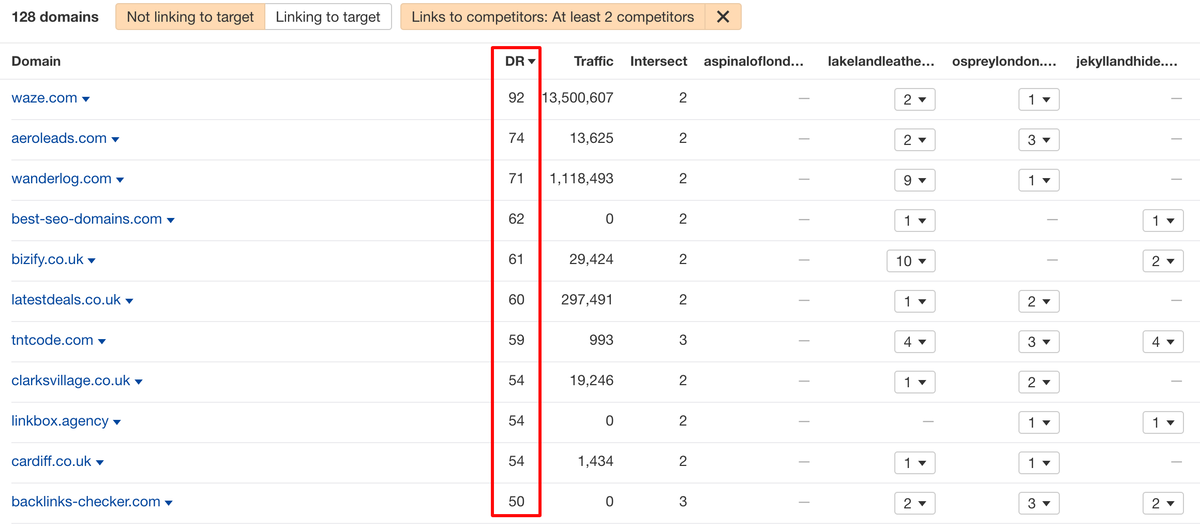
Click “Show link opportunities”, then filter the results to display only prospects that at least two of your competitors have backlinks from. Hit “Apply” to refine the list.
This may narrow down the list significantly, but importantly increases your chances of securing quality backlinks from websites that are actually relevant.
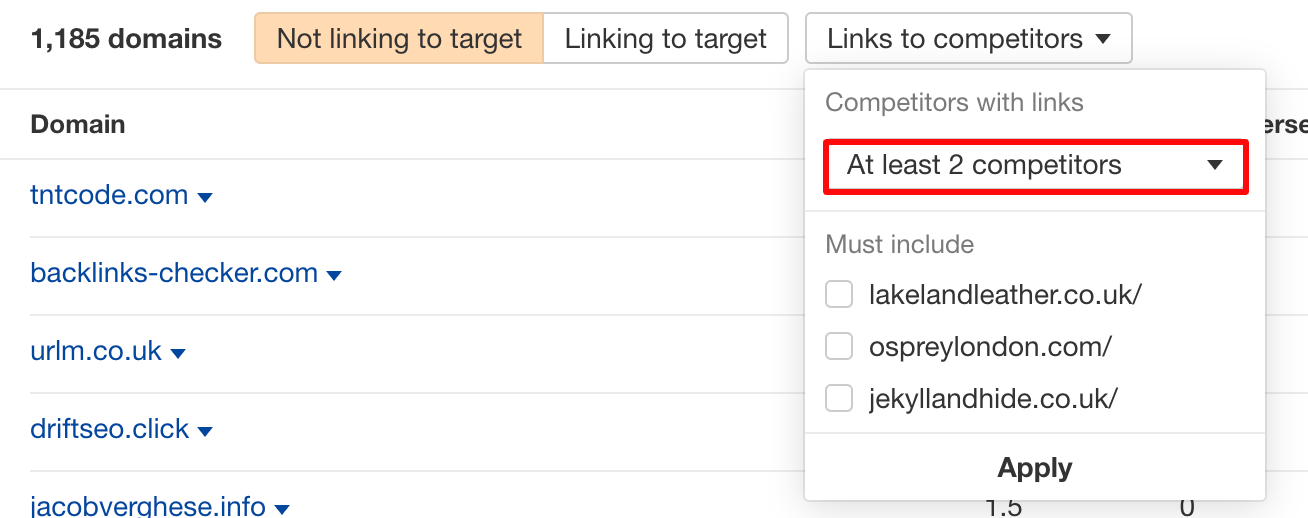
Sort the websites by DR (from High to Low) to view the prospects that have the most link power (i.e. domain rating/authority).
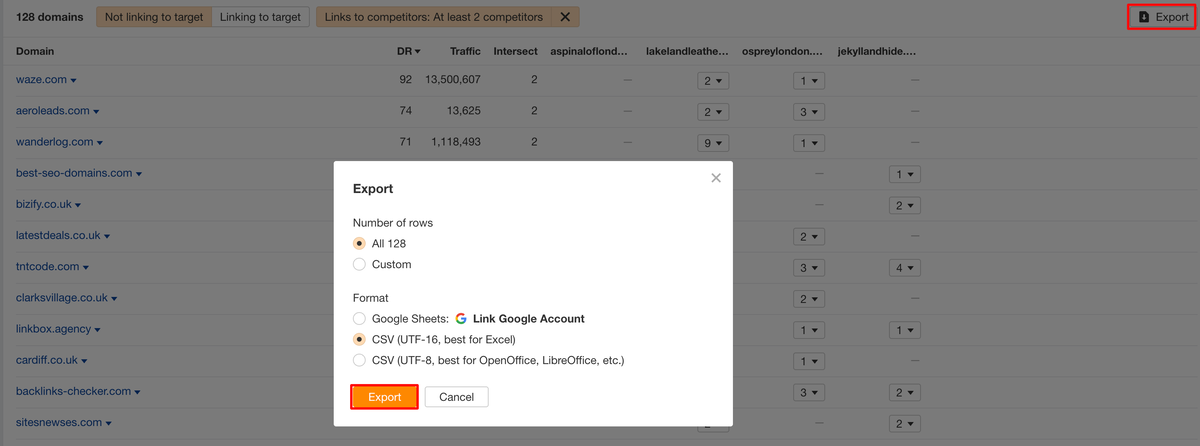
Export the list.
Paste them into a Google Sheet and remove all columns except the Domain and DR.
Here’s a template that you can use.
Review the domains and pick out the ones that are most relevant to your niche and also have high DRs (i.e. minimum of DR 25).
For illustrative purposes, I’ve created a dummy shortlist of 5 domains.
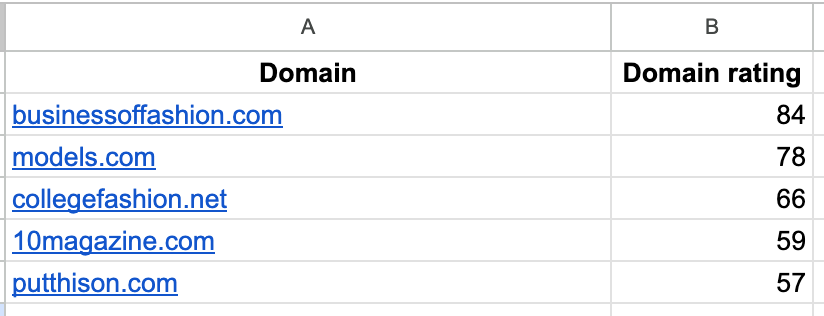
We’re going to use this sheet later on to craft our pitches.
Get Their Contact Details
Once you’ve prepared your shortlist, you’ll need to find the contact information for them i.e. an email address of a writer at the site, or via their general contact form.
You can usually find email addresses on the contact us page of the website or you can use a tool like Hunter.io (there’s a Chrome extension that allows up to 25 searches per month for free).
If you’re using their website, click on “Finder”, make sure “Find email by company” is selected, type the domain into Domain Search and hit enter.
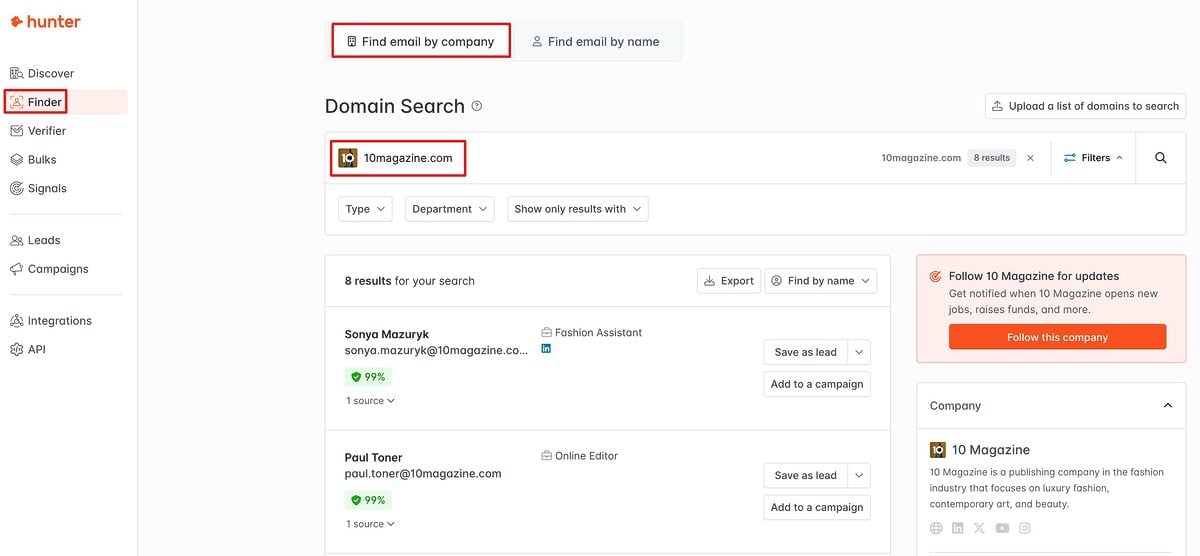
You can see that the tool has found 8 email addresses for the example site.
Fill out your spreadsheet with the first name, last name and email address.

Crafting A Pitch with Make.com
Writing a compelling pitch is often the toughest part of a successful blogger outreach strategy – if it’s not going to grab the blogger’s attention, your chances of getting a resonance (let alone a backlink) drop dramatically.
To do this at scale, we’re going to use the power of Make.com once again.
On your spreadsheet, add a new column for “Outreach Pitch”. This is where the automated outreach pitch is going to be inserted.
Here’s what you’ll need for this Scenario:
- Make.com account (free or Pro)
- Google Sheets – this is the sheet with your prospect information.
- OpenAI account (plus or pro subscription required to use API)
Let’s begin!
- Create a new Scenario and name it.

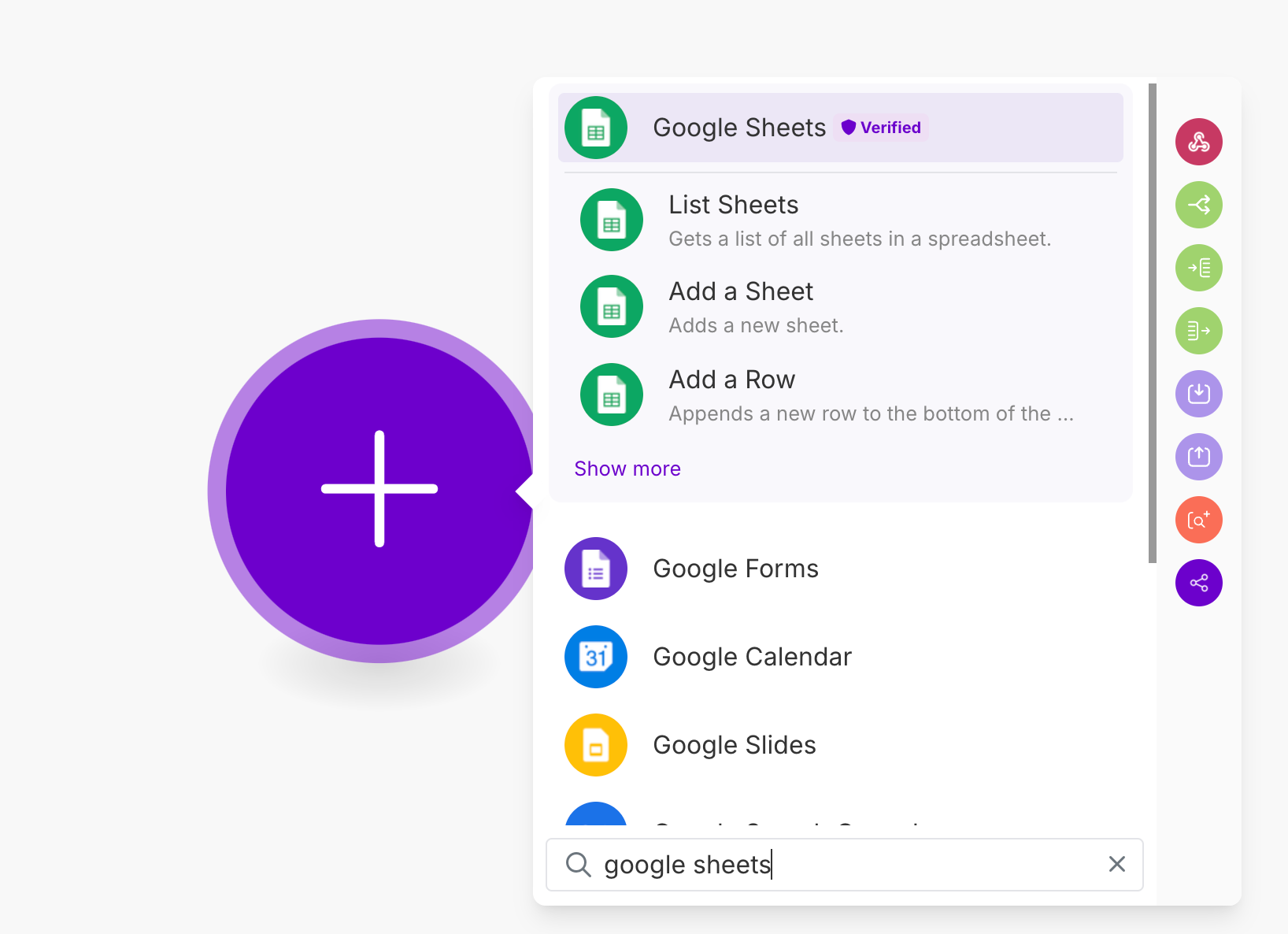
- Add the Google Sheets module and set up the connection..
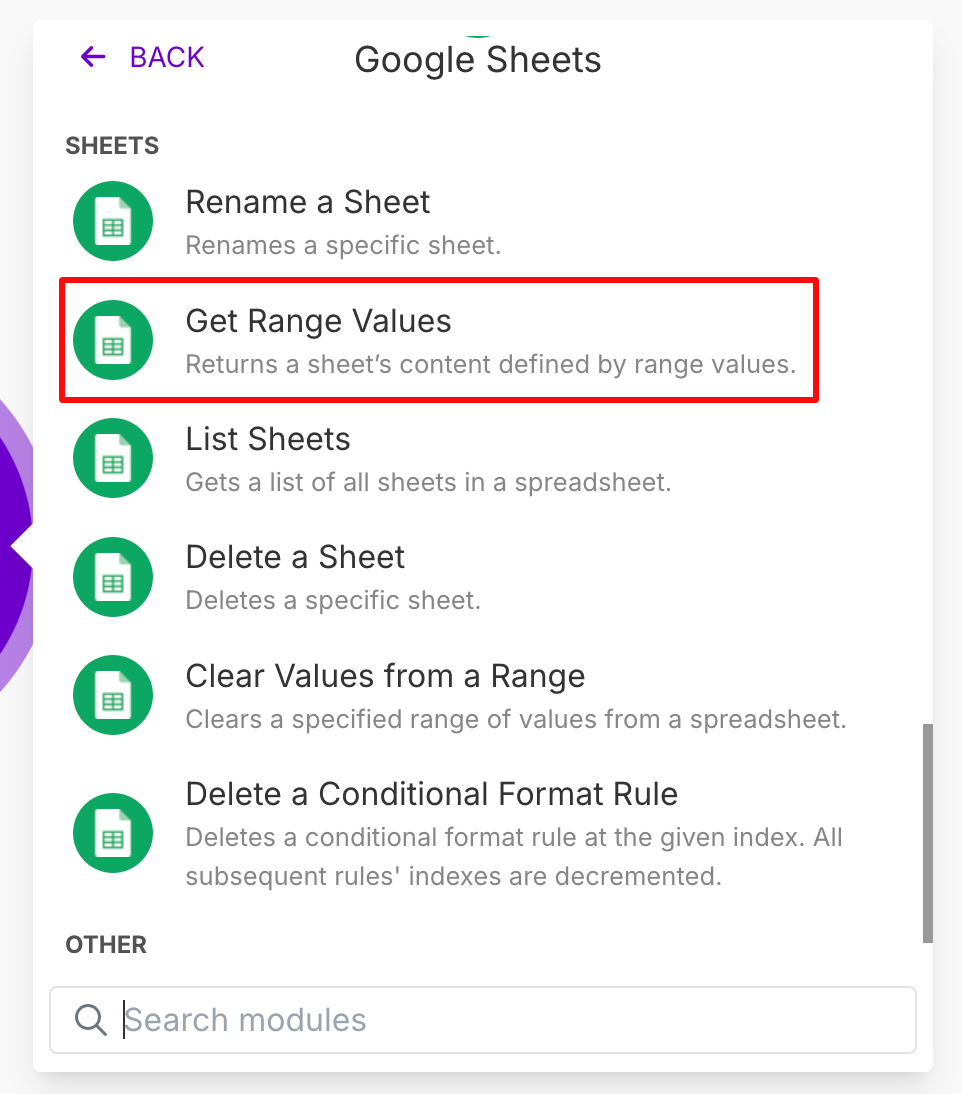
- Select “Get Range Values”, so that it know what data to use.
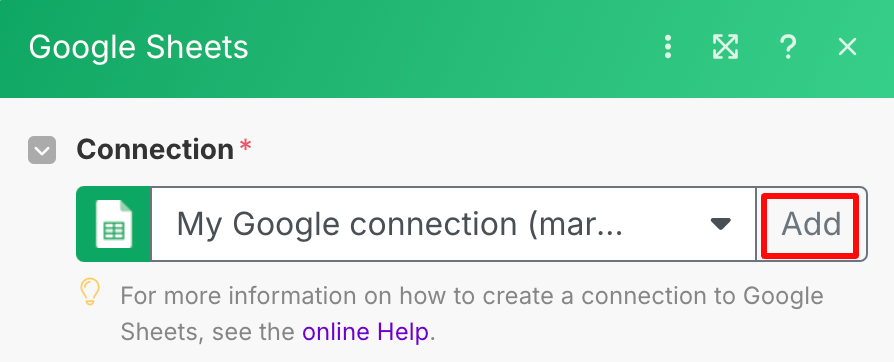
- Connect to your Google account by adding a connection.
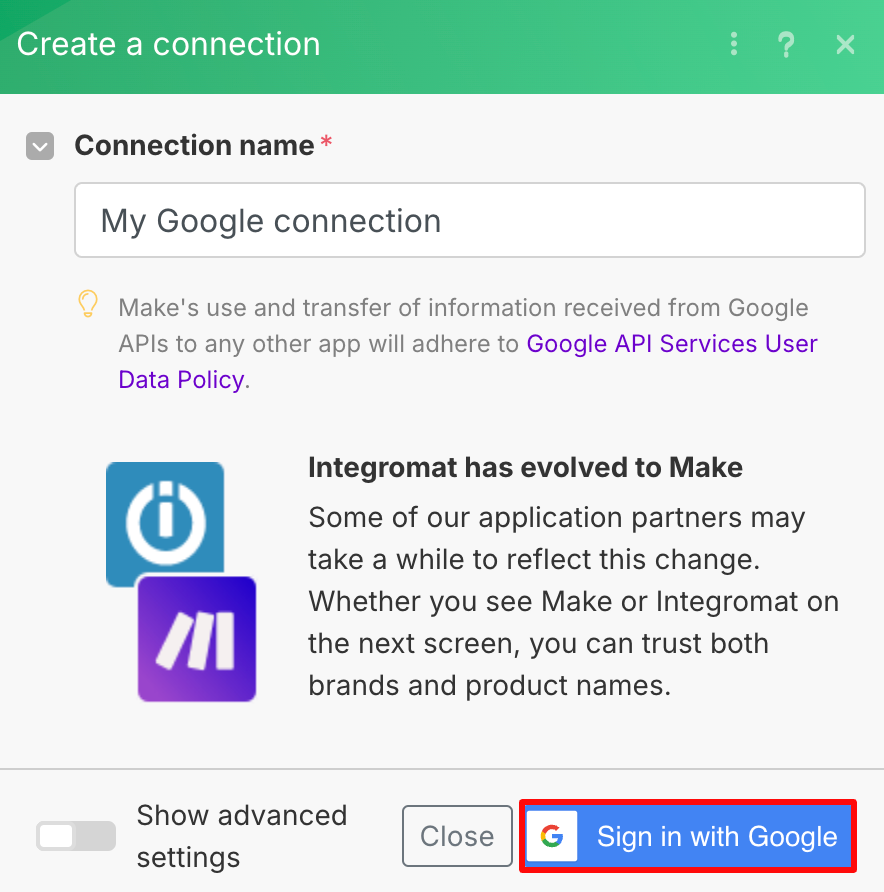
- Give it a name and follow the steps to Sign in with Google.
- Make sure:
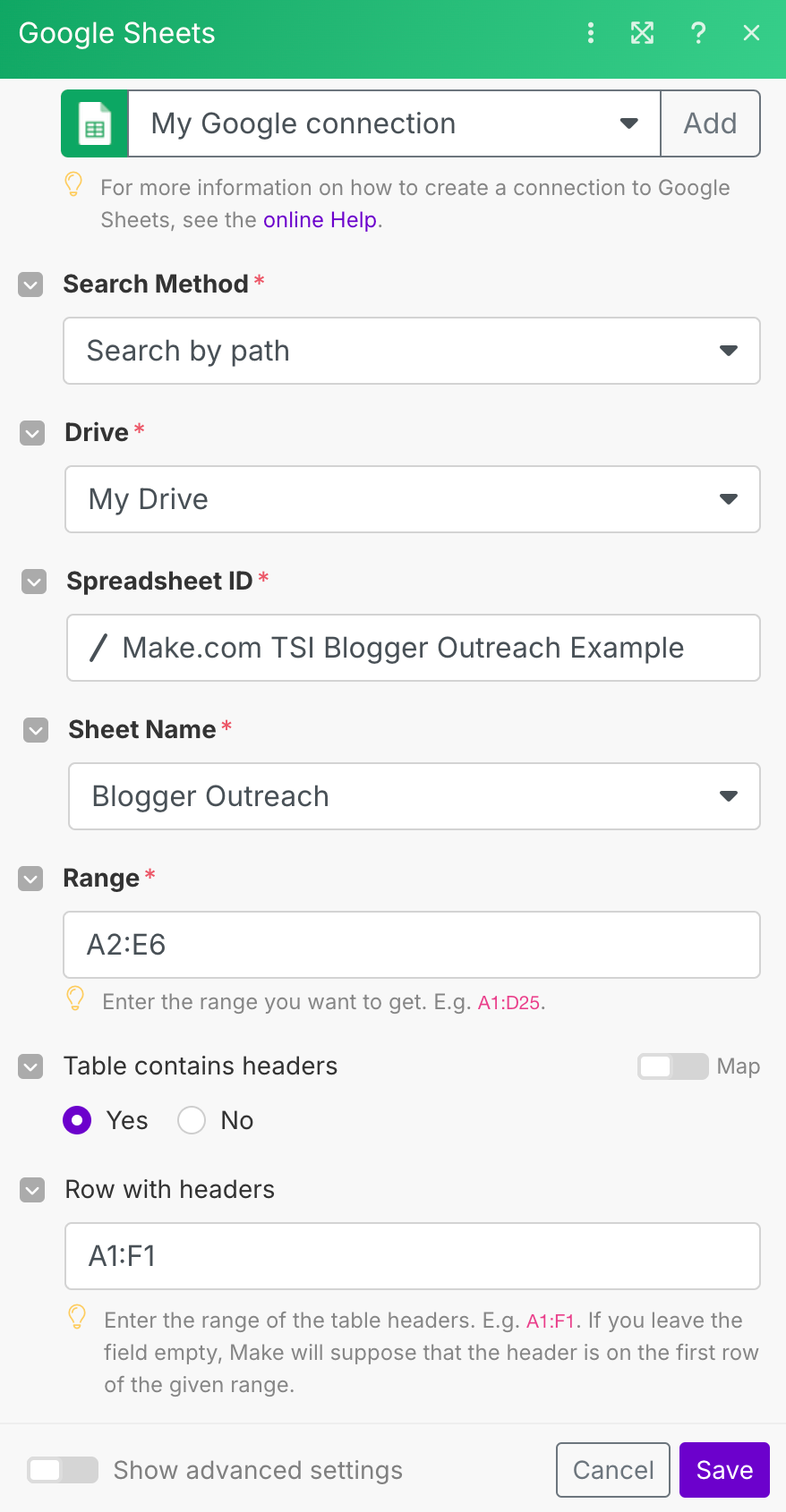
- Search Method is set to “Search by Path”
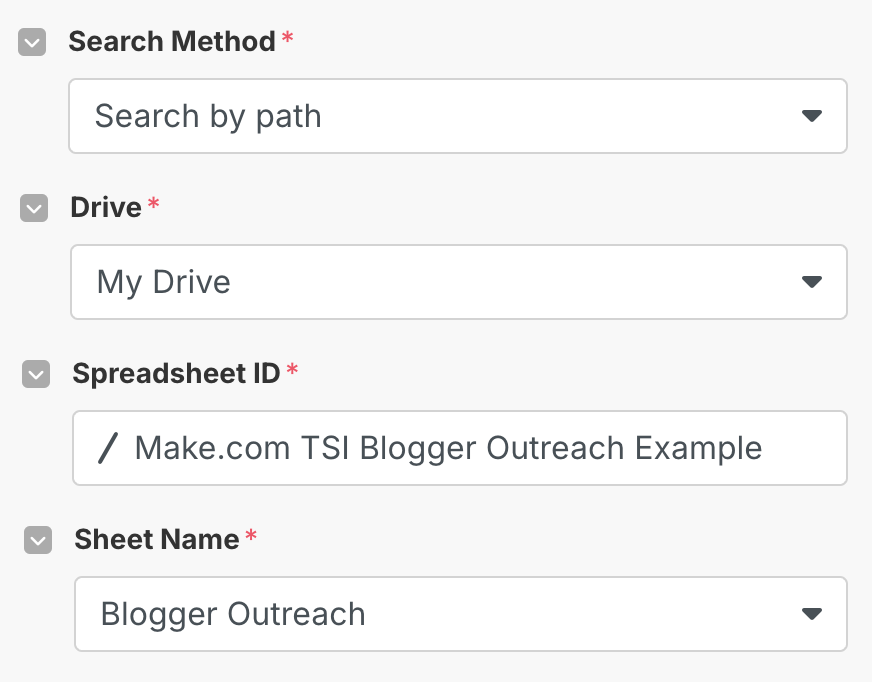
- Drive is set to “My Drive”
- Spreadsheet ID is linked to the file where your sheet is saved in your Google Drive i.e. if it’s saved in the root folder, then the path would be “/ Your Spreedsheet Name”.
- Sheet Name is selected according to which sheet the information is saved on i.e. “Blogger Outreach”.
- For the Range, you want to give it the range of the cells whose data you want the tool to use. This is the domain, DR, first name, last name, email address columns.

- For Table contains headers, select “Yes”, then enter the range for where the headers are i.e. “A1:F1”

- Click Save.
- Now that the spreadsheet is connected, the next step is to add a new module for OpenAI so that we can connect it to ChatGPT.
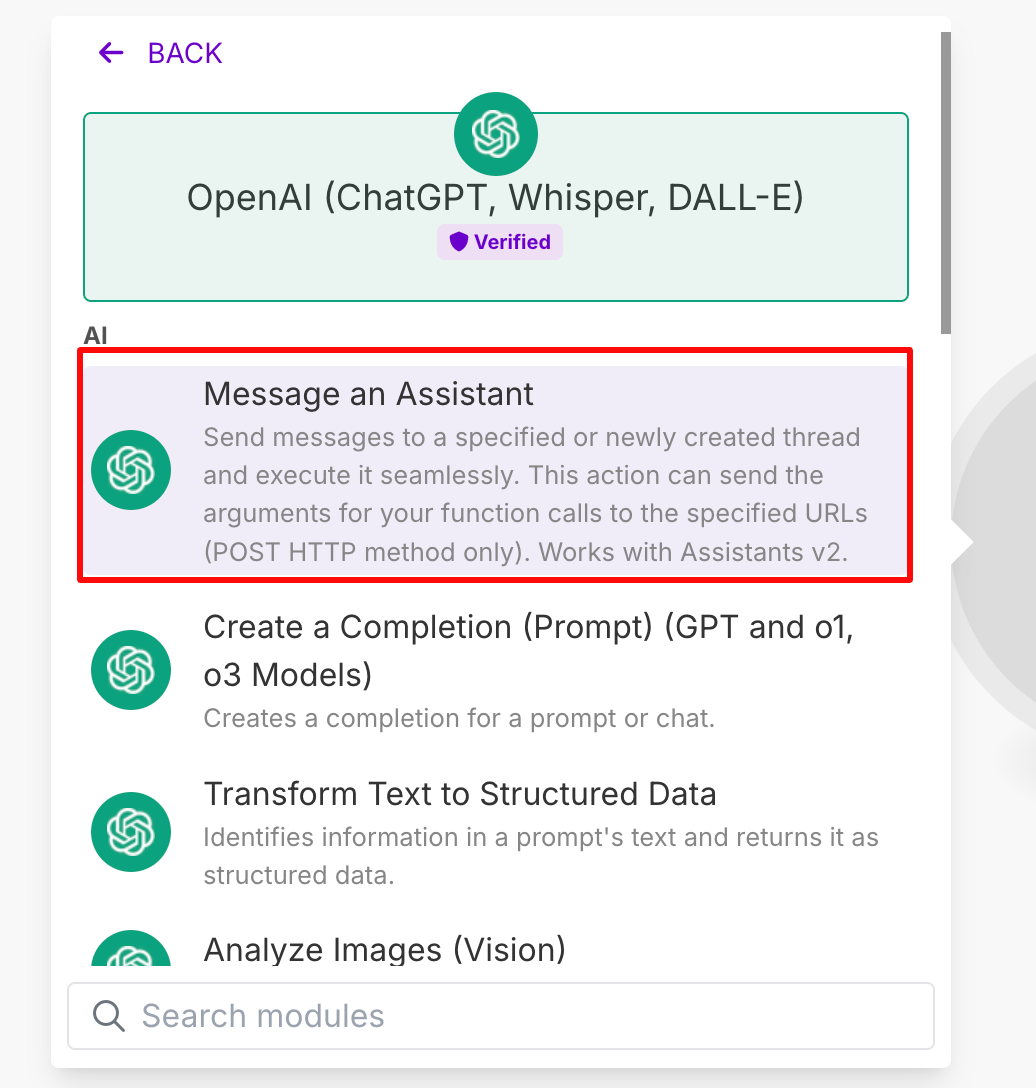
Click Add another module and search OpenAI.

- Select Message an Assistant.
- Like you did with your Google account, connect your OpenAI account.
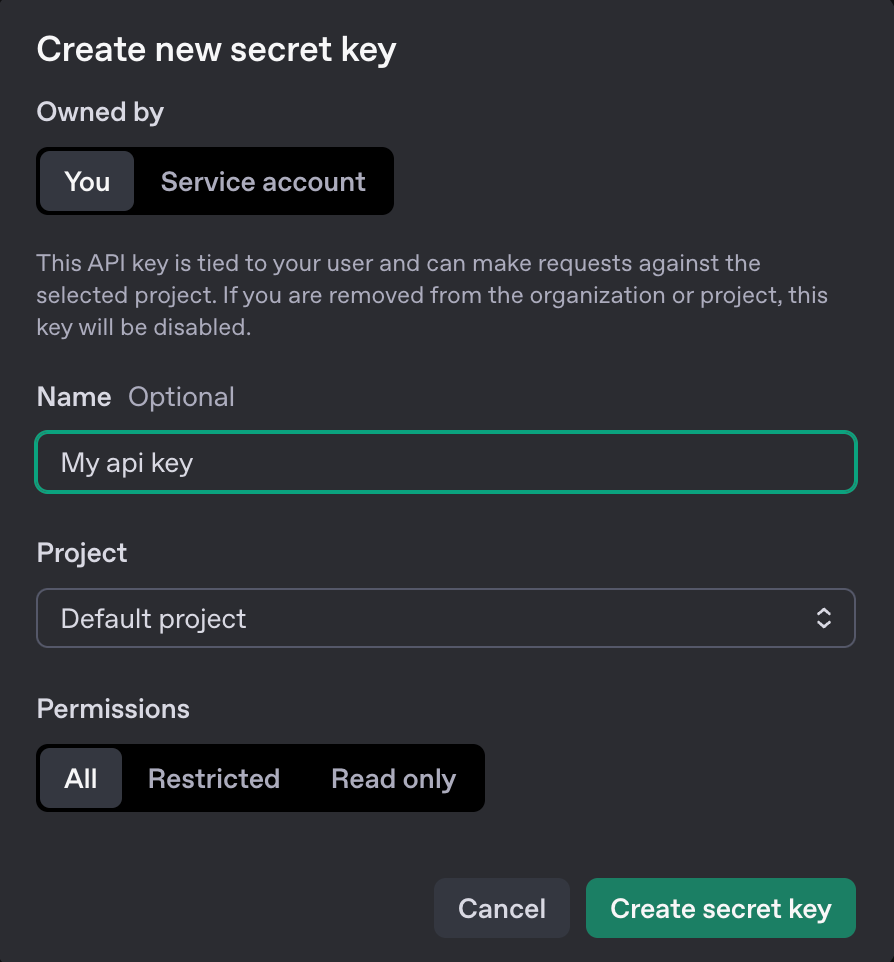
To do this, you’ll need to create an API key by signing into your account and going on this page.
Give it a name and click “Create secret key”.
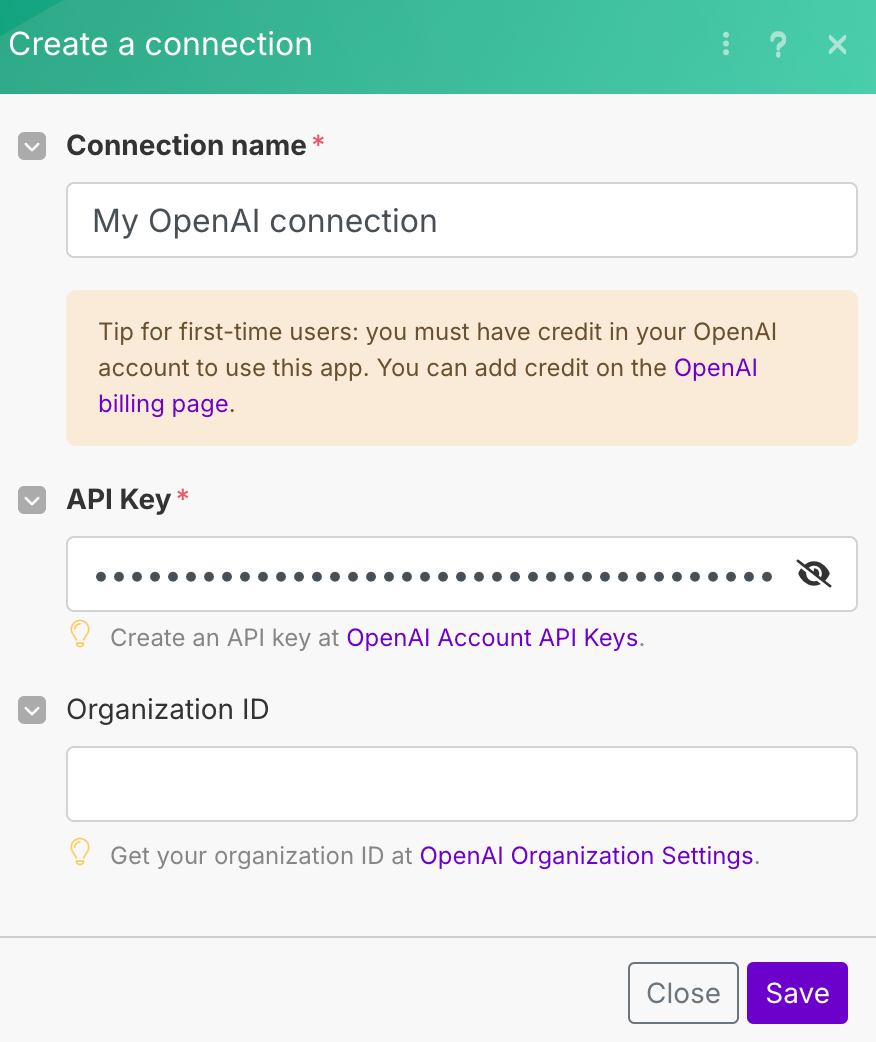
- Copy the API key into the API key field on Make.com and hit Save.
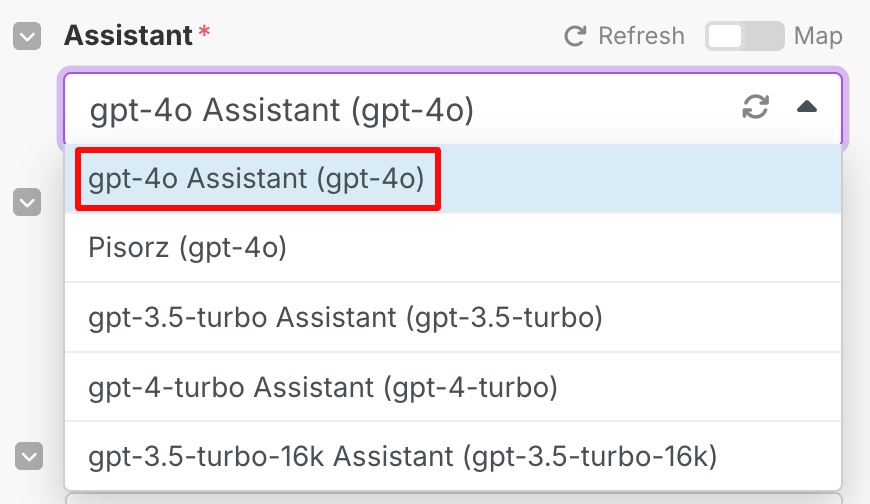
- Select a GPT assistant, depending on whether you have a free, paid or pro account, the options will vary. Select any that have Assistant next to them i.e. “gpt-4o Assistant”.
- Keep Role set to User.
- The Message is where we’ll add our prompt to instruct the GPT to write our pitches.
Here’s the prompt for you to paste in:
“Please write a blogger outreach pitch for [domain] with the goal of writing and publishing a guest post for their site. Please include an engaging subject line.
My website is [type your domain here], and I [describe what you do i.e. sell clothes, provide social media marketing services etc.].
The author that I’m reaching out to is [first name] [last name]
Guidelines:
- The subject line should be brief, stand out while encouraging a click. Bonus points for using a pun related to their website’s topic. It need not give away that we’re looking to guest post.
- Use Humor and Have Fun In the first sentence, break the ice with some topic-related humor.
- Focus on what’s in it for them.
- Offer 3 different topic titles to offer to write for their site. Highlight why you’ll be able to add unique value to each of these content pieces.
- Be Brief, 200 words maximum
- Make sure the email is addressed to [first name]
- Avoid using emojis
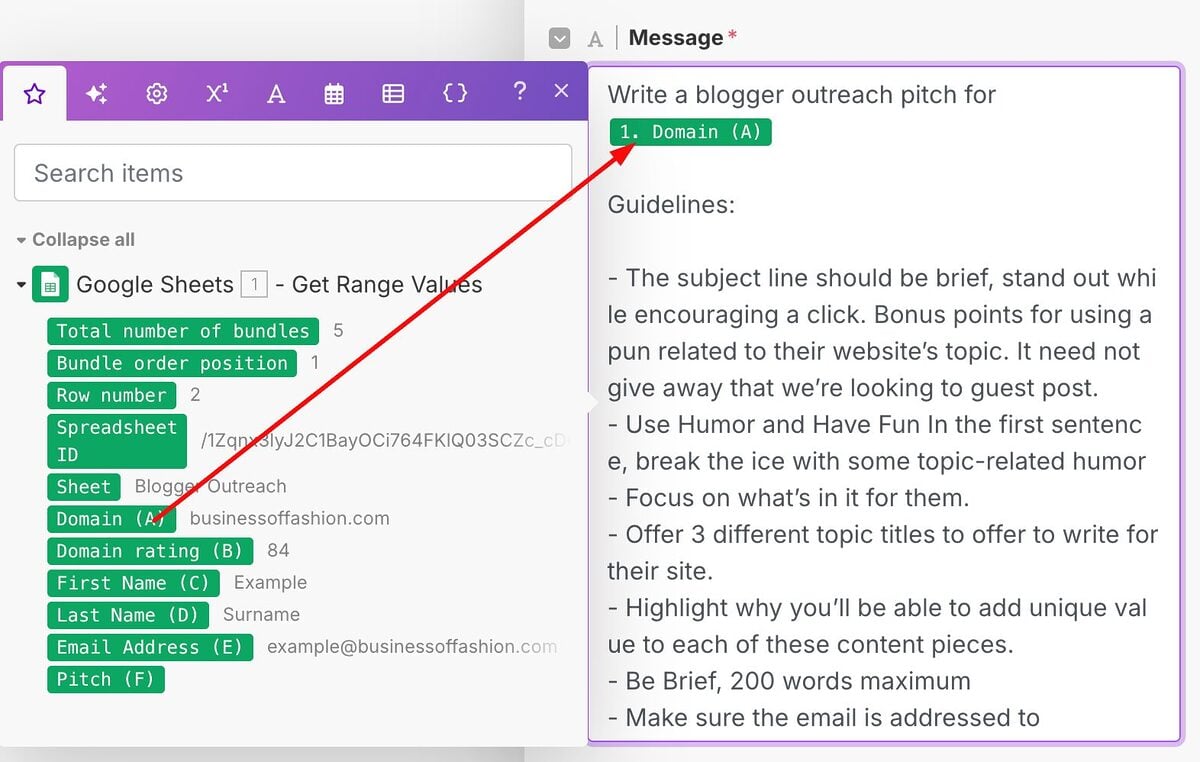
Add in the following placeholders into the prompt from your spreadsheet.
- Domain
- First name
- Last name
- The remaining settings can be left unchanged. You can hit Save.
- Add another Google Sheets module.
- This time select the Update a Row option as we’re going to get the tool to automatically fill out the Pitch column in our sheet.
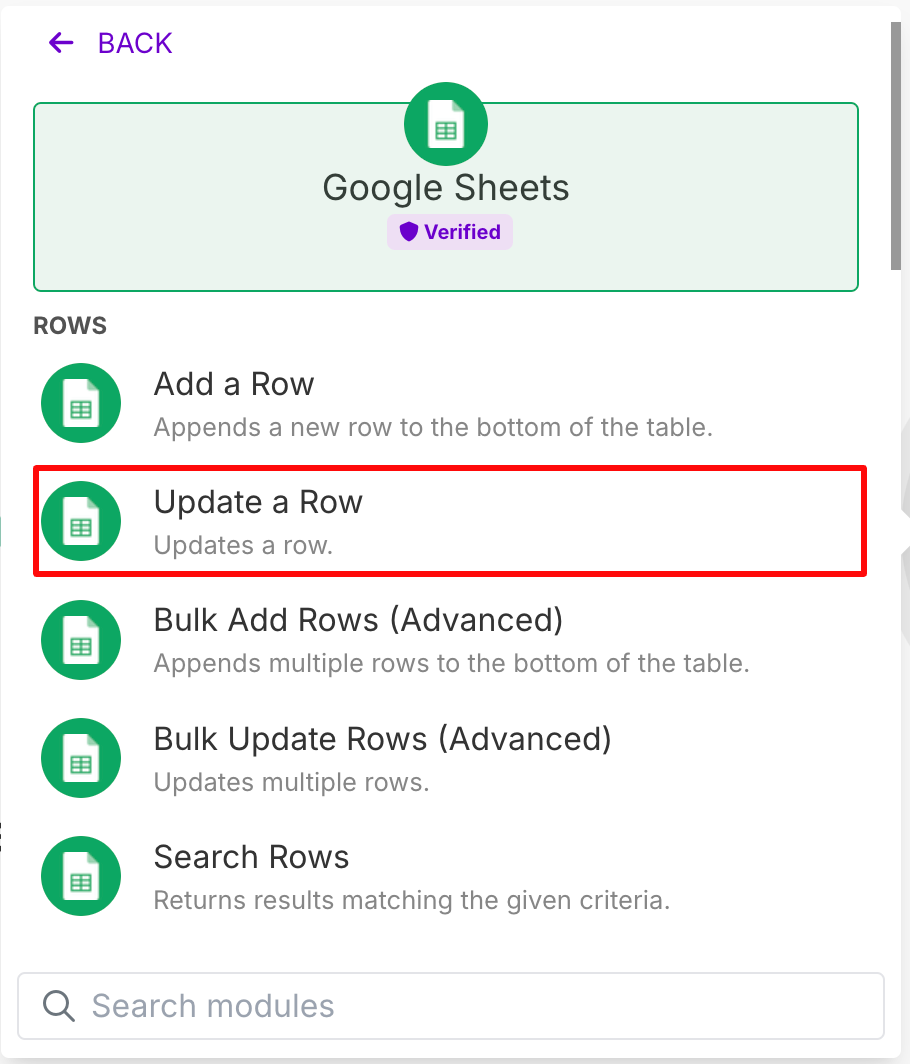
- Like you did before, create make sure it’s connected to your Google Drive and fill out the fields to connect it to your sheet.
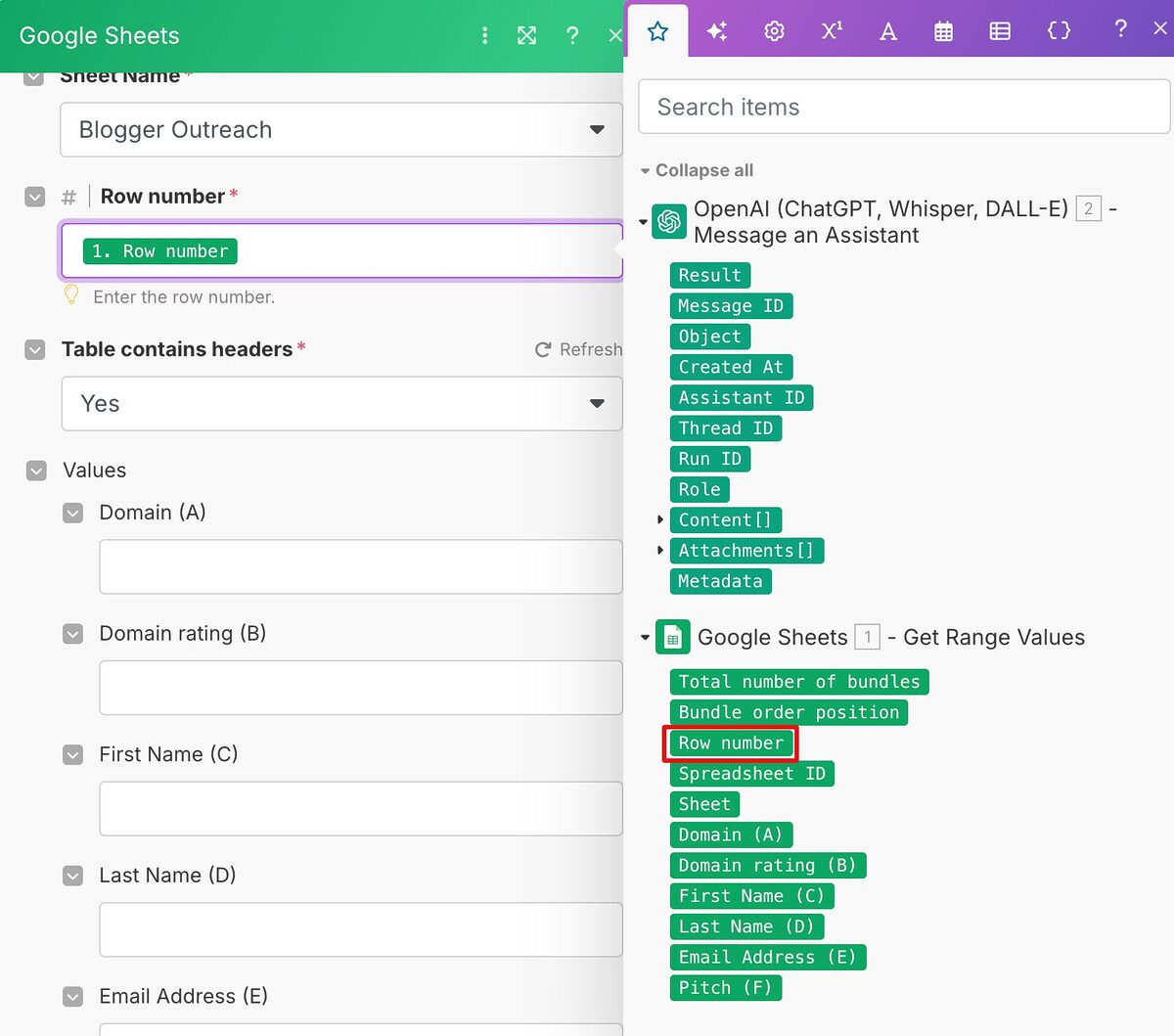
- Select Row number so that the tool has a reference to each row in your sheet and make sure Table contains headers is set to Yes.
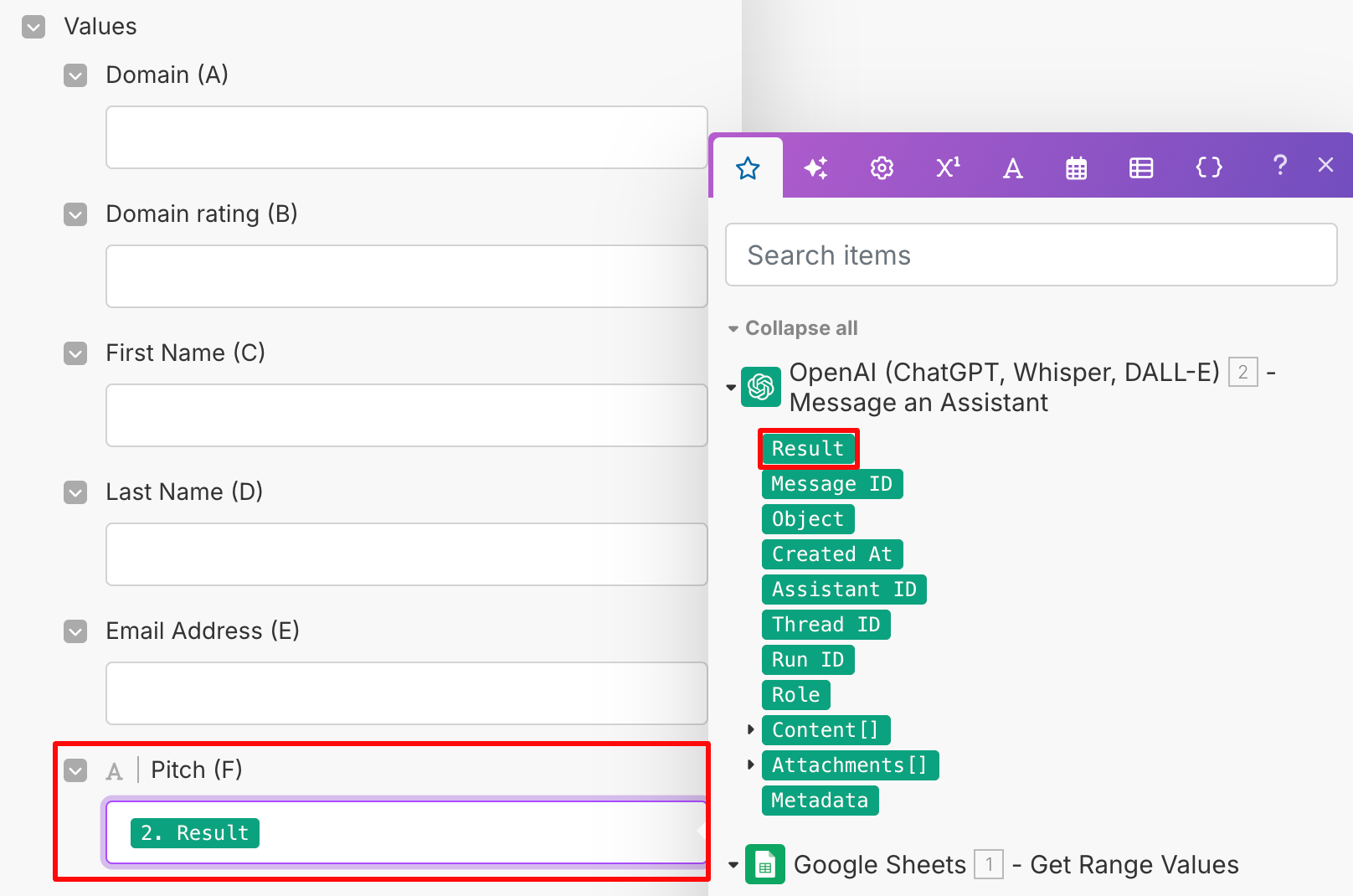
- Add the Result (this is the response from ChatGPT) into the Pitch column and hit Save.
- That’s it! Click Run once to execute the Scenario.

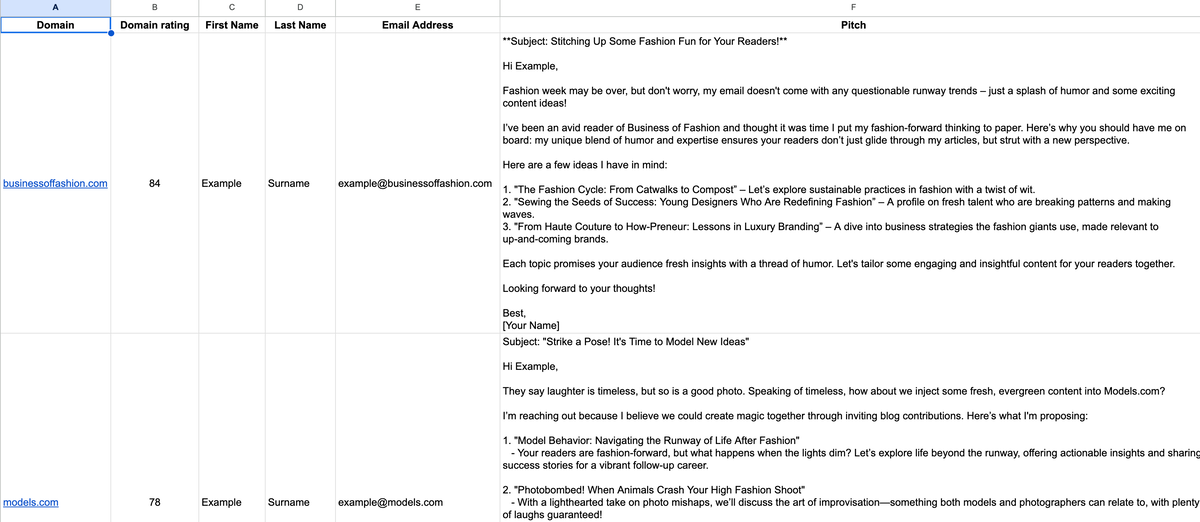
- The sheet should then fill up with the pitch, which you can review / edit how you see fit before sending.
- If the results aren’t quite what you’re looking for, adapt the prompt and execute the Scenario once more.
You’ve now got a system that you can reuse again and again to create unique outreach pitches at scale.
The Results
When compared year-on-year, monthly revenue grew from $166k to $491k.
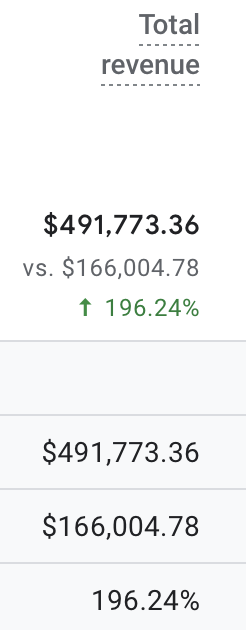
During the same period, the organic traffic increased by 255% from 21.6k to 76.9k sessions per month.
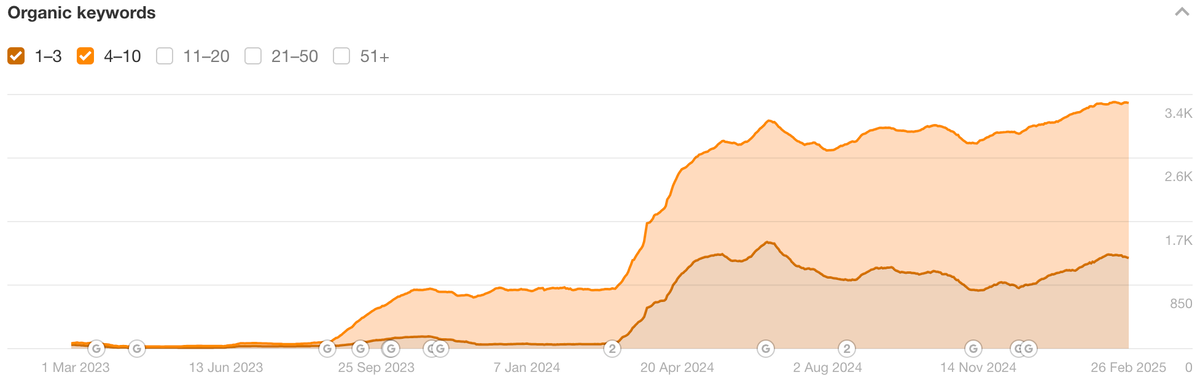
The number of keywords within the top 10 positions of Google has reached a record high of 3,288 keywords.
Conclusion
In this case study, I’ve shown you how to:
- Create a content system using Google Sheets, ChatGPT and Make.com that allows you to produce more high-quality content for supporting pages, at a lower cost, to boost your SEO results.
- Build your very own automated metadata generator that drives organic traffic and conversions by producing SEO-optimized page titles, H1 headings, and meta descriptions at scale.
- Execute an AI-driven link building strategy that quickly strengthens your credibility in Google’s eyes by securing high-quality backlinks from relevant publications.
If you’re looking for help with your site’s SEO, get in touch with my team at The Search Initiative.